July 7th, 2026
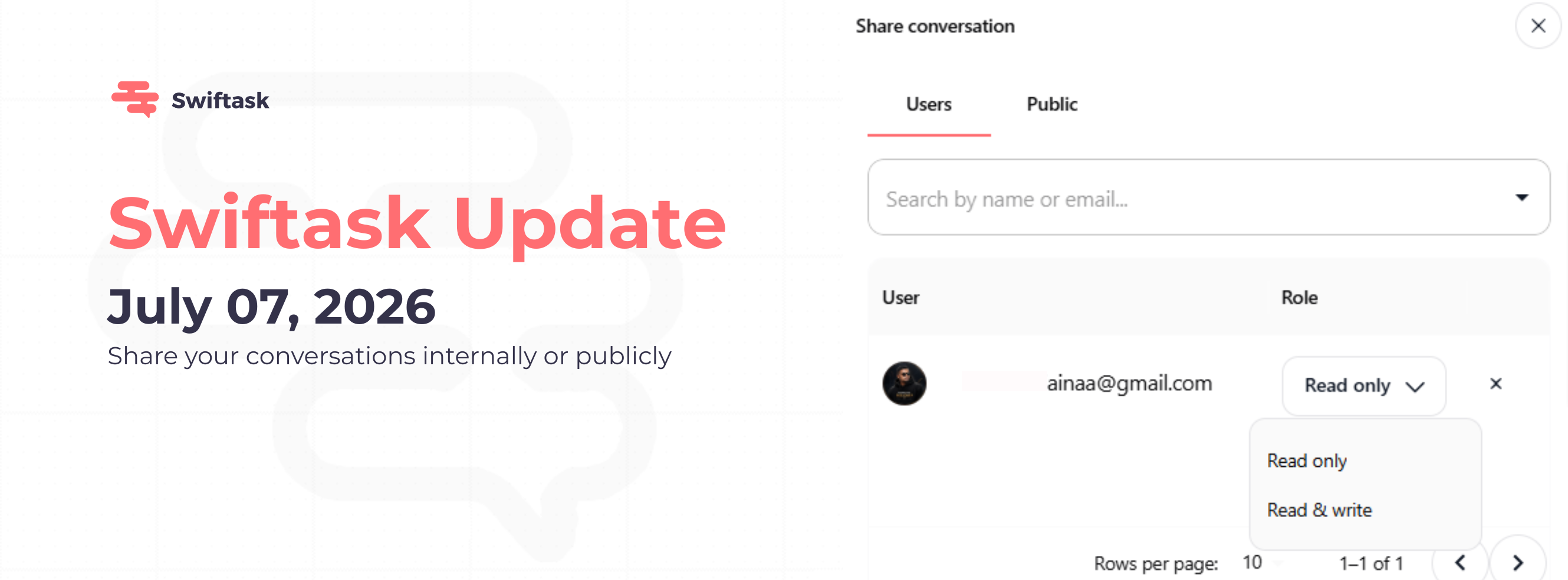
Share your conversations internally or publicly — July 2026 update
We've made it easier to work together. You can now share any chat session with teammates or with anyone outside your workspace. Whether you need feedback from a colleague or want to show a completed analysis to a client, sharing is one click away.
Share conversations with teammates
Invite colleagues to view or edit any chat session. Each person gets the access they need: view-only to review your work, or read and write to jump in and add their own messages. Find it by clicking the Share button at the top of any conversation.
Two permission levels: "Read only" (view only) or "Read & write" (view, reply, and edit own messages)
Search teammates by name or email
Manage access anytime by reopening the share dialog

Share conversations publicly via link
Need to share a chat with someone outside your workspace? Generate a unique public link anyone can open without logging in. Perfect for sharing analysis results with clients, getting external feedback, or archiving conversations for reference.
Anyone with the link can view the conversation in read-only mode
Public link format:
https://www.app.swiftask.ai/public/chat/[slug]Revoke access anytime by disabling the public link
Recipients see only the conversation thread — no sidebar, no other chats

Find shared conversations easily
A new "Shared chats" collection is now available in your chat session list, located at the bottom of your collections. It groups every conversation shared with you or accessible via public links. No more hunting through your chat history.

How to test it
Open any conversation and click the Share button (top right of the chat header)

In the "Users" tab: search for a colleague and assign "Read only" or "Read & write"
In the "Public" tab: toggle "Anyone with the link" to generate a shareable URL, then copy it
Send the public link to someone outside your workspace, they can open it immediately without signing up
Check your chat session list and go to the "Shared chat" collection at the bottom to see all your shared conversations.
Available on all Swiftask plans. Open any conversation and hit Share to try it.
Tomorrow, join our webinar on building a fleet of cold-emailing agents to save time on your prospecting.