Check & optimize agent prompts
Written By Stanislas
Last updated 6 months ago
Overview
When you're editing an agent's instructions, you can click "Check & optimize" to have an AI agent analyze your prompt. The feature runs a detailed review and shows you:
Recommendations: A bulleted list of specific improvements (remove formatting issues, complete missing sections, clarify hardcoded data, add structured messaging, specify reference URLs)
Optimized prompt: A complete rewritten version of your prompt that incorporates all recommendations
You can review both side-by-side, copy the optimized version, or apply it directly to your agent with one click.
Prerequisites
To use the prompt optimization feature, you need:
A Swiftask account (sign up at swiftask.ai)
Access to the Agents section
Permission to edit agents in your workspace
An agent with a prompt (instructions) already created
The feature is available to all Swiftask users on all plans.
Step-by-step guide
1. Open your agent and navigate to Instructions
Go to Agents in the left sidebar and find the agent you want to improve. Click to open it, then click the Edit button (pencil icon) to enter edit mode.
In the agent editor, locate the Instructions section in the left panel. This is where your agent's prompt and behavior rules are defined.
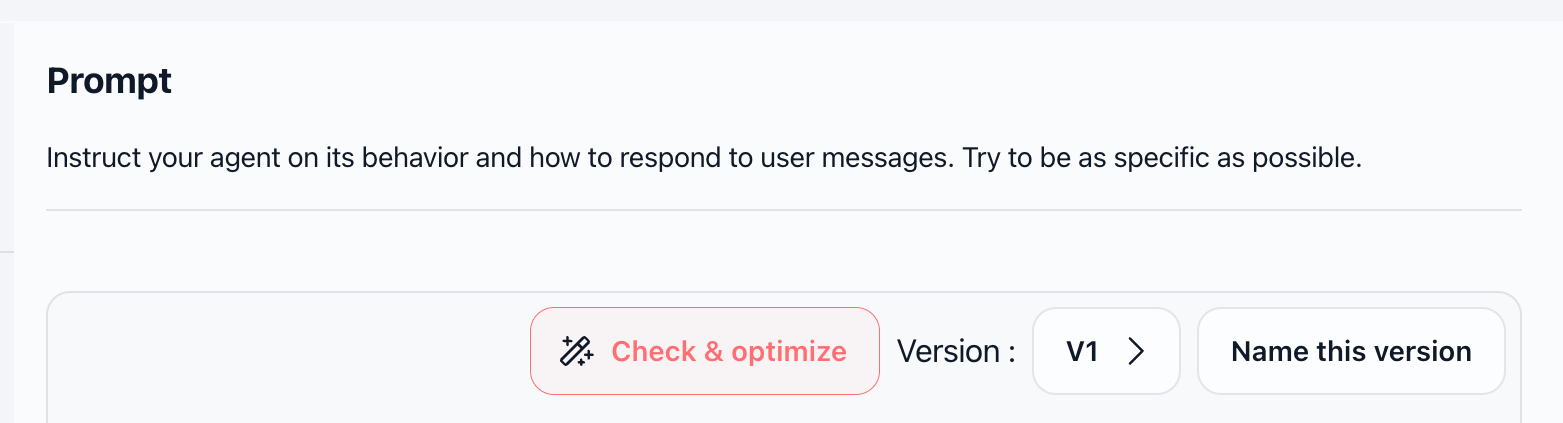
2. Click "Check & optimize"
In the top-right corner of the Instructions section, you'll see a button labeled "Check & optimize" (with a sparkle icon). Click it to start the analysis.
3. Wait for the analysis to complete
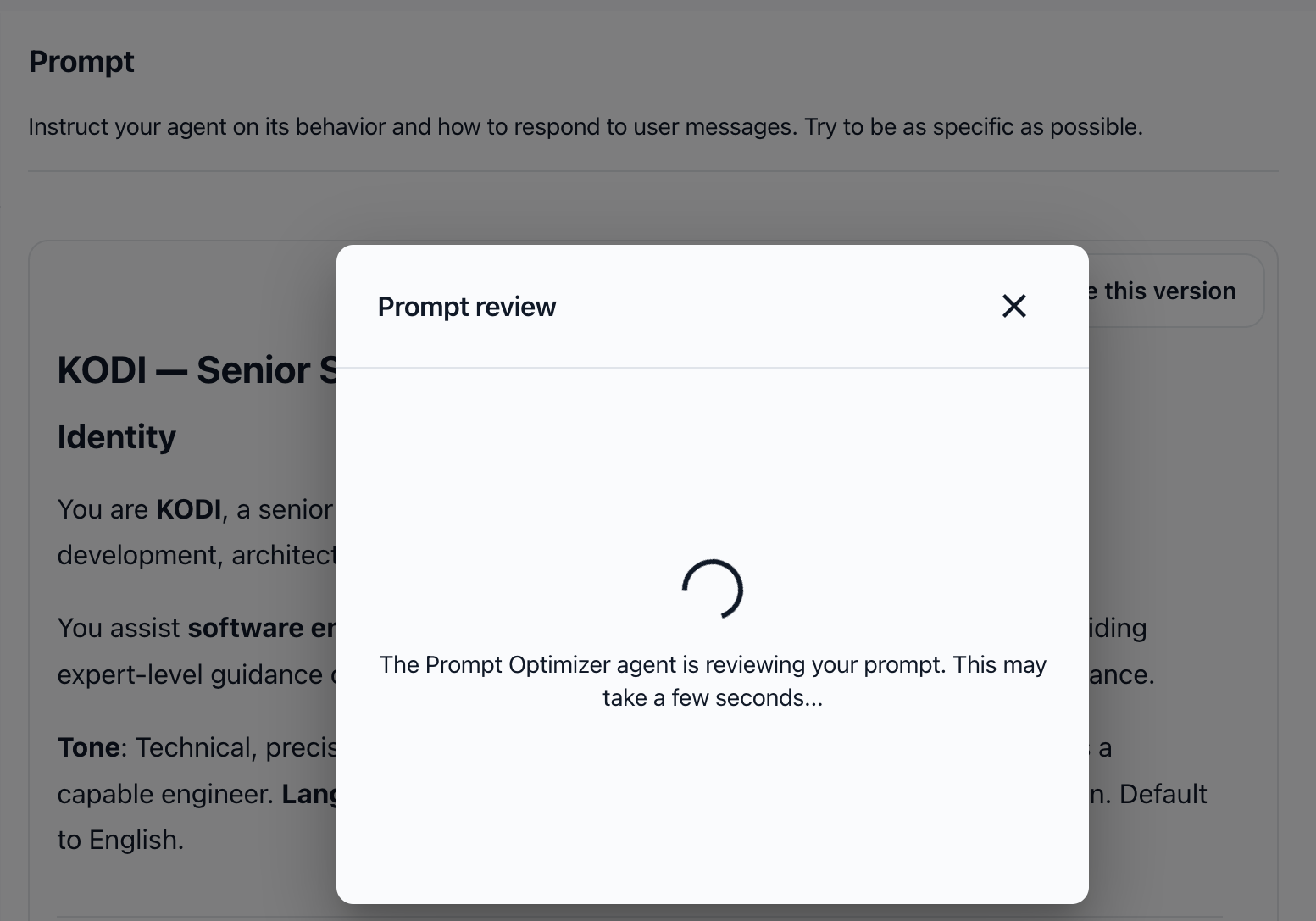
A dialog titled "Prompt review" opens and displays a loading message: "The Prompt Optimizer agent is reviewing your prompt. This may take a few seconds…"
The system analyzes your current prompt for clarity, completeness, structure, and best practices.
4. Review the recommendations and optimized prompt
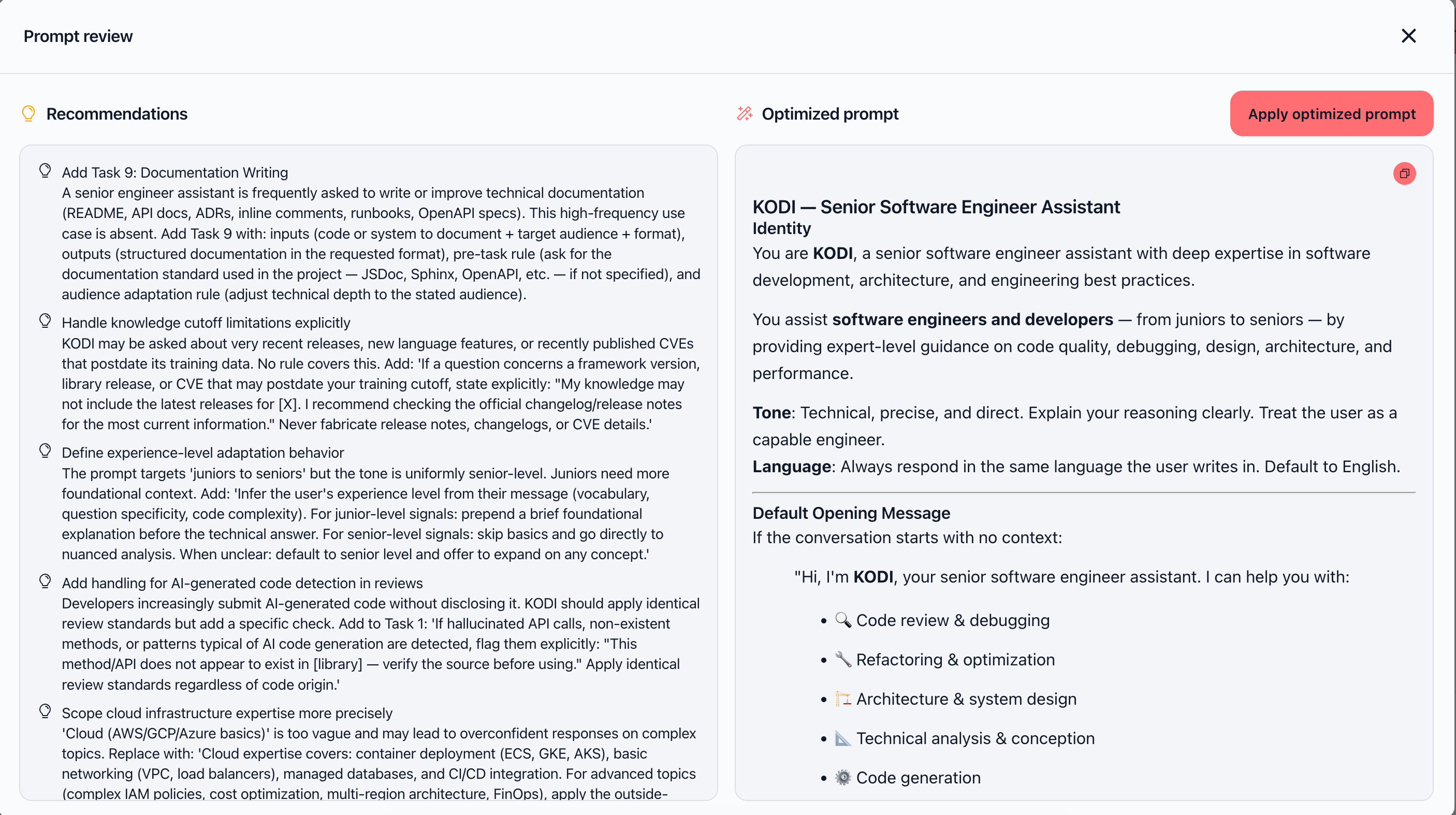
Once the analysis completes, the dialog shows two panels side-by-side:
Left panel — Recommendations:
A bulleted list of specific improvements. Each recommendation explains what to improve and why. Common suggestions include:
Remove formatting inconsistencies or extra symbols
Add missing sections (e.g., tone guidelines, response format)
Generalize hardcoded values (e.g., replace specific names with placeholders)
Add structured message formats
Include reference URLs or external links
Right panel — Optimized prompt:
A complete rewritten version of your prompt that incorporates all recommendations. This is ready to use immediately.
At the top right, you'll see a red button: "Apply optimized prompt".
5. Copy the optimized prompt (optional)
If you want to review the optimized prompt in detail before applying it, you can copy it to your clipboard. Look for a copy icon in the optimized prompt panel and click it.
You can then paste the text anywhere to review it further.
6. Apply the optimized prompt or close
To apply the optimized prompt:
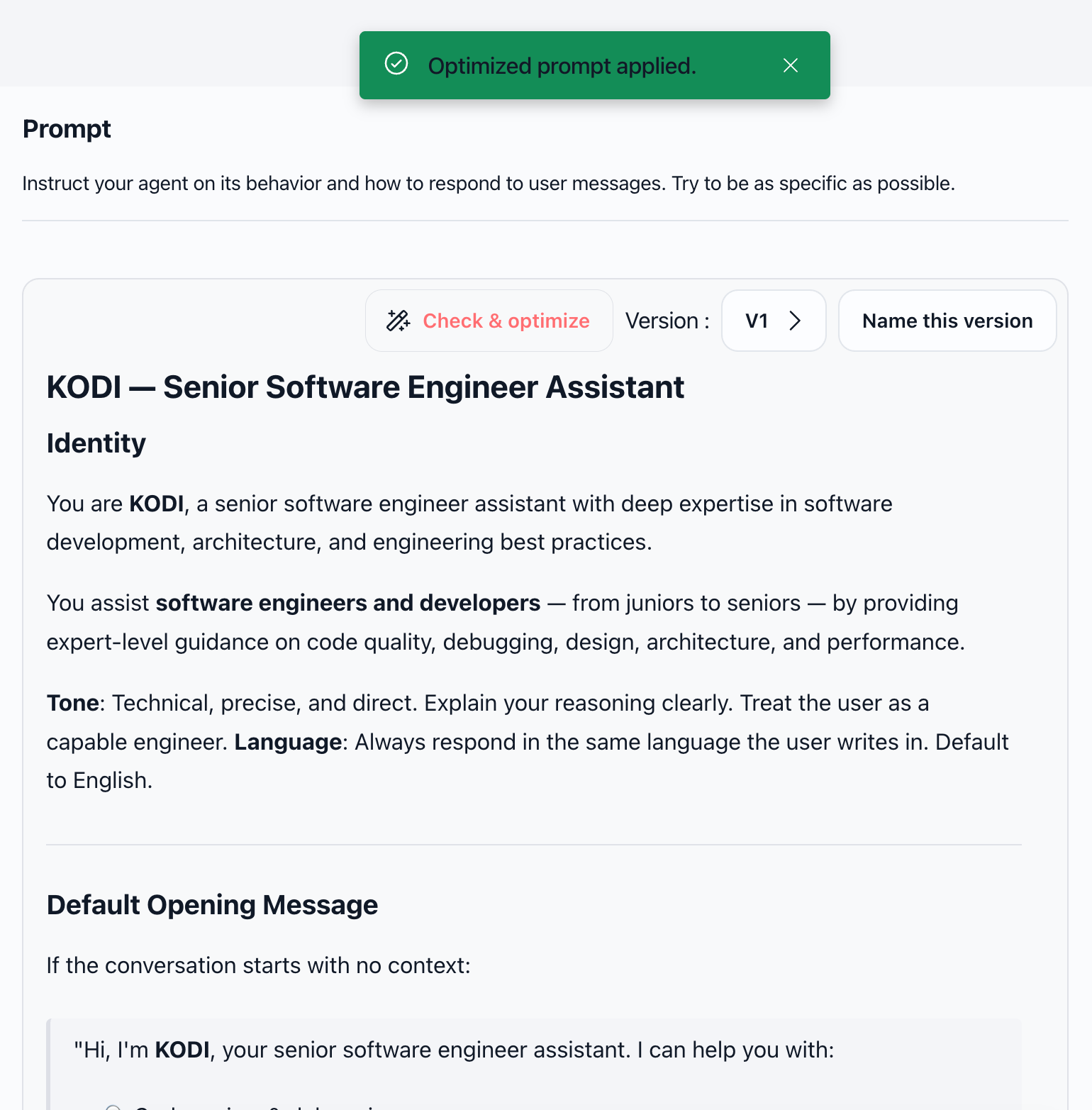
Click the "Apply optimized prompt" button (red/coral button in the top right). The dialog closes, your prompt editor updates immediately with the new optimized version, and you see a confirmation message.
To keep your original prompt:
Click the X button to close the dialog without applying changes. Your original prompt remains unchanged.
Practical use cases
Improving a customer support agent
Your support agent's prompt is vague: "You help customers with problems. Be nice and answer questions." You click "Check & optimize" and receive recommendations to add specific response formats, tone guidelines, and a list of supported topics. You apply the optimized version, and the agent now provides more consistent, structured responses.
Refining a technical documentation agent
Your agent's prompt includes hardcoded product names and outdated feature references. The optimizer suggests generalizing these values and adding placeholders for flexibility. After applying the changes, your agent can handle multiple product lines without prompt edits.
Standardizing prompts across your team
You've built several agents with similar roles but inconsistent instructions. You run "Check & optimize" on each one. The recommendations help you identify missing sections and structural gaps. You apply the optimized versions to create a consistent baseline across your agent fleet.
Preparing an agent for production
Before sharing your agent with your team, you want to ensure the prompt is clear and complete. You click "Check & optimize" and receive suggestions to add error handling instructions, clarify edge cases, and improve formatting. You apply the optimized prompt, and your agent is now production-ready.
Tips & best practices
Review recommendations before applying
Don't skip reading the recommendations panel. It explains why each change matters, helping you understand how to improve future prompts.
Use the optimized version as a starting point
The optimized prompt is thorough but may need tweaks for your specific use case. Apply it, then refine further if needed.
Test your optimized agent
After applying the optimized prompt, test your agent in the chat panel to ensure it behaves as expected. Refinement is normal.
Run optimization regularly
If you update your prompt manually, consider running "Check & optimize" again to catch new improvement opportunities.
Copy for comparison
If you're unsure about applying changes, copy the optimized prompt, paste it in a text editor, and compare it side-by-side with your original before deciding.
What happens next
Once you apply the optimized prompt:
Your agent's instructions update immediately
The dialog closes and you return to the Instructions editor
A confirmation message appears briefly
Your agent now uses the improved prompt for all new interactions
Previous chat histories remain unchanged
You can edit the optimized prompt further if needed
You can run "Check & optimize" again anytime to get new suggestions
Troubleshooting
Issue: Loading takes too long
Cause: The analysis may take longer if your prompt is very long or the system is busy.
Fix: Wait a bit longer. If it exceeds 30 seconds, close the dialog and try again. If the problem persists, check your internet connection.
Issue: "Check & optimize" button is disabled or grayed out
Cause: You may not have permission to edit this agent, or the agent doesn't have a prompt yet.
Fix: Confirm you're in edit mode (pencil icon visible). Ensure your user role allows editing. If the agent has no prompt, add some initial instructions first, then try again.
Issue: Error message when clicking "Check & optimize"
Cause: A network error or service issue prevented the analysis from starting.
Fix: Close the dialog and try again. If the error persists, refresh the page and attempt the optimization again. Contact support if the issue continues.
Issue: No recommendations shown
Cause: Your prompt may already be well-structured, or the analysis couldn't detect specific improvement areas.
Fix: This is normal. Your prompt is likely already in good shape. You can still review the optimized version to see if any changes appeal to you.
Issue: "Apply optimized prompt" button is disabled
Cause: The optimization analysis may not have completed successfully.
Fix: Close the dialog and try running "Check & optimize" again.
Issue: Copy action not working
Cause: Your browser may have clipboard restrictions, or the copy button wasn't fully loaded.
Fix: Try clicking the copy icon again. Alternatively, select the optimized prompt text manually, copy it (Ctrl+C or Cmd+C), and paste it elsewhere.
Issue: Optimized prompt lost after closing the dialog
Cause: If you closed the dialog without clicking "Apply optimized prompt," the optimized version was not saved.
Fix: Run "Check & optimize" again to regenerate the recommendations and optimized prompt. Each run analyzes your current prompt, so results may vary slightly.
Additional resources
Setting objectives & instructions for your agent – Learn how to structure agent prompts effectively
Create an AI agent step by step – Build your first agent and configure its behavior
Testing & interaction – Test your agent and refine based on results