Generate branded slides from your visual identity
Written By Stanislas
Last updated 6 months ago
Overview
This workflow combines two simple parts: first, you clone the Sherlock Brand template and upload your brand document to generate a System Prompt. Then, you create a new agent from scratch, paste that System Prompt as the agent's instructions, and add the Artifact slide generator tool. Now you have a custom agent that creates slides perfectly aligned with your brand identity.
This is essential when you need to create multiple branded presentations quickly and ensure they're all consistent, whether they're pitch decks, reports, training materials, or client proposals.
Prerequisites
Access to Swiftask and the ability to create agents
At least one document that represents your brand identity (PPTX presentation, PDF, DOCX, or web page URL)
Access to the Sherlock Brand template in your Swiftask workspace
Step-by-step guide
Part 1: Generate your brand's System Prompt
Step 1: Navigate to the Agents section
In your Swiftask workspace, click on Agents in the left panel.
Step 2: Clone the Sherlock Brand template
Click Create agent.
Select From Template.
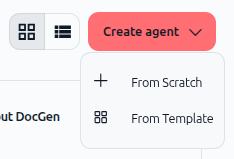
Search for "Sherlock Brand" in the template library.
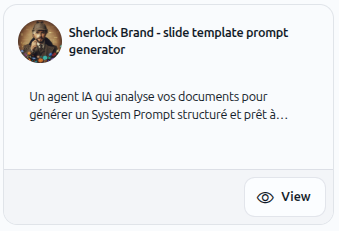
Click View on the Sherlock Brand agent card.
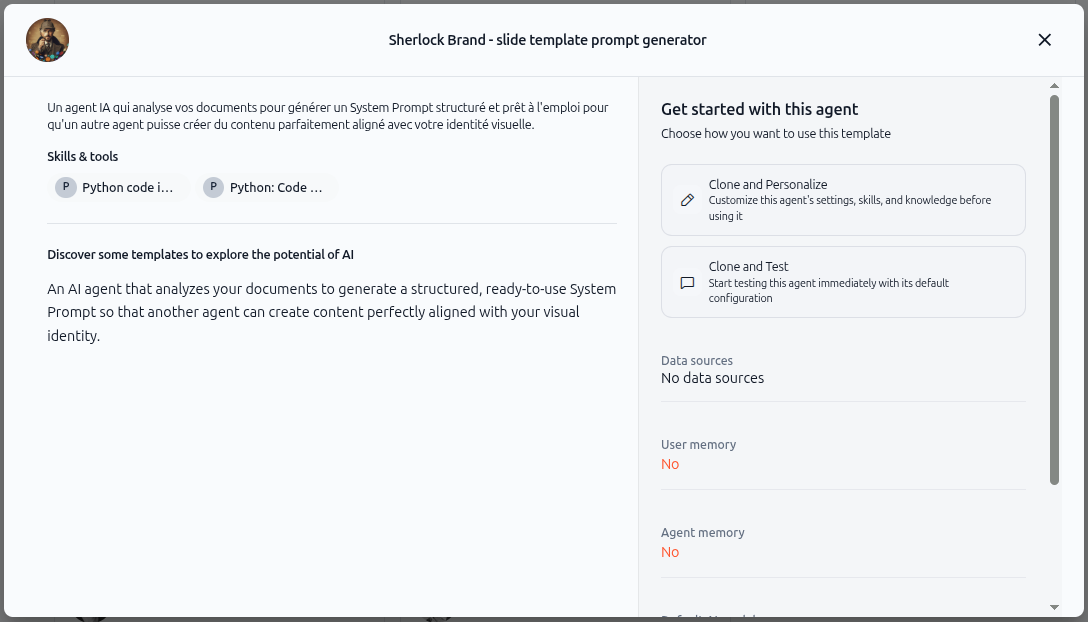
Click Clone and Test (or Clone and Personalize if you prefer to customize settings first).
Step 3: Upload your brand document
After cloning, you'll be redirected directly to the chat interface. Here you can upload your brand document.
Click the upload icon in the chat area.
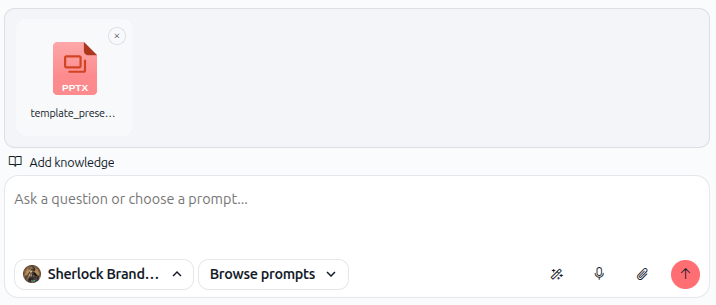
Select your brand document from your computer. This should be:
A PowerPoint presentation template that shows your design
A branded PDF or Word document
A screenshot of a branded website or design system
The Sherlock Brand agent will begin analyzing your document automatically.
Step 4: Wait for the System Prompt
The Sherlock Brand agent scans your document and extracts:
Color (backgrounds, text, accents, and borders)
Typography (font names, sizes, weights, line heights)
Visual hierarchy (how titles, subtitles, and body text differ)
Imagery style (photo realistic, flat illustration, line art, 3D)
Layout rules (margins, padding, alignment, whitespace)
Graphic elements (lines, shapes, headers, footers)
Tone of voice (formal, casual, playful, etc.)
Once the analysis is complete, the agent will output a System Prompt in plain text. This is a structured set of instructions that describes your entire brand identity in a format that another AI agent can understand and follow.
Step 5: Copy the System Prompt
Copy all the text of the System Prompt to your clipboard.
Part 2: Create your custom branded slide generator agent
Step 6: Create a new agent from scratch
Now you'll create a custom agent that uses the System Prompt you just generated.
In your Swiftask workspace, click on Agents in the left panel.
Click Create agent.
Select From Scratch.
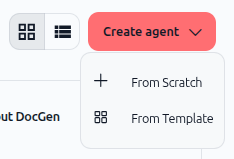
Give your agent a name, such as "My Brand Slide Generator" or "[Your Company] Presentation Creator."
Step 7: Paste the System Prompt as the agent's instruction
In your new agent's configuration, look for the Instructions section.
Clear any default text and paste the System Prompt you copied from Sherlock Brand.
Step 8: Add the Artifact slide generator tool
In your new agent's configuration, look for the Skills section.
Search for and select Artifact - slide generator from Common skills list.
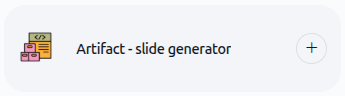
Confirm the add (+) button. The tool is now integrated into your agent.
Step 9: Test your branded slide generator
In your new agent, describe what slides you want to create. For example:
"Create a quarterly business review presentation with 5 slides covering Q1 results"
"Generate a product pitch deck with title, features, pricing, and call-to-action slides"
"Make a training presentation on customer onboarding"
The agent will use the Artifact slide generator tool to create a presentation that automatically follows all the visual rules from your System Prompt.
Practical use cases
Use Case 1: Consistent quarterly reporting
Your company releases quarterly business reviews every 3 months. Clone Sherlock Brand, upload your brand guidelines, copy the System Prompt, create a new agent from scratch, paste the prompt, and add the Artifact slide generator. Now, each quarter, you ask your custom agent: "Create a Q2 business review with revenue, growth metrics, and outlook slides." The slides are automatically branded, formatted, and ready to present.
Use Case 2: Sales deck generation at scale
Your sales team needs multiple pitch decks for different client segments (enterprise, mid-market, SMB). Clone Sherlock Brand and upload your company's branded presentation template. Copy the System Prompt into a new agent from scratch and add the Artifact slide generator tool. Sales reps can now request: "Create a pitch deck for enterprise clients focusing on security and compliance." Your custom agent generates a fully branded deck in minutes, not hours.
Use Case 3: Training and internal communications
You're creating training materials, onboarding decks, and internal announcements. Clone Sherlock Brand with your brand document, copy the System Prompt into a new agent from scratch, and add the Artifact slide generator tool. Request: "Create an employee onboarding presentation covering company culture, benefits, and first-week schedule." Every training slide maintains your brand consistency automatically.
Use Case 4: Client proposal templates
Your agency creates custom proposals for clients. Clone Sherlock Brand and upload your agency's brand guidelines. Copy the System Prompt into a new agent from scratch and add the Artifact slide generator tool. When you win a new client, you can ask your agent: "Create a proposal presentation with project scope, timeline, deliverables, and pricing." The slides reflect both your agency's brand and the client's project details.
Tips & best practices
Start with a clear brand document: The clearer and more representative your input document is, the better the extracted System Prompt will be. Avoid documents with multiple conflicting styles or colors.
Review the extracted colors: After copying the System Prompt, scan the HEX color codes to ensure they match your brand's actual colors. If something looks off, re-run Sherlock Brand with a different or clearer document.
Test with a small presentation first: Before asking your custom agent to create a large, complex presentation, test the System Prompt with a simple 3–5 slide request. This confirms the visual output matches your expectations.
Keep your System Prompt updated: When your brand guidelines change (new colors, fonts, or visual style), re-run your updated brand document through Sherlock Brand and update the System Prompt in your custom agent.
Store your System Prompts: Save the generated System Prompts for each brand or client in a document or note. This way, you can reuse them without re-analyzing or create multiple agents with the same brand identity.
Name your agents clearly: Use descriptive agent names like "[Brand Name] Slide Generator" so team members know which agent to use for which brand.
Describe your slides clearly: The better you describe what you want (slide count, topics, tone), the better your agent can align the output with both your brand and your content needs.
Troubleshooting
Issue: Sherlock Brand is not analyzing my document.
Cause: The file format may not be supported, or the upload failed.
Fix: Verify your file is in a supported format (PPTX, PDF, DOCX) and try uploading again. If the issue persists, try a different document.
Issue: The generated System Prompt has incorrect colors or fonts.
Cause: The document you uploaded may have inconsistent styling, or the agent misidentified elements.
Fix: Review your document for clarity and consistency. If it contains multiple color schemes or fonts, try uploading a cleaner, more focused document (such as a single slide or a dedicated brand guide).
Issue: The slides generated by my custom agent don't match my brand.
Cause: The System Prompt may not have been pasted correctly, or the agent may not be fully following the instructions.
Fix: Verify that the System Prompt is pasted in the correct field in your agent's settings. Test with a simple request (e.g., "Create a 3-slide presentation") to ensure the agent is using the prompt correctly.
Issue: The Artifact slide generator tool is not working in my agent.
Cause: The tool may not have been added correctly, or there may be a temporary service issue.
Fix: Verify that the Artifact slide generator tool appears in your agent's skills/tools list. If not, try adding it again. If the issue persists, try a simpler request to see if the tool responds.
Additional resources
Creating an artifact – Learn how to create and use artifacts in Swiftask.
Create an agent – Learn how to create agents from scratch and set their objectives and instructions.