Python: Code + Upload + Visualization
Written By Stanislas
Last updated 5 months ago
Overview
The Python tool in Swiftask lets you analyze data, create charts, and process files directly in Chat. We've made significant improvements to make it faster, more reliable, and more cost-effective.
This tool is available as a skill you can add to your agents or use directly in Chat conversations.
Where to find and add the Python tool
In your agent
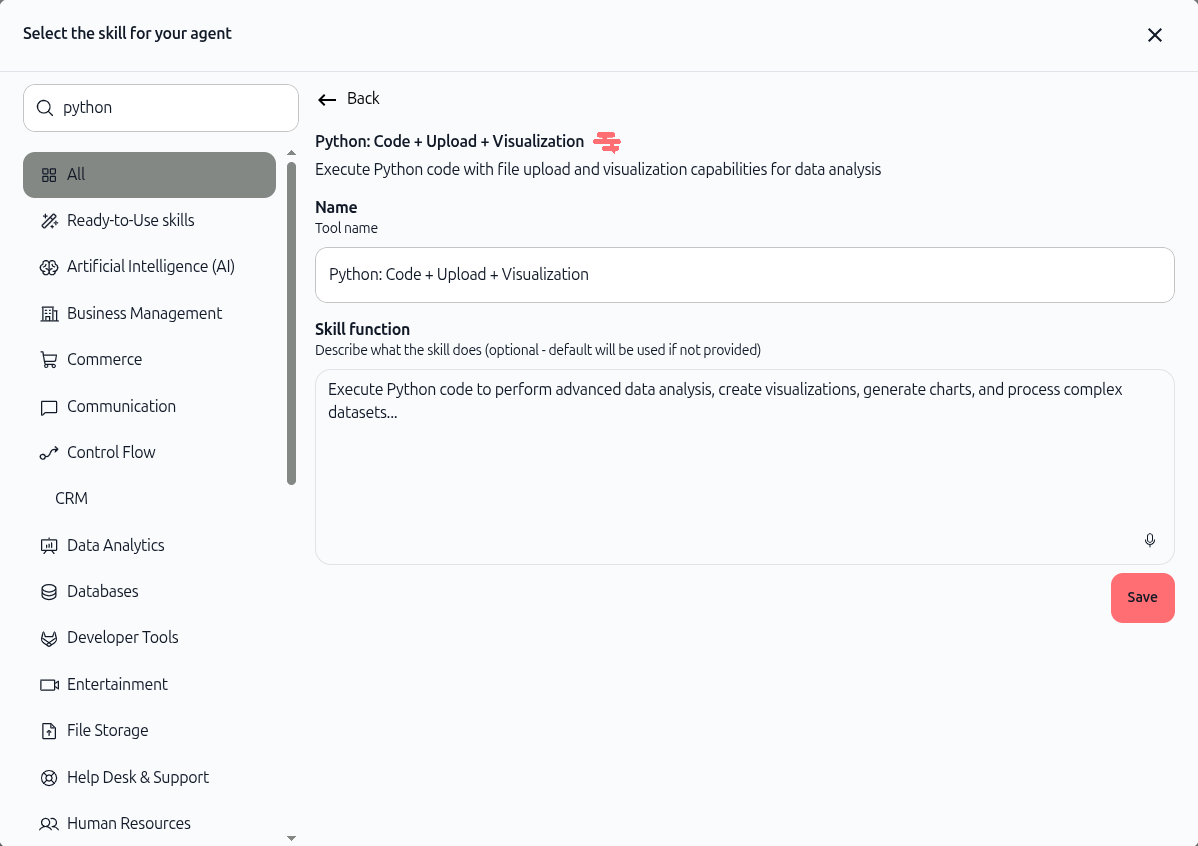
To use this tool in a custom agent, add it to your agent's skills.
Steps to add:
Open your agent configuration
Go to the Skills section
Click Add skill
Search for "Python: Code + Upload + Visualization"
Click to select and add it to your agent
Once added, your agent can analyze data, create visualizations, and process files when you ask it to.

In Chat
The Python tool isn't automatically active in Chat. You need to add it as a skill first.
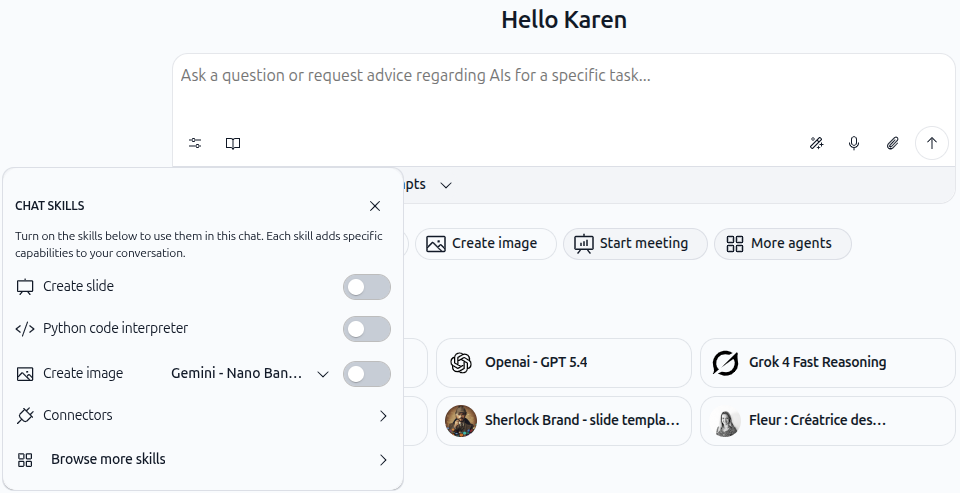
Steps to add the Python tool in Chat:
Open Chat and look at the input toolbar at the bottom
Click the skills icon (the icon next to the book icon on the left side of the toolbar)
A Chat Skills panel opens on the left side showing available skills
Scroll down and click "Browse more skills" at the bottom of the panel
Search for "Python: Code + Upload + Visualization"
Click to enable the skill and add it to your chat
Once enabled, the Python tool is ready to use. You can now ask the AI to analyze data, create visualizations, or process files.
What's improved
Faster execution
Code now runs more quickly. When you ask the AI to analyze a file or create a chart, you'll see results in seconds instead of waiting longer.
Reduced credit usage
Your analyses now cost less to run.
When the AI encounters an error, it fixes just what's wrong instead of redoing the entire analysis—saving you credits.
Plus, the tool is smarter about setting up, so there's less overhead overall.
Easier file downloads
When your analysis generates files (charts, processed data, etc.), download links appear clearly in the chat. No more hunting for results—just click and download.
More reliable file processing
Uploaded files are now handled more smoothly. Whether you upload a CSV, Excel file, or image, the tool processes it consistently and reliably every time.
How it works now
You describe what you want: "Analyze this sales data and create a bar chart"
The AI writes and runs code: Python code executes instantly
If there's an error: Only the problem is fixed and re-run—saving credits
You download results: Download links for any generated files appear in chat
What you can do
Upload CSV, Excel, image, or text files for analysis
Ask for calculations, summaries, and insights
Generate charts and visualizations
Process and transform data
Export and download results
Tips for best results
Be clear about what you want: "Create a pie chart showing sales by region" is better than "analyze my file"
Ask for downloads: If you want to save results, say "provide a download link"
Check your data: Make sure your file doesn't have obvious errors before uploading
Related features
Chat – Attaching files & documents – Learn how to upload files
Chat – Generate / export files – Understand file downloads
Skills / AI tools – Explore all available tools for your agents
Try it now: Open Chat, upload your data file, and ask the AI to analyze it or create a visualization.