Build, plan & review
Written By Stanislas
Last updated 16 days ago
Overview
How Swiftask Code works on your project: choosing a mode, planning bigger work, controlling approvals, and reviewing changes.
Prerequisites
Swiftask Code installed and signed in
A basic understanding of the chat panel (see Chat & context)
Step-by-step guide
1. Choose the right mode
Pick a mode in the chat input based on what you want to happen.
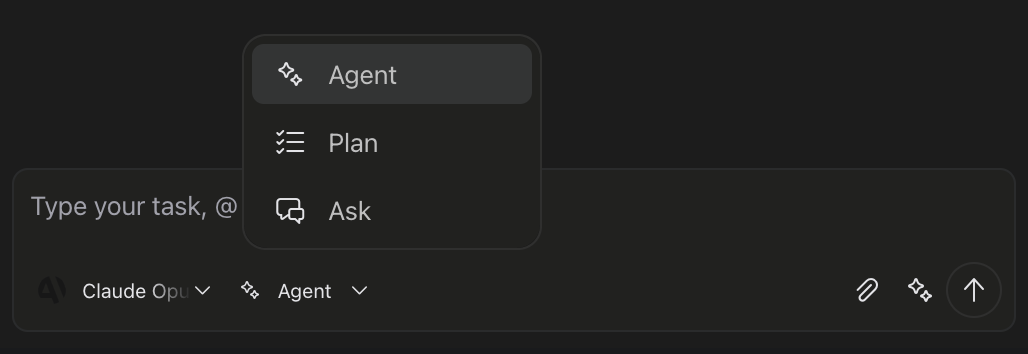
2. Understand the three modes
Build (default) — for implementing features, fixing bugs, refactoring, running tests. Swiftask Code can search your project, edit files, and run commands.
Ask — for learning the codebase, architecture questions, review without edits. Swiftask Code reads and searches only.
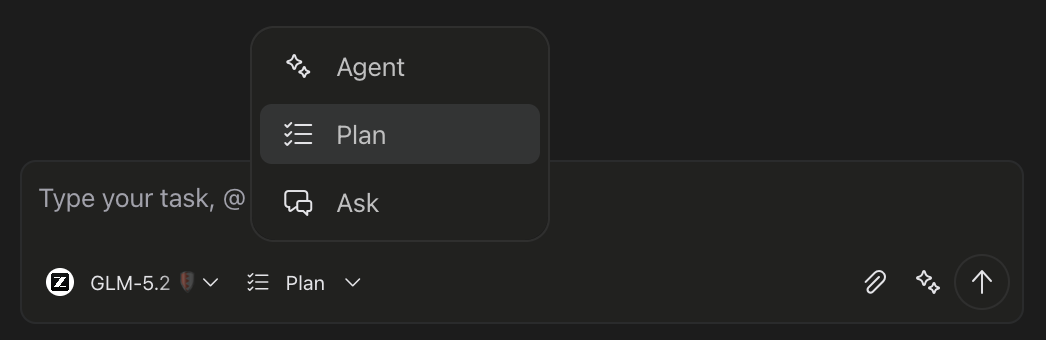
Plan — for larger work where you want a written plan before any code changes. Swiftask Code researches your project and writes a structured plan. It won't edit source files until you choose Build.
3. Plan before you build (for non-trivial work)
Switch to Plan mode
Describe what you want — scope, constraints, anything important
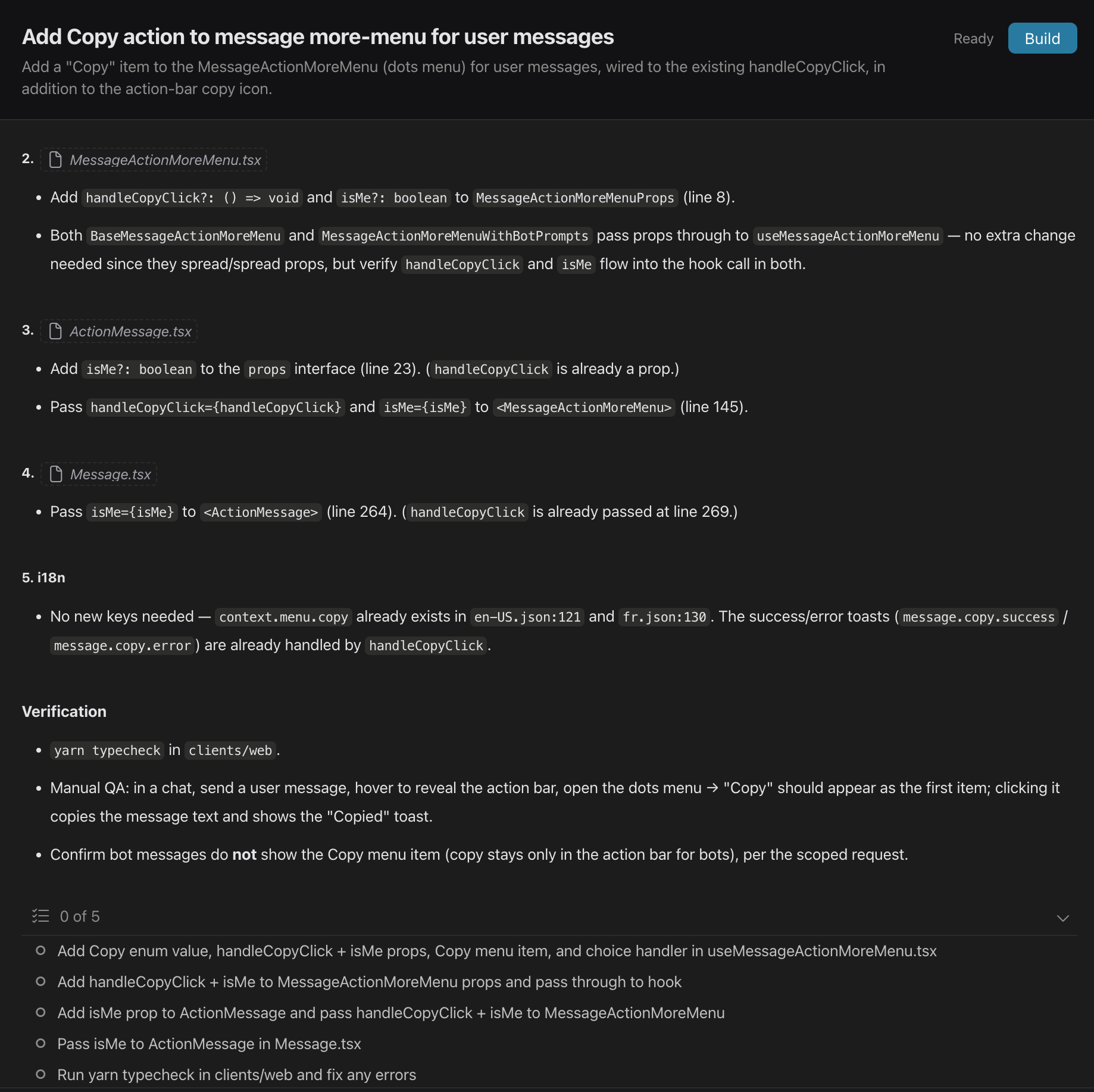
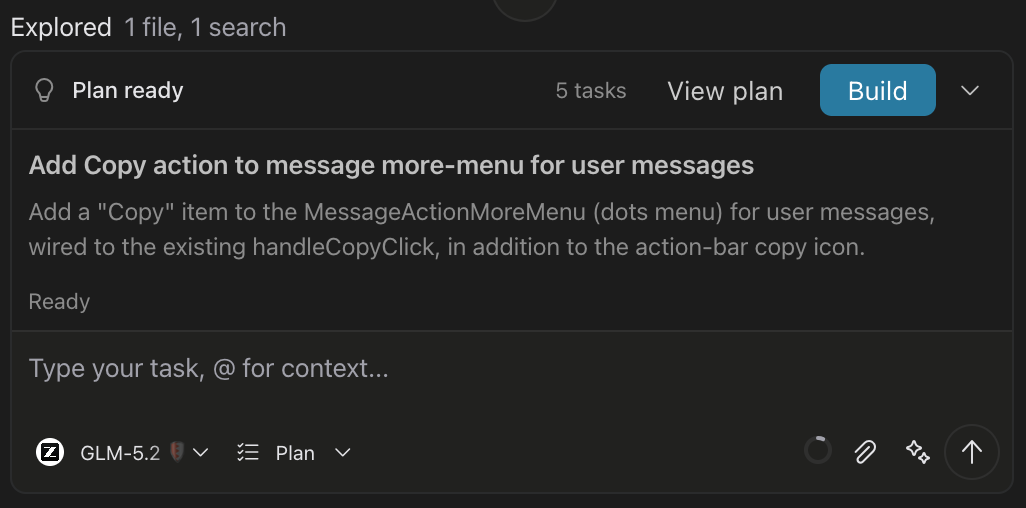
Swiftask Code produces a plan you can read in chat
Open it from the Plans library (checklist icon) to read or edit
When you're satisfied, click Build to start implementation in Build mode
You can stay in Plan mode and ask for updates to the same plan before building.
4. Control what runs automatically
In Swiftask Settings → Permissions, choose how much Swiftask Code can do without asking:
Trusted commands are shell commands you're comfortable auto-approving — for example yarn test, npm run typecheck, or git status. Edit the list in Settings.
File edits always ask for confirmation in Ask before sensitive actions mode.
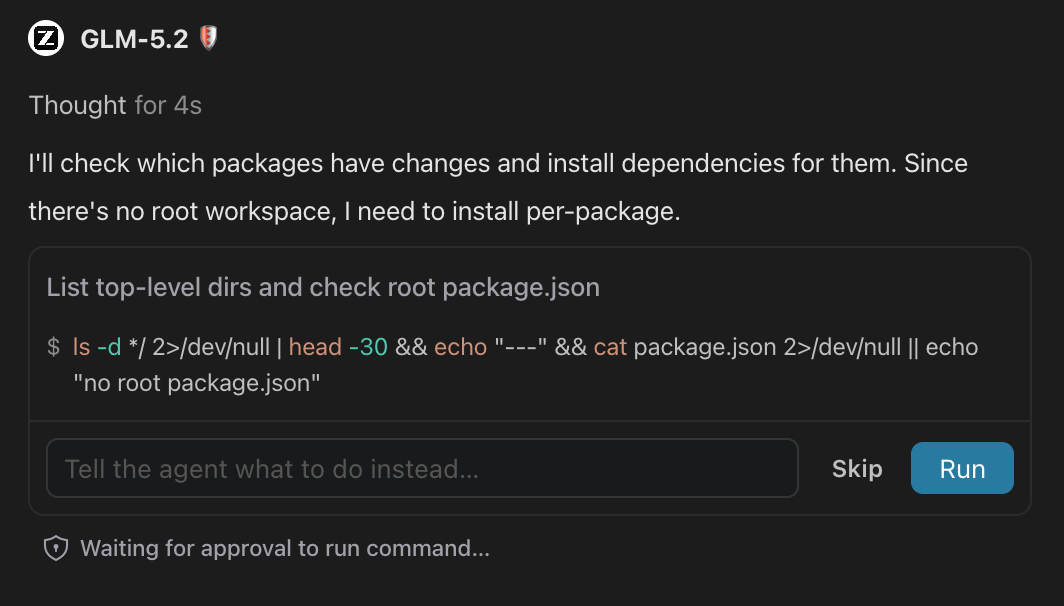
Approval examples
When Swiftask Code asks to clarify
If your request is ambiguous, Swiftask Code may pause with clarifying questions in the chat input — before it edits files or runs commands.
This is separate from Allow / Deny permissions. Permissions control risky actions; clarifying questions resolve what you meant.
What you'll see
One or a few short questions (up to four)
Suggested answers to click (usually 2–4 options)
An Other option for your own wording
Sometimes a short “why this matters” note under the question
Continue when you’ve answered; you can Skip a question if it doesn’t apply
If there are several questions, use the pager to move between them
Some questions allow more than one option; others are single choice.
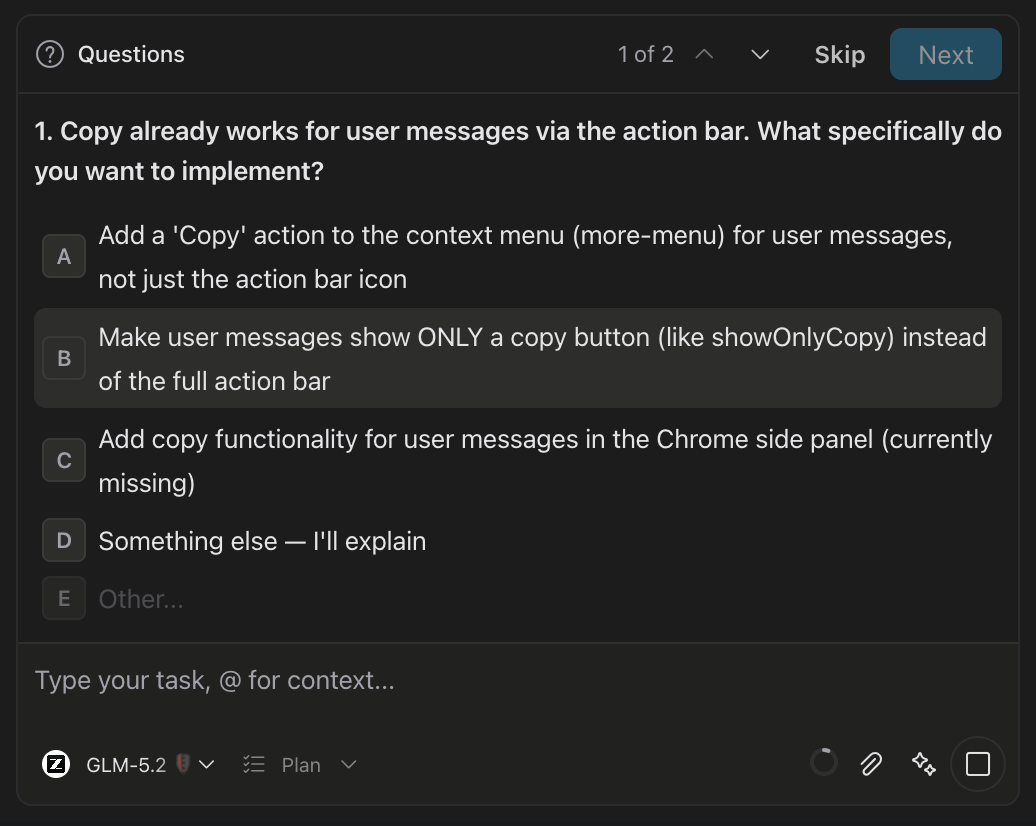
What happens next
After you submit answers, Swiftask Code continues the same turn with your choices — you don’t need to restate the whole request.
Clarifying questions can appear in any mode, including when permissions are set to Run everything.
Tip: Be specific in your first message (scope, files, constraints) to reduce follow-up questions. You can also @-mention the files or folders you care about — see Chat & context.
5. Review file changes
In Build mode, when Swiftask Code changes files, you review before moving on.
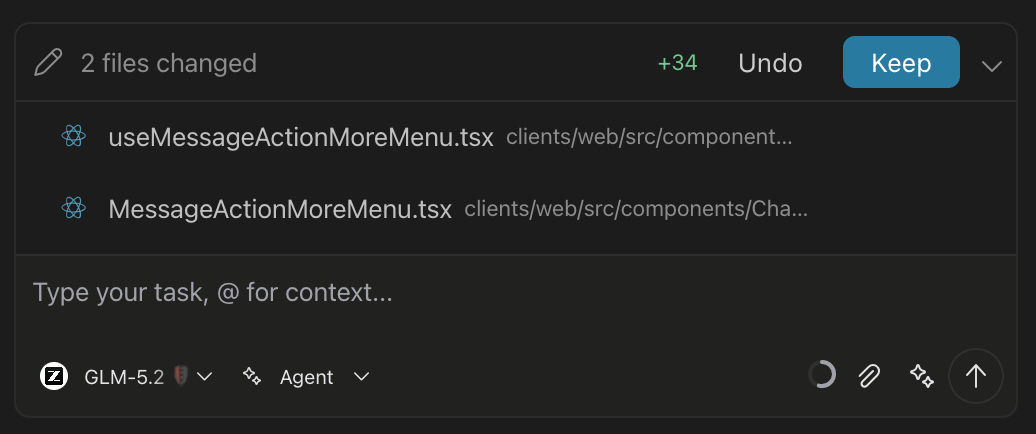
In the chat — a Files changed section lists what was modified. You can:
Keep all — accept every change
Undo all — revert everything from that turn
Open a diff per file
Keep or undo one file at a time
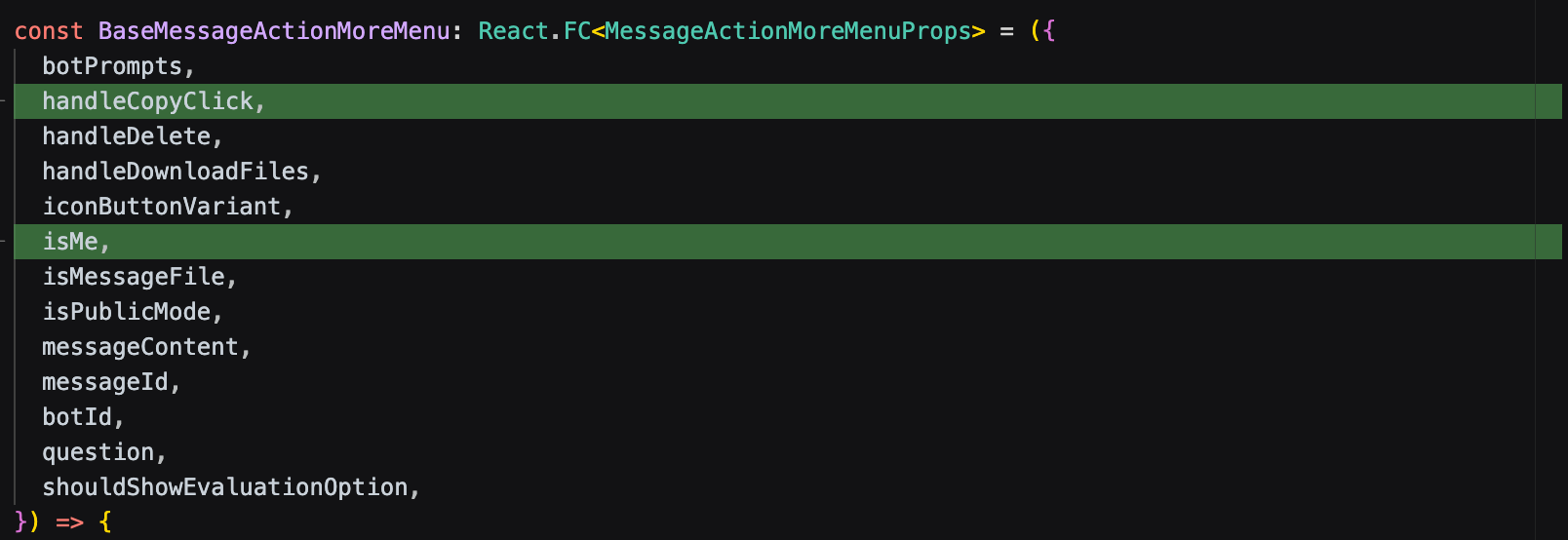
In the editor — on a changed file, the title bar may show Keep agent edits and Undo agent edits.
6. Track progress on multi-step tasks
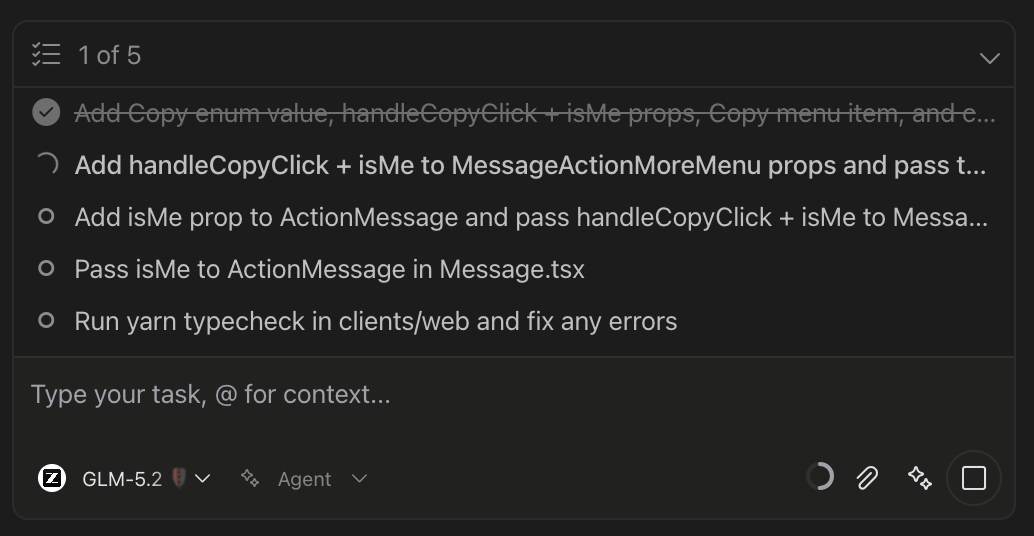
On multi-step tasks, Swiftask Code may show a checklist in the chat so you can see what's done and what's left — especially useful during Plan → Build work.
Practical use cases
Copy and adapt these prompts — pick the mode first, then paste into chat.
Build mode:
Review Files changed before Keep all.
Plan mode:
Read the plan in the Plans library, adjust if needed, then click Build.
More read-only examples (explore codebase, code review) are in Chat & context.
Tips & best practices
Tip: Describe the outcome ("add session collections with list UI") not every file to touch — Swiftask Code will discover those during planning.
Ask first if unsure: List the main places that depend on [module]. — then switch to Plan or Build.
Auto-format: optional — Settings → Permissions → Auto-format on finish runs your formatter on edited files after each turn.
Approval examples:
Additional resources
Chat & context — sessions, @-mentions, Ask mode examples
Help & FAQ — tips, approvals, and edit issues
Was this helpful?
Still need help? Ask the team