Branding kit
Written By Stanislas
Last updated 16 days ago
Centralize your brand identity at the workspace level and apply it automatically to your agents. The branding kit ensures consistent tone, visuals, and guidelines across all your agents.
Attach brand resources (logos, colors, fonts, voice, guidelines) to an agent, and they will be automatically integrated into its system instructions. You can add or remove resources at any time.
Overview
The branding kit is a centralized system for managing your workspace's visual and tonal identity.
How it works:
You create brand resources once at the workspace level (logos, colors, fonts, etc.). Then, for each agent, you choose which resources to use. These resources are automatically injected into the agent's system prompt, ensuring consistency.
Why it's useful:
Avoid redefining your identity for each agent.
Maintain consistent voice and visual style.
Update a resource once → it updates everywhere.
Precisely control what each agent uses.
Prerequisites
To view available resources
You must be a member of the workspace.
To manage resources (add, edit, delete)
You must have the WORKSPACE_MANAGE_BRANDING_KIT permission assigned to your role.
To attach or remove resources from an agent
You must have the WORKSPACE_MANAGE_BRANDING_KIT permission. If the agent is locked, removing resources will be blocked (see "Locked agent" section below).
Step-by-step guide
Part 1: Create brand resources in the workspace
Step 1: Access the branding kit management
Go to your workspace Settings.
Click on Brand identity (or Branding kit).
You see 6 categories: Logos, Colors, Fonts, Voice, Photos, Guidelines.
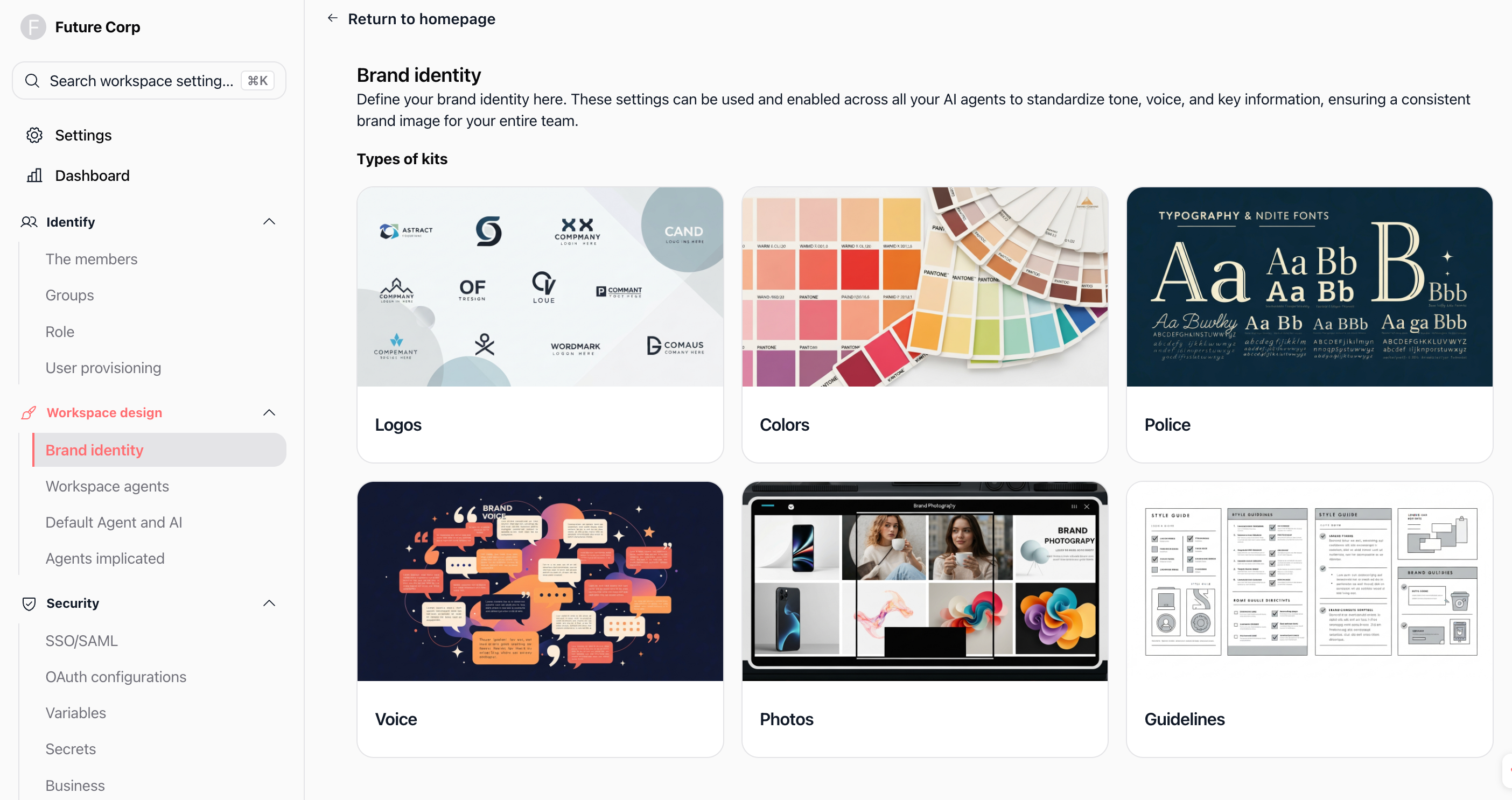
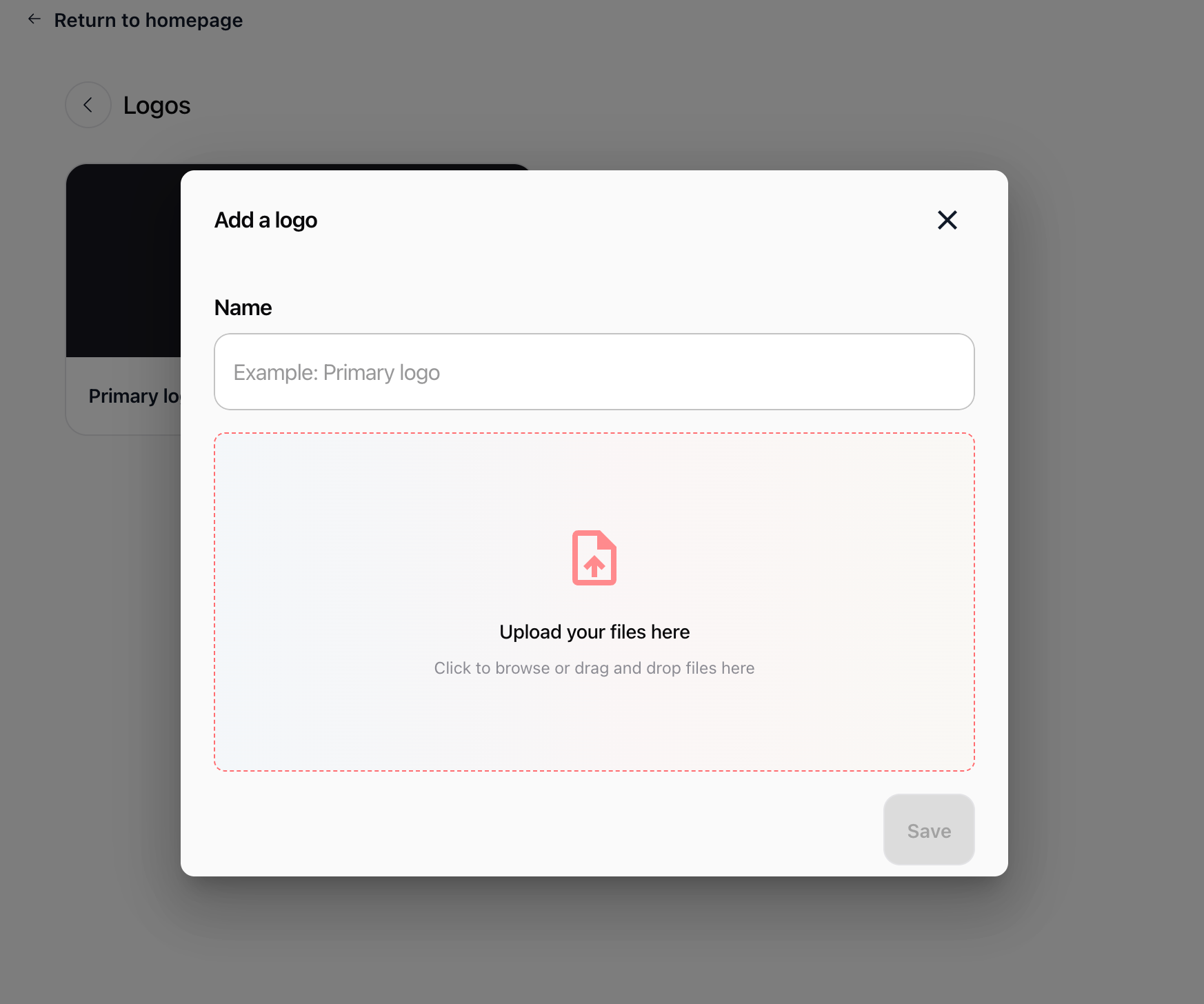
Step 2: Add a resource
Choose a category (e.g., Logos).
Click Add or + New resource.
Fill in the form:
Name (required for all types)
Depending on the type:
Logo / Photo: upload an image file (JPEG, PNG, GIF, WebP)
Color: choose a color (hex or predefined palette)
Font: enter the font name or details
Voice: describe the tone (e.g., "Professional, friendly, direct")
Guideline: write your brand rules
Click Save.
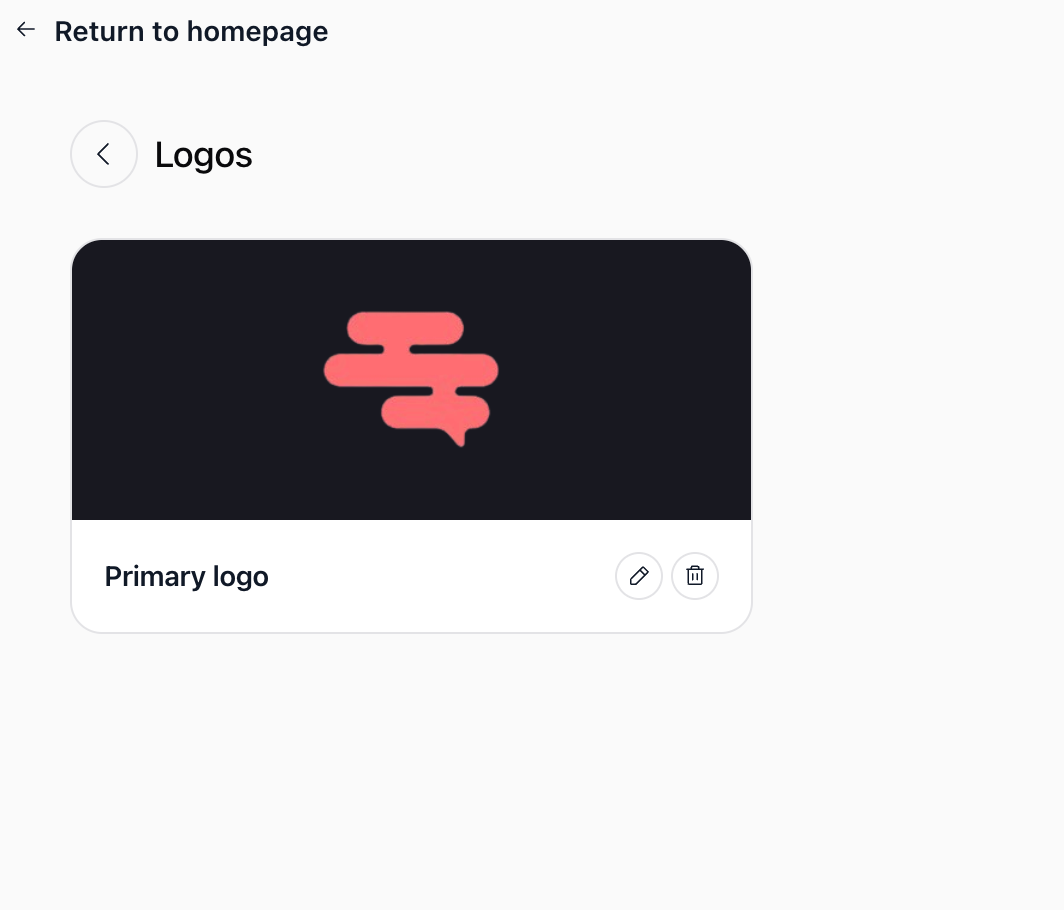
Step 3: Edit or delete a resource
To edit: click the pencil icon.
To delete: click the trash icon (confirmation required).
Part 2: Select resources for an agent
Step 1: Open the agent's branding kit section
Open the agent you want to configure.
Go to the agent's Settings (or Configuration).
Click on Branding kit.
You see a list of resources available in your workspace.
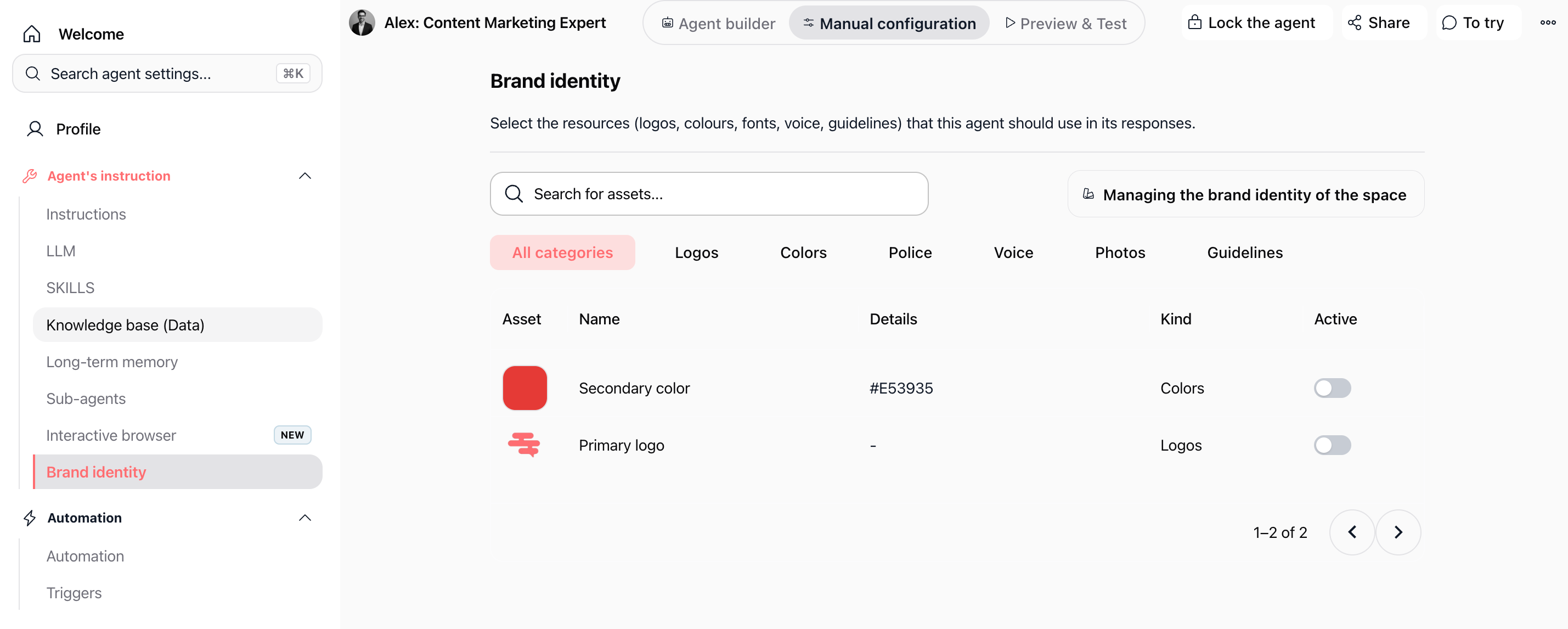
Step 2: Filter resources (optional)
Use the chips (buttons) to filter by type: Logos, Colors, Fonts, Voice, Photos, Guidelines.
Or choose All categories to see everything.
Use the search bar to find a resource by name.
Step 3: Attach a resource
Find the resource you want to use.
Enable the "In use" toggle (or "Active").
The resource is now attached to this agent.
Step 4: Remove a resource
Disable the "In use" toggle for the resource.
The resource is detached from the agent.
Note: If the agent is locked, you cannot remove resources. You must unlock it first.
Resource types
Locked agent: impact on branding kit
When an agent is locked, certain actions are restricted.
For the branding kit:
Attach a resource: ✅ Allowed (no restriction).
Remove a resource: ✅ Allowed (no restriction)
How the branding kit affects agent responses
When you attach resources to an agent:
The backend enriches the agent's system prompt with these resources.
Resources are grouped by type (logos, colors, fonts, etc.) and injected into the instructions.
The agent uses this information to generate responses consistent with your brand.
Important: The prompt section containing the branding kit is cached for 5 minutes (300 seconds) per agent. After a change (attach or remove), wait up to 5 minutes to see the full impact on the agent's responses.
Practical use cases
Case 1: Multi-agent consistency in an agency
You manage multiple agents for different clients. You create a branding kit for each client at the workspace level (logo, colors, voice). Each agent selects the appropriate resources. Result: all agents speak with the client's voice and use their visual identity.
Case 2: Centralized brand update
Your company changes its logo or color palette. Instead of reconfiguring each agent, you update the resource once in the workspace. All agents using that resource see the change automatically.
Case 3: Uniform business guidelines
You add a guideline: "Always include a call-to-action (CTA) in responses." You attach it to 5 agents. All 5 agents will apply this rule without manual configuration.
Case 4: Quick onboarding of a new agent
Instead of configuring everything manually, you create an agent, then quickly select existing brand resources. The agent is ready in just a few clicks.
Tips & best practices
Start small
Add a core set of resources first: 1 logo + 2-3 main colors + 1 voice description + 1 key guideline. You can always add more.
Attach at the right level
Define resources at the workspace level (once). Then, for each agent, select only what's useful. Don't create the same resource multiple times.
Name clearly
Use explicit names: "Main logo", "Brand blue #0066CC", "Professional-friendly voice", "CTA guideline mandatory". This makes searching and selecting easier.
Wait for cache after changes
After attaching or removing a resource, wait up to 5 minutes before fully testing the agent's response. The system caches changes.
Test with a simple resource first
Before attaching 10 resources, test with just one (e.g., voice). Verify the agent uses it correctly, then add progressively.
Document your branding kit
Keep a note (internal or in your workspace) with the list of resources, their purpose, and which agents use them. This helps with maintenance.
Troubleshooting
FAQ
Q: Does the branding kit affect responses immediately?
Yes, but with a possible delay. The prompt section injected by the branding kit is cached for 5 minutes. After making a change, wait this duration to see the full impact.
Q: Who can create and edit workspace resources?
Users with the WORKSPACE_MANAGE_BRANDING_KIT permission.
Q: Who can attach/detach resources from an agent?
Users with the WORKSPACE_MANAGE_BRANDING_KIT permission.
Q: What happens if I remove a resource from an agent?
The agent will no longer use that resource in its system prompt. Responses become independent of that resource (after 5 minutes).
Q: Can I use the same resource for multiple agents?
Yes, that's the whole point. Create a resource once and attach it to as many agents as you need.
Q: What image formats are accepted?
JPEG, PNG, GIF, WebP.
Additional resources
Roles and permissions management – Learn how to assign
WORKSPACE_MANAGE_BRANDING_KIT.Agent configuration – Learn to configure other aspects of your agents.
Workspace administration – Overview of workspace settings.
Was this helpful?
Still need help? Ask the team