Auto Mode, redesigned sharing, clearer guardrails, and 5 new AI models
Hi 👋
First wave of updates this week! We’re continuing to improve the platform to help you move faster and stay in control of both your costs and your access.
Auto Mode picks the right AI model—more accurately
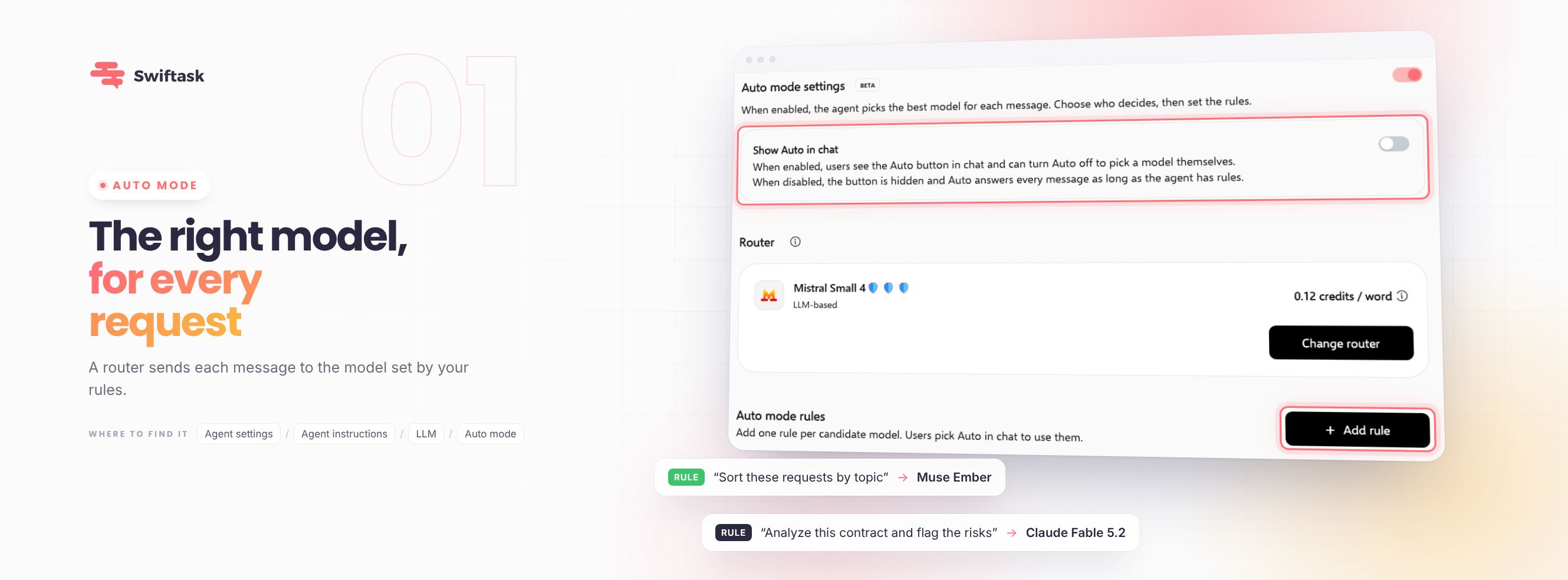
Not every request needs the most powerful—or most expensive—model. With Auto Mode, a router reads each message and routes it to the model specified by your rules.
You write one rule per model to define which type of request it’s for. For example: route “Categorize these requests by topic” to a lightweight, cost-effective model, and “Analyze this contract and flag the risks” to a heavier-duty one. If no rule matches, the agent’s default model responds.
Key benefits:
Fewer credits spent on simple requests.
A model up to the task for complex requests.
You choose whether or not to show the Auto button in Chat.
Where to find it: Agent Settings → Agent Instructions → LLM → Auto Mode Settings.
Try it out: add a rule, then ask a simple question and a complex one.
🛡️ Guardrails: a clearer redaction message at last
Guardrails are security rules you enable on an agent to better protect your data. One of them redacts personal data.
When it triggered, the placeholder text shown in place of the data was confusing. We’ve replaced it with a clearer label: “hidden data”.
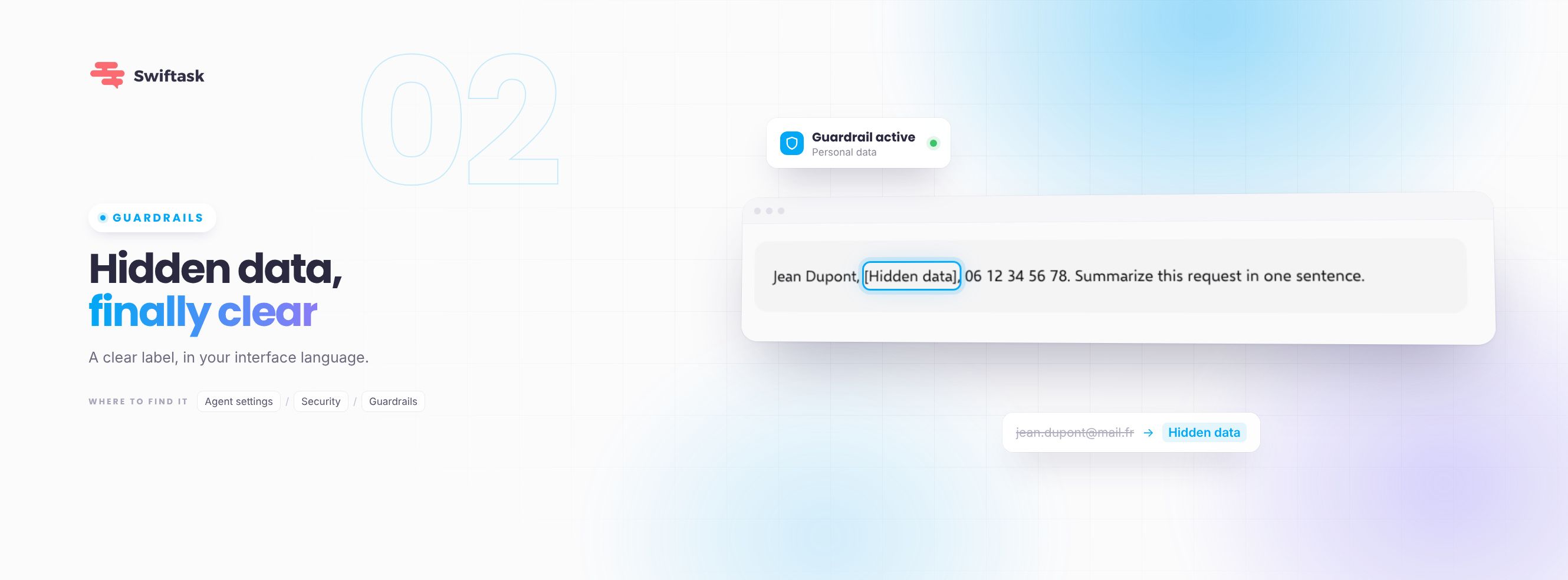
Where to find it: Agent Settings → Security → Guardrails.
🔐 Sharing: see at a glance who has access to your items
Shared something a few weeks ago and can’t remember who has access? The sharing screen has been redesigned to give you an immediate answer.
It’s identical whether you’re sharing a chat, an artifact, or a meeting.
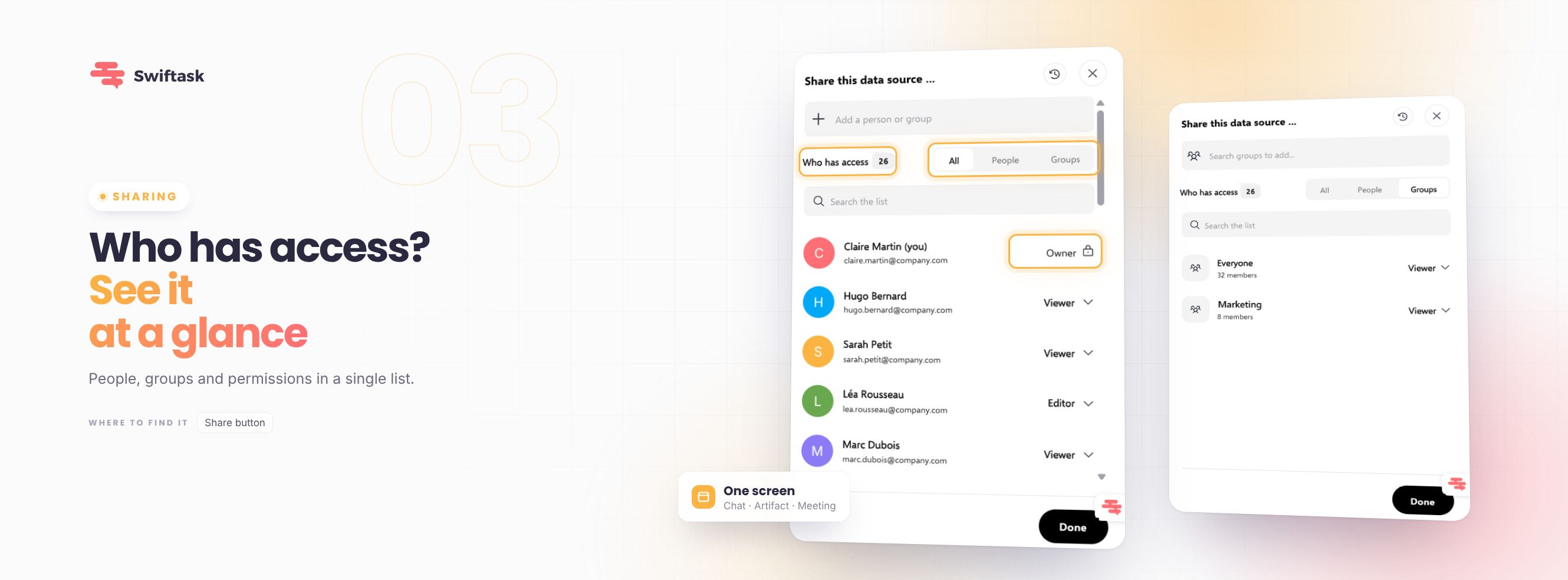
Everyone and every group with access is gathered into a single list along with their permission level: owner, viewer, or editor. The total count appears at the top. You can filter by people or groups, or search for someone by name.
Key perks:
Check in seconds who an item is shared with before adding sensitive content.
Adjust an access level directly from the list.
Add a person or group without leaving the screen.
The owner is clearly identified.
Where to find it: the Share button in a chat, artifact, or meeting.
🧠 Five new models now available. Each has its own specialty.
🤖 Claude Fable 5.2 (Anthropic): 6 credits/word
Our most powerful model, built for the toughest cases. It double-checks its own work and flags anything it can’t confirm.
🤖 Gemini 4 Carbon (Google): 2.8 credits/word
Takes time to think things through. Ideal for digging into a complex topic or finding the root cause of an issue.
🤖 Muse Wonder (Meta): 2.8 credits/word
Built for long, multi-step tasks that it carries through end to end without supervision.
🤖 Gemini 4 Hydrogen (Google): 1.1 credits/word
Fast and versatile. Great for summarizing documents or making steady progress on everyday coding.
🤖 Muse Ember (Meta): 0.07 credits/word
Lightweight and very budget-friendly. Ideal for sorting, extracting, and summarizing at scale.
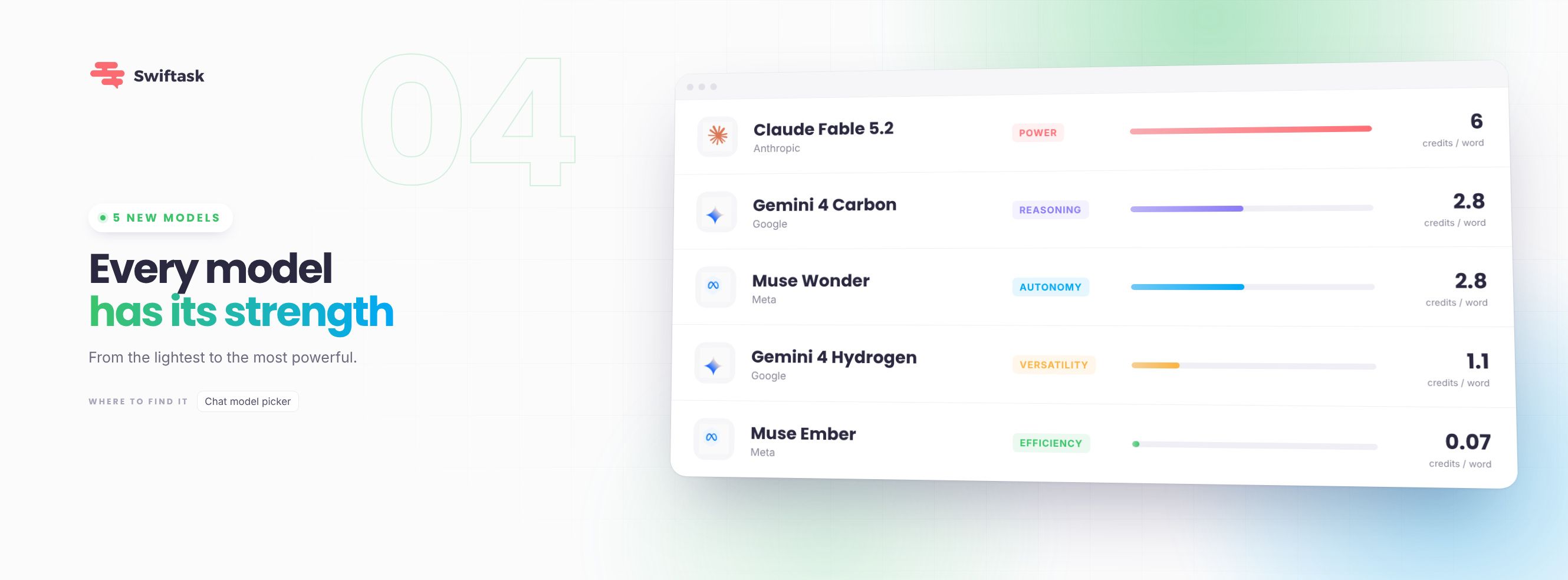
Our tip: save the heavy hitters for requests that warrant them, and use Auto Mode to hand the rest off to more cost-effective models.
Where to find them: in the chat model selector, and in Agent Settings → Agent Instructions → LLM.