Subscription management
Written By Stanislas
Last updated 16 days ago
Overview
Swiftask subscription management lets you update or end your subscription directly from your workspace. Use it when you want to upgrade your plan or cancel it.
For plan details and pricing, visit swiftask.ai/pricing.
Prerequisites
Before managing your subscription, you need:
A Swiftask account
Admin or Owner role in your workspace
Access to your workspace settings menu
Note: Only Admins, Owners, and Billing Partners can manage subscription settings.
Step-by-step guide
Access subscription management
Click the Settings icon at the bottom of the left sidebar
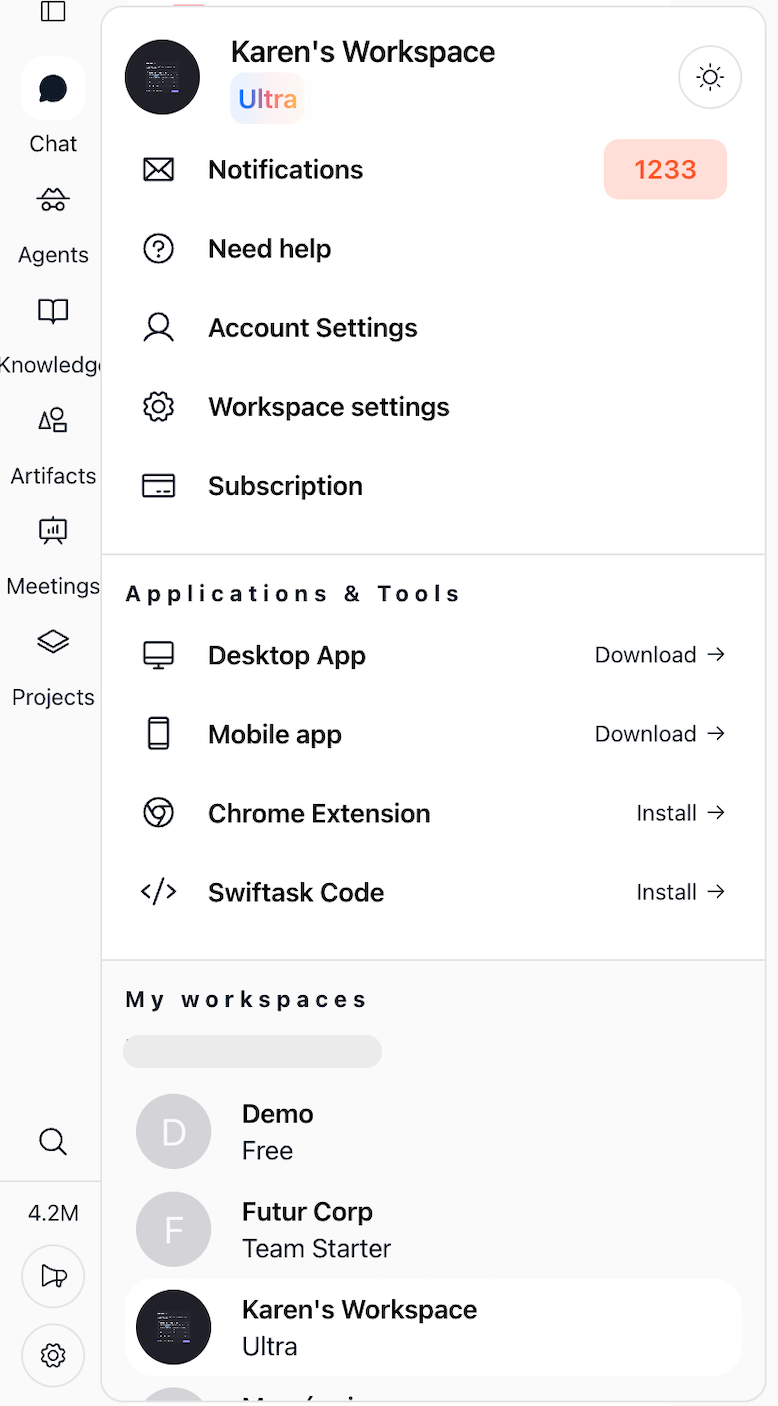
Click Subscription or Workspace settings
In the settings menu, locate the Subscription section and click Subscription
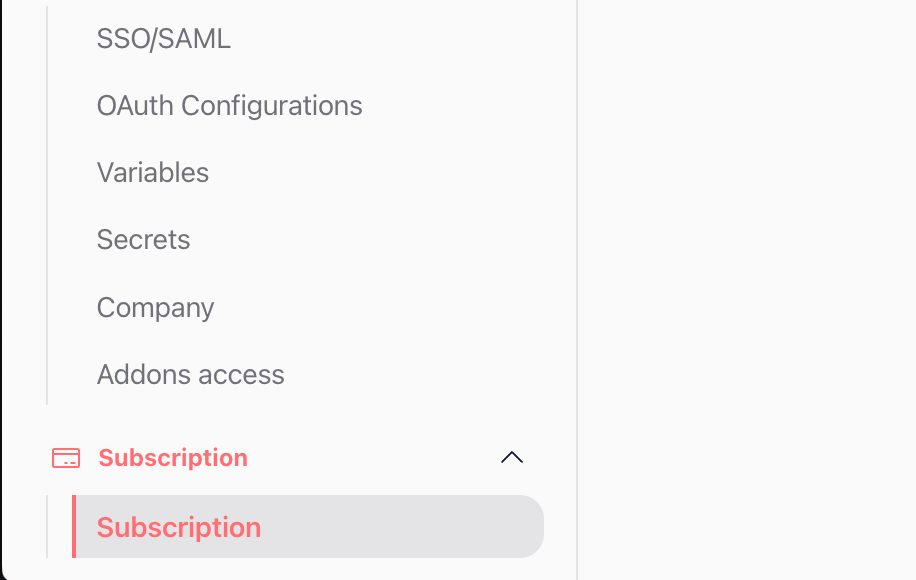
You'll land on the Manage subscription page, organized into four tabs: Overview, Extras, Billing, and Settings.
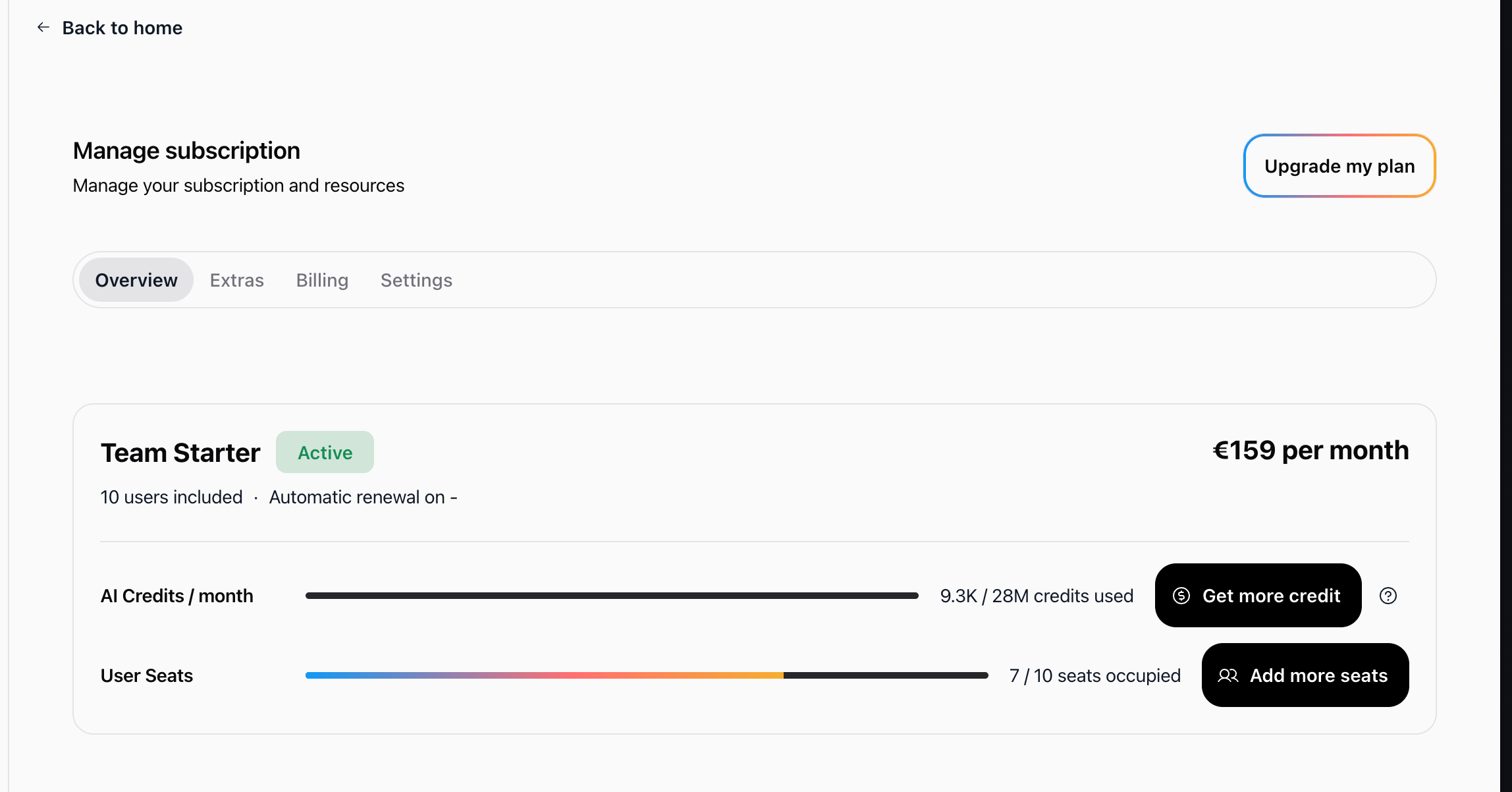
The Overview tab shows your current plan, price, AI credit usage, and user seat usage at a glance.
Upgrade your plan
Click Upgrade my plan in the top-right corner
Compare available plans and pricing at swiftask.ai/pricing
Select the plan you want
Complete the checkout process
Result: Your upgrade takes effect immediately, and your billing is adjusted based on the new plan.
Quick actions: From the Overview tab, you can also click Get more credit or Add more seats to add resources without changing your plan tier. These options are also available in the Extras tab.
Cancel your plan
Go to the Settings tab
Locate the Cancel subscription section
Click Cancel subscription
Confirm the cancellation
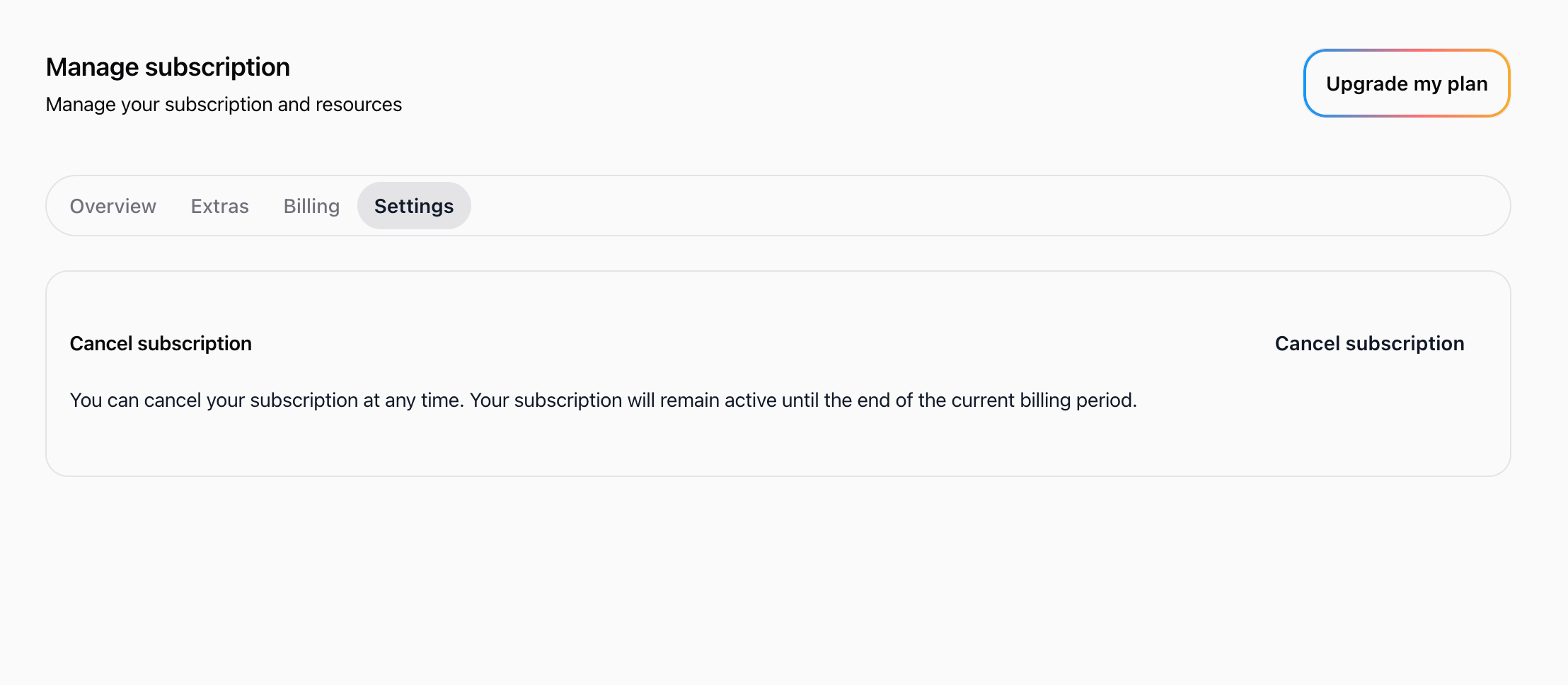
Result: You can cancel your subscription at any time. Your subscription remains active until the end of the current billing period, and no future charges are made.
Practical use cases
Upgrade for more capacity
Your team is approaching its seat limit (e.g., 7/10 seats occupied), so you upgrade your subscription to continue growing without interruptions.
Check pricing before upgrading
You compare options on swiftask.ai/pricing before choosing the right plan.
End a subscription
You no longer need Swiftask, so you cancel the plan while keeping access until the current billing period ends.
Tips & best practices
Always check swiftask.ai/pricing before upgrading.
Monitor your AI Credits and User Seats usage bars in the Overview tab to know when to act.
Canceling stops future billing, but access remains active until the current period ends.
If you need billing-only access, use the Billing Partner role.
Troubleshooting
Issue: I can't access subscription management
Cause: You do not have the required role.
Fix: Ask an Admin or Owner to grant you access, or assign the Billing Partner role.
Issue: The upgrade price seems different than expected
Cause: Pricing may vary based on billing frequency or billing adjustments.
Fix: Review the pricing page at swiftask.ai/pricing before confirming.
Additional resources
Billing FAQ
Invoices & subscription
Was this helpful?
Still need help? Ask the team