Project configuration
Written By Stanislas
Last updated 16 days ago
Overview
AI Configuration is the control panel for how AI works within a project. Settings configured here apply automatically to all conversations and tasks in the project.
The configuration is organized into four tabs:
Instructions: Define how the AI should behave.
Skills & Tools: Choose what the AI can do.
Knowledge Base: Choose what project information the AI can use.
Memory: Review the information the AI retains across sessions.
Use Project configuration when you want every AI interaction in a project to follow the same role, rules, tools, and context.
Prerequisites
Before you begin, you need:
Access to the relevant project.
Access to the project’s settings.
The instructions, tools, and knowledge sources you want to use.
The specific project roles that can edit AI Configuration have not been confirmed.
Step-by-Step Guide
Open AI Configuration
Open Projects from the left sidebar.
Select the project you want to configure.
Open Project settings.
Select AI Configuration.
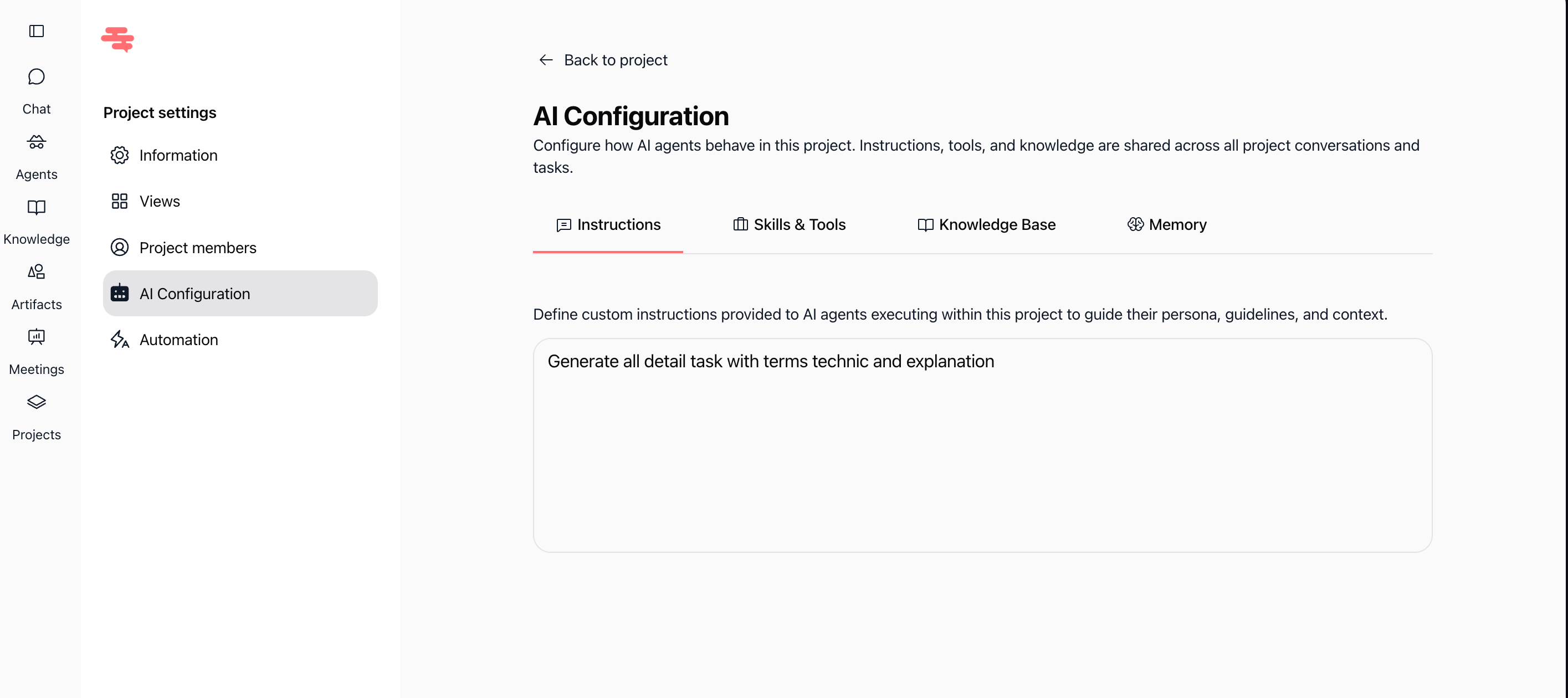
The AI Configuration page opens with four tabs: Instructions, Skills & Tools, Knowledge Base, and Memory.
Add project instructions
Open the Instructions tab.
Enter instructions describing how AI agents should work in the project.
Include information such as:
The agent’s role.
Rules and guidelines.
The preferred tone.
Project-specific context.
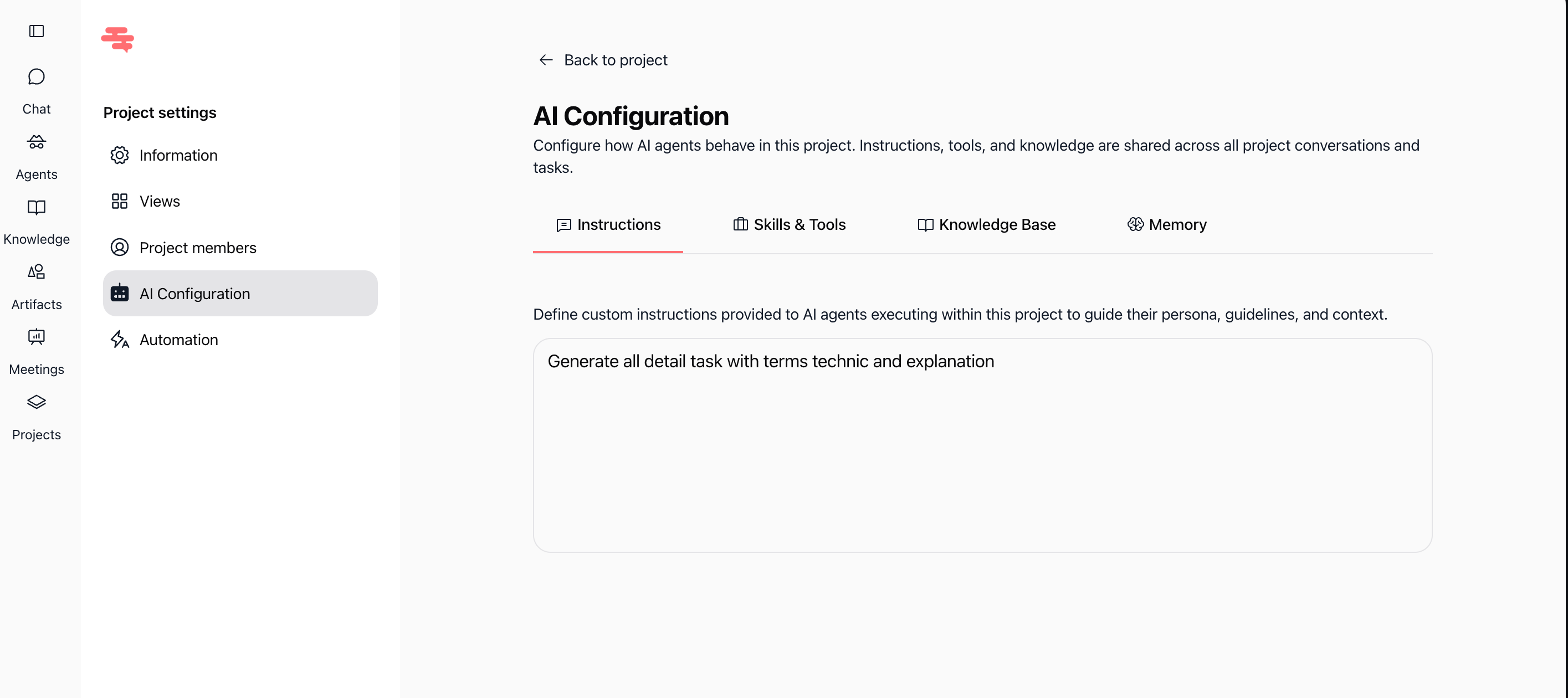
Your instructions are saved automatically a few seconds after you stop typing. No Save button is required.
The AI reads these instructions during conversations in the project and uses them to guide its responses and actions.
Attach skills and tools
Open the Skills & Tools tab.
Click Attach skills.
Browse the available skills, or search for a skill by name.
Click Add next to the skill you want to attach.
Close the selection window when you finish.
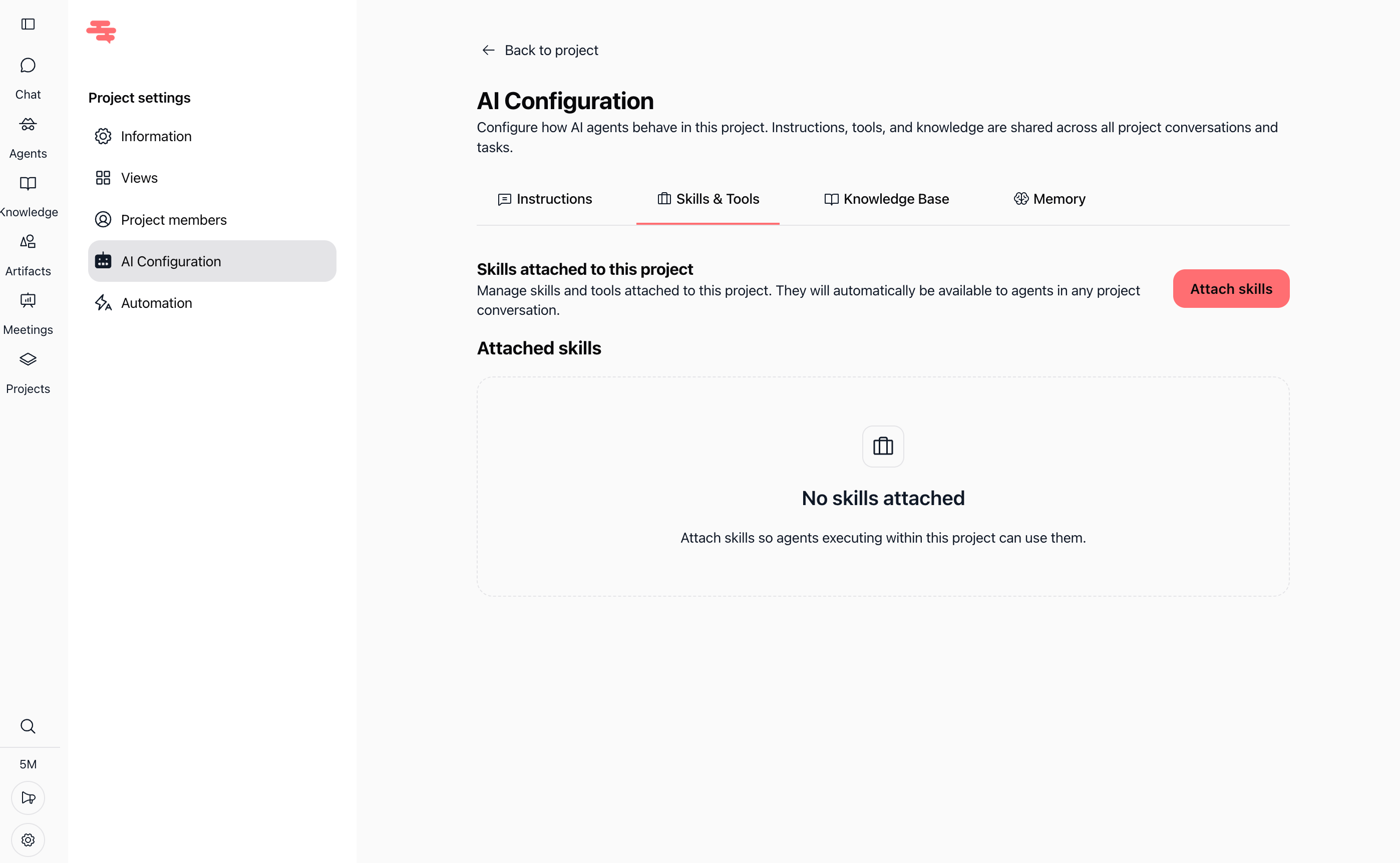
The selection window can display skills from different categories, such as File Storage and Other. Each skill includes an Add button.
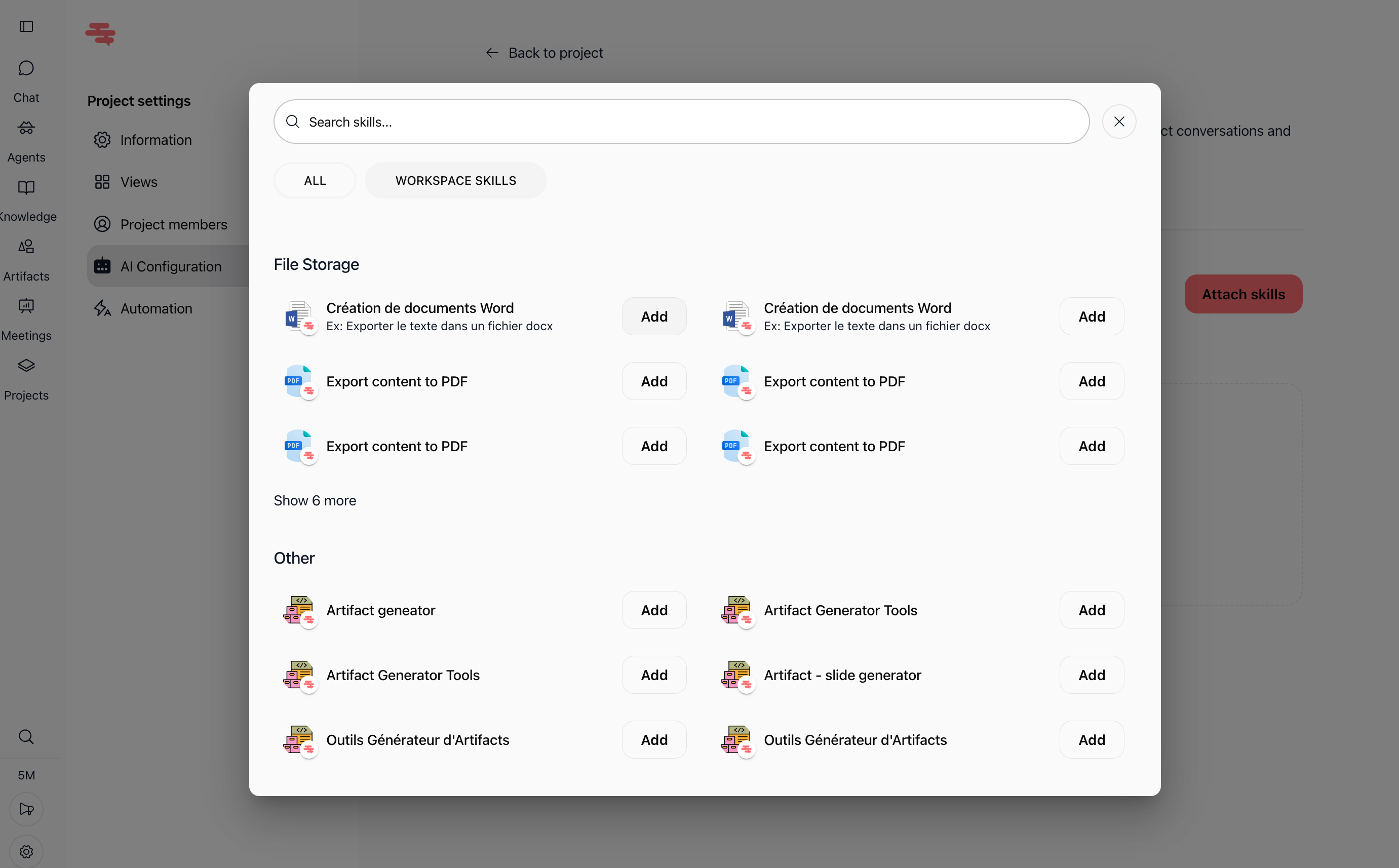
Attached skills are automatically available to AI agents in project conversations. To remove a skill, use the trash icon associated with it.
Attach knowledge sources
Open the Knowledge Base tab.
Click Attach knowledge.
Select the knowledge sources you want to connect to the project.
Confirm the selection if prompted.
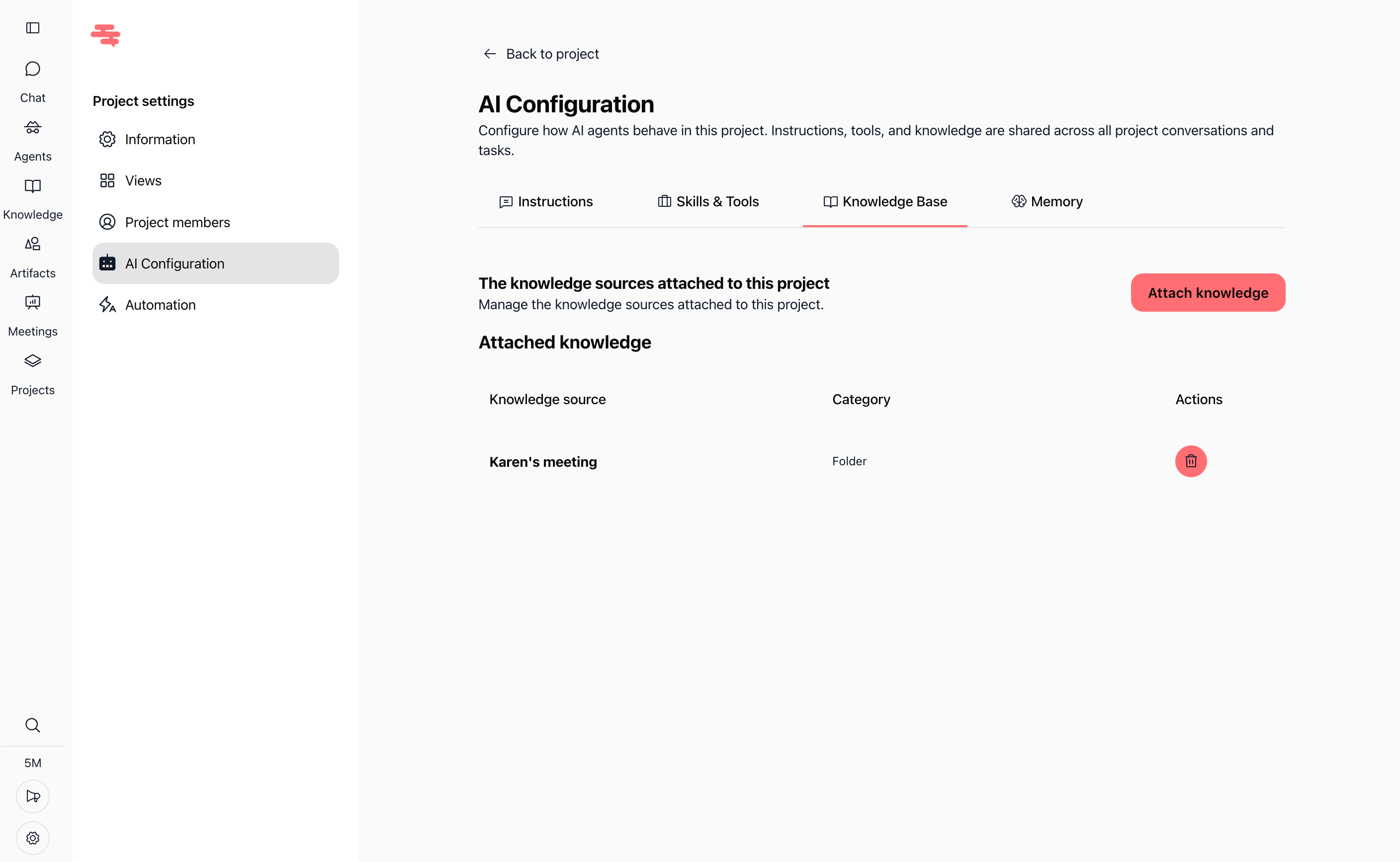
Attached sources appear in the knowledge table. The table displays the source name and its category.
AI agents can use these sources to answer questions with information specific to your project. To remove a source, use the available delete or detach action.
Review project memory
Open the Memory tab.
Browse the memories stored for the project.
Use Search memory… to find a specific memory.
Select a memory to view its details.
Delete a memory if it is no longer relevant.
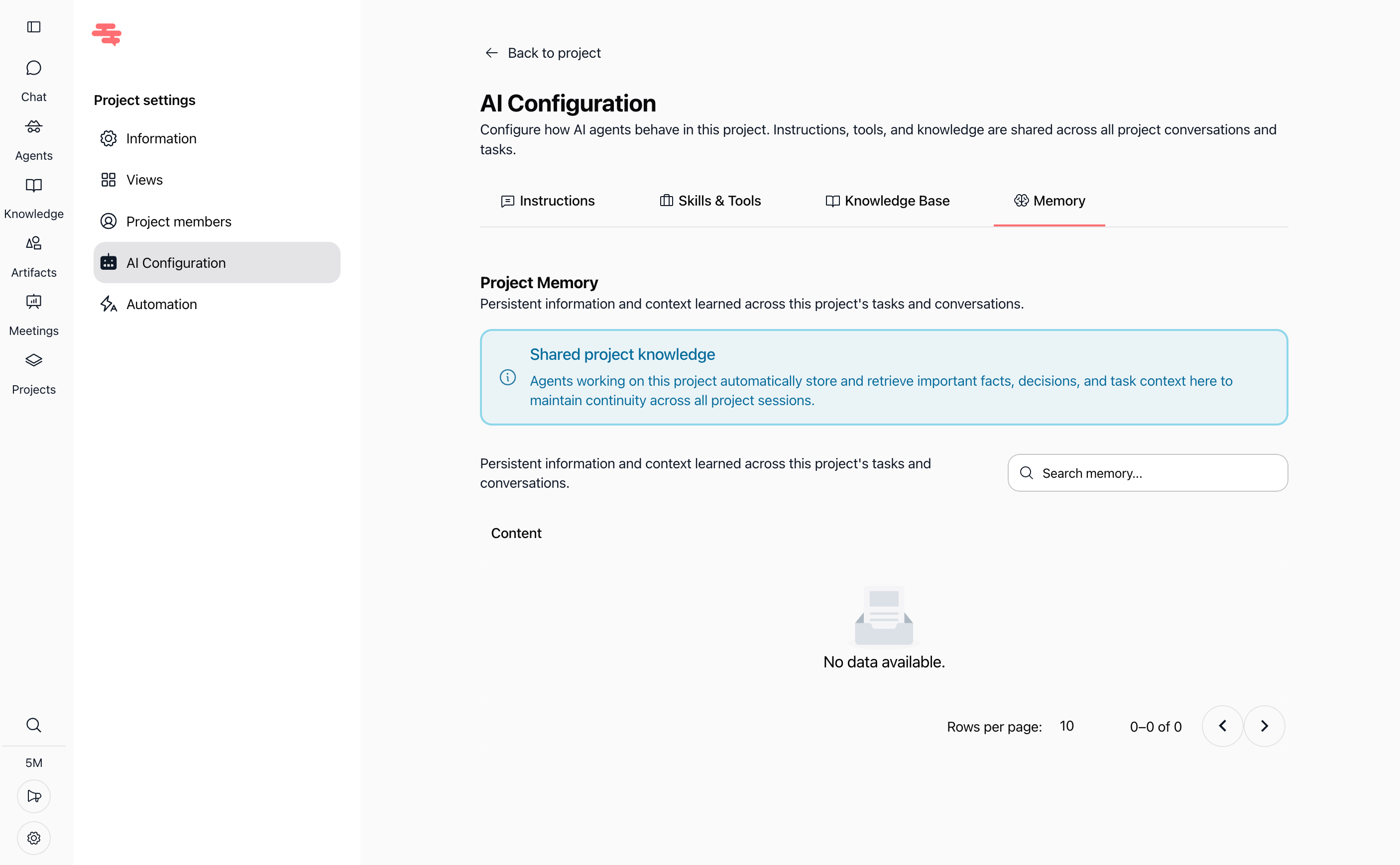
Project memory stores important facts, decisions, and task context learned during project conversations. AI agents use this information to maintain continuity between sessions.
Practical use cases
Standardize AI responses: Add instructions that define the tone, format, and rules AI should follow across all project tasks.
Enable document workflows: Attach document-generation or export skills so project agents can create files when needed.
Give AI project-specific context: Attach project documents or other knowledge sources so agents can refer to current information instead of relying only on general knowledge.
Maintain continuity across sessions: Use project memory to preserve important decisions and context as work progresses.
Tips & best practices
Write instructions in clear, direct language.
Describe the desired role, tone, output format, and constraints.
Attach only the skills required for the project.
Keep attached knowledge sources relevant and up to date.
Review project memory regularly and remove outdated information.
Remember that Project Configuration applies across all conversations and tasks in the project.
Troubleshooting
My instructions are not applied immediately
Instructions are saved automatically a few seconds after you stop typing. Wait briefly, then start a new exchange or task conversation and check the result.
An agent cannot use an attached skill
Confirm that the skill appears in the attached skills list. If it is available but still does not work, check whether the skill requires additional configuration or permissions.
The AI does not use a knowledge source
Confirm that the source appears in the Knowledge Base tab and that it contains the information the AI needs. Remove and reattach the source if necessary.
The project memory contains outdated information
Open the Memory tab, search for the relevant memory, and delete it if it is no longer accurate.
Additional Resources
Was this helpful?
Still need help? Ask the team