Conversations
Written By Stanislas
Last updated 16 days ago
Overview
The Conversations hub on mobile unifies your interactions with AI models, agents, and knowledge collections directly from your phone. It combines text messaging, camera and file attachments, voice dictation, and real-time audio interaction in a mobile-optimized interface.
Use Conversations to brainstorm ideas on the move, consult verified workspace documentation, or talk hands-free without typing.
Prerequisites
Before using mobile conversations and voice tools, make sure you have:
A smartphone running iOS or Android with the Swiftask mobile app installed
A Swiftask account signed in to an active workspace with available AI credits
Microphone and camera permissions enabled for the Swiftask application in your device settings
Step-by-step guide
1. Start a chat conversation
Open the Swiftask app to access the central chat screen, or tap the New chat icon (square with pen) in the top right corner.
Select your AI model or agent from the horizontal model pills above the input field (such as Claude Sonnet 4.6).
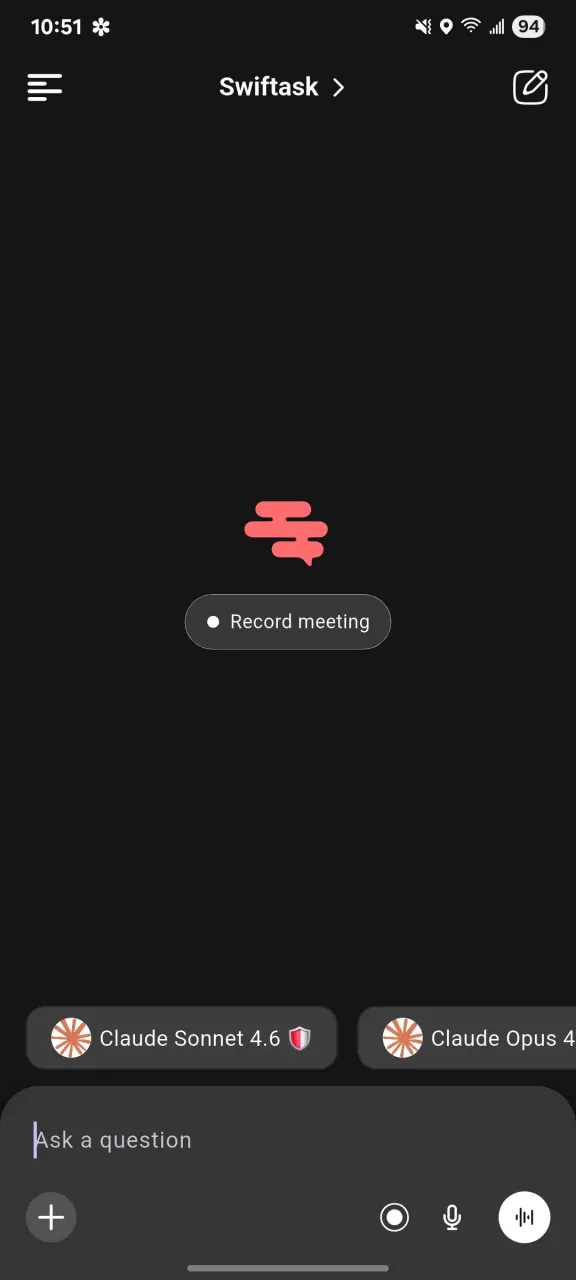
Tap the Ask a question input field and enter your prompt.
Tap the + button on the bottom left to open the attachment and actions menu.
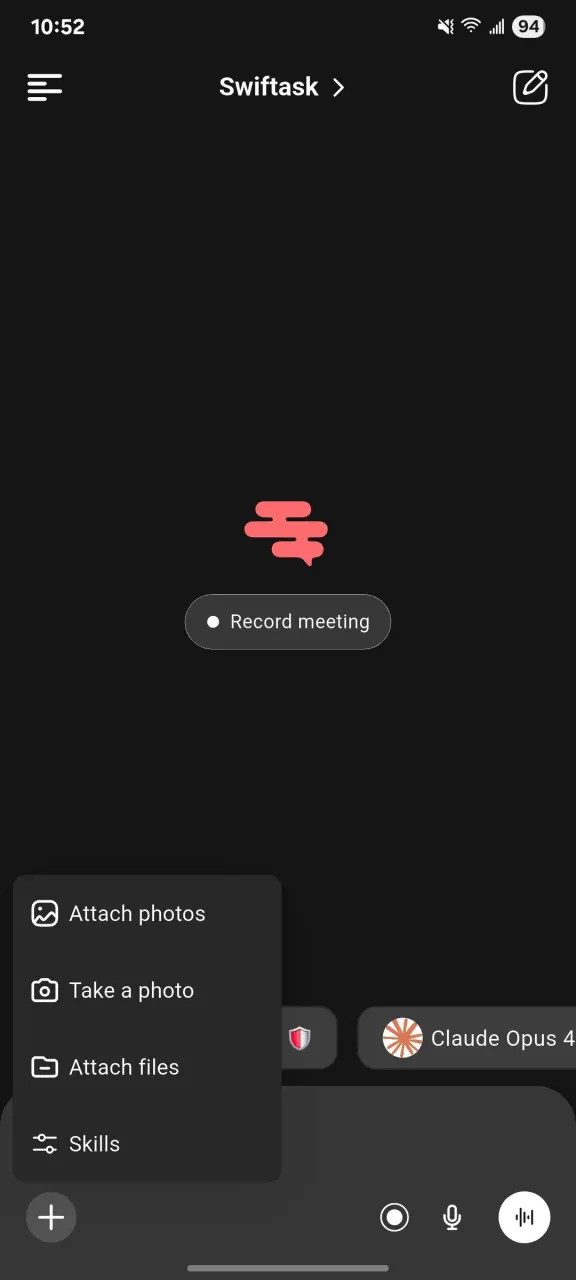
Choose an option from the menu:
Attach photos to select images from your device gallery.
Take a photo to capture an image with your camera.
Attach files to upload documents from your device.
Skills to access agent skills and tools.
Tap Send to submit your request to the AI.
2. Ground conversations with collections
Open the conversation screen in Chat.
Tap the collection selector or open the options menu from the top navigation bar.
Select the desired knowledge collection from your workspace list.
Send your question. The AI answers strictly using the documents stored within that collection.
3. Dictate messages with speech-to-text
Open any conversation in Chat.
Tap the Microphone icon on the right side of the bottom toolbar.
Speak your prompt clearly into your phone's microphone.
Tap the checkmark (✓) button to transcribe your speech directly into the Ask a question field.
Review and edit the transcribed text if needed, then tap Send.
4. Start an interactive hands-free voice session
Open any conversation in Chat.
Tap the Wave icon (circular button on the bottom right of the input bar).
Wait for the audio indicator to activate.
Speak naturally without holding any buttons. The AI processes your words and responds aloud through your device speaker.
Continue the verbal discussion fluidly, or tap Stop to conclude the session and preserve the transcript in your chat history.
Practical use cases
Hands-free brainstorming on the go: Tap the wave icon to brainstorm marketing angles, structure project briefs, or test ideas verbally during commutes.
Visual troubleshooting and receipt capture: Tap + and choose Take a photo or Attach photos to analyze receipts, handwritten notes, or diagrams on the spot.
On-site document lookup: Query specific company policies or technical guidelines during in-person meetings by restricting responses to a verified collection.
Fast speech-to-text notes: Use the microphone dictation tool to draft long updates, client summaries, or task outlines without typing on a mobile keyboard.
Tips & best practices
Speak close to your smartphone microphone in quiet environments for optimal transcription accuracy.
Select a specific collection whenever responses need to rely strictly on verified company data.
Use Take a photo for instant capture when inspecting physical items or paper documents.
Quickly switch between models using the horizontal pills above the input field according to task complexity.
Troubleshooting
Microphone access error
Cause: The mobile operating system has disabled microphone access for Swiftask.Fix: Open your mobile device system settings, select Swiftask in the app list, and toggle microphone permissions to allowed.
Camera or photo upload error
Cause: Photo library or camera access permissions are turned off for Swiftask.Fix: Go to your device system settings, locate Swiftask, and grant access to the Camera and Photos.
No audio playback in voice mode
Cause: Device media volume is muted or redirected to an inactive Bluetooth accessory.Fix: Turn up the media volume on your phone and verify your audio output device in system settings.
Collection answers lack relevant context
Cause: The selected collection contains no matching documents or the wrong collection is active.Fix: Reopen the collection menu, ensure the appropriate workspace collection is selected, and verify that relevant source files are attached to it.
Additional resources
Getting started and mobile app access — Install the mobile application and connect to your workspace
Account settings — Manage your user profile, active workspaces, and AI credits on mobile
Agents and executions — Track and monitor agent executions and tool actions on mobile
Was this helpful?
Still need help? Ask the team