Browse AI models and agents from Chat
Written By Stanislas
Last updated 16 days ago
The Change AI window is the central hub for choosing what powers your conversation in Chat. From a single panel, you can switch between AI models from different providers, launch a specialized agent, or jump straight into a creation tool like a slide deck or diagram.
This feature solves a common problem: with dozens of AI models and tools available, finding the right one for a specific task can be time-consuming. The Change AI window organizes everything into clear categories and lets you filter models by provider, data privacy level, and hosting region.
Overview
Use it whenever you want to:
Switch to a more powerful (or more cost-effective) AI model mid-conversation
Find a model that meets your data privacy or compliance requirements
Launch a specialized agent instead of a general-purpose model
Quickly create a slide, web page, diagram, or image without leaving Chat
Prerequisites
An active Swiftask account with access to Chat
Some models are restricted by plan (Premium/Team) — a badge on the model card indicates this
Workspace admins can restrict access to specific providers or models by role; if a model or provider is missing, check with your admin
Step-by-step guide
1. Open Chat and locate the AI selector
Navigate to Chat in the left sidebar. Above the input field, you'll see the Change AI dropdown next to Browse prompts.
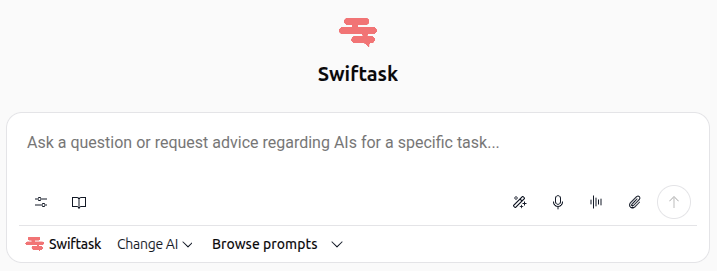
2. Click "Change AI" to open the browsing window
Click the Change AI dropdown arrow. A panel opens with a search bar at the top ("Type a word or describe what you want to do...") and a row of category tabs below it.
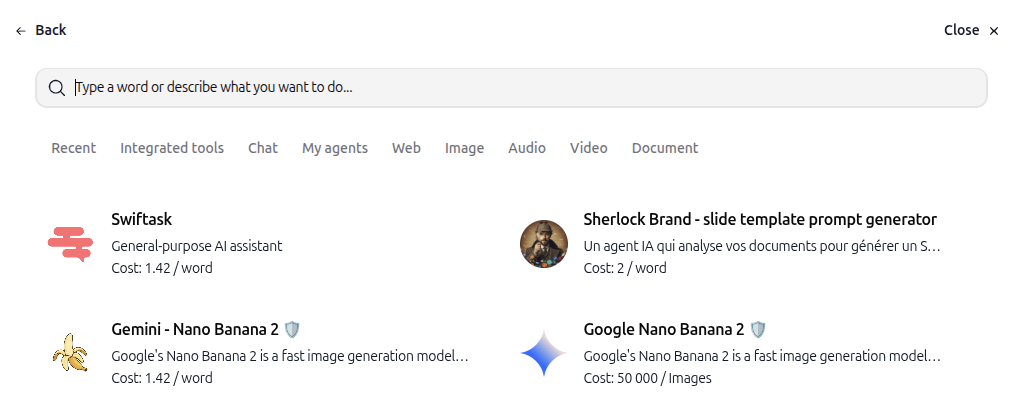
3. Explore the category tabs
The window is organized into nine tabs. Click any tab to browse its content:
You can also type directly in the search bar to find a specific model, agent, or tool by name or by describing your task.
4. Integrated tools: quick-launch creation actions
Click the Integrated tools tab to access one-click shortcuts for common creation tasks, without needing to describe them in a prompt.
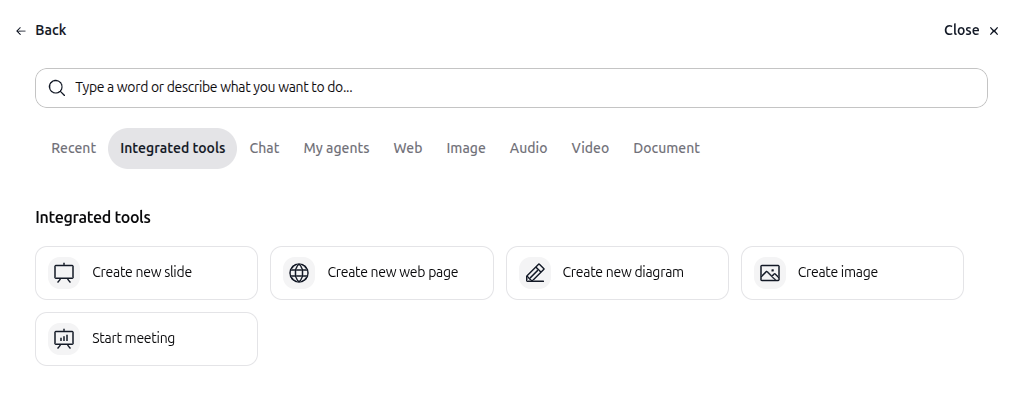
Available tools:
Create new slide – Launches the artifact editor to build a presentation
Create new web page – Launches the artifact editor to build a web page or dashboard
Create new diagram – Opens a diagramming tool to build flowcharts, mind maps, or schemas
Create image – Opens image generation, letting you describe and generate a visual
Start meeting – Launches a meeting recording session directly from Chat
Clicking any of these cards takes you straight into the relevant creation flow, pre-configured for that task.
5. Chat: browse models by provider
Click the Chat tab to see all conversational AI models, grouped by provider. Each provider row shows its logo, name, and the number of available models.
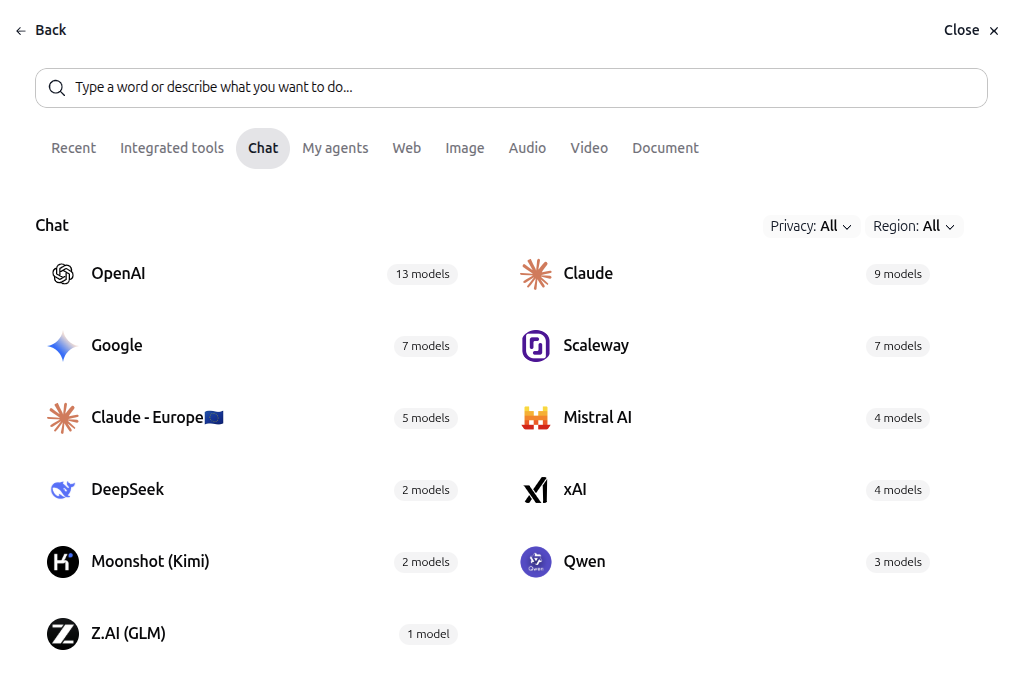
Available providers include:
OpenAI (13 models)
Claude (9 models)
Google (7 models)
Scaleway (7 models)
Claude - Europe 🇪🇺 (5 models)
Mistral AI (4 models)
DeepSeek (2 models)
xAI (4 models)
Moonshot (Kimi) (2 models)
Qwen (3 models)
Z.AI (GLM) (1 model)
Click a provider row to view its full model list, along with each model's description and cost (for example, "2 / word").
6. Filter by Privacy
At the top-right of the Chat tab, click Privacy: All to filter models by their data protection level. Each level is represented by a shield icon:
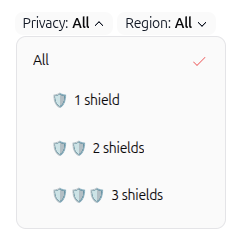
🛡️ 1 shield – Basic data protection (model typically hosted outside the EU, e.g., in the US)
🛡️🛡️ 2 shields – Standard data protection (EU-based hosting, GDPR-aligned)
🛡️🛡️🛡️ 3 shields – Maximum data protection (sovereign hosting, strictest data residency guarantees)
Select a shield level to show only models that meet that privacy requirement, or leave it on All to see every model.
7. Filter by Region
Next to the Privacy filter, click Region: All to filter models by their hosting location.
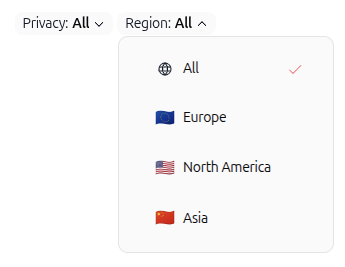
Available regions:
🌐 All – No region restriction
🇪🇺 Europe
🇺🇸 North America
🇨🇳 Asia
Privacy and Region filters work together, so you can combine them (for example, "3 shields" + "Europe") to find models that meet strict data sovereignty needs.
8. View models for a specific provider
Click any provider (for example, Claude - Europe) to see its detailed model list. Each model card shows shield icons and, where relevant, a region flag next to its name.
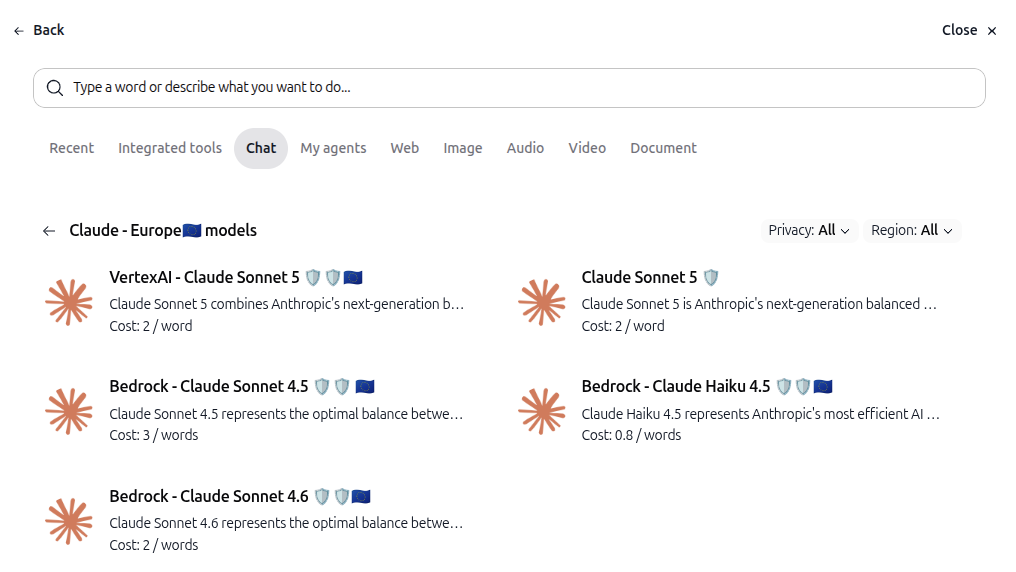
For example, under Claude - Europe, you may see models like "VertexAI - Claude Sonnet 5" (3 shields, EU flag) or "Bedrock - Claude Haiku 4.5" (2 shields, EU flag), each with its own cost per word. Use the Back arrow at any time to return to the provider list.
9. Select a model, agent, or tool
Click any model, agent, or tool card to select it. The Change AI window closes, and your Chat input is now ready to use with your selection. You can repeat this process at any point during a conversation to switch models.
Practical use cases
Choosing a GDPR-compliant model for HR data
You need to summarize an internal HR document containing personal information. Open Chat → Change AI → Chat tab → set Privacy to "3 shields" and Region to "Europe" to select a model that keeps data within the EU.
Quickly reusing a recent image model
You generated an image earlier and want to use the same model again. Open Change AI → Recent tab → click the model card to reuse it instantly, without searching.
Creating a presentation without leaving Chat
You need a quick slide deck for a meeting. Open Change AI → Integrated tools → Create new slide, then describe your content directly in the editor.
Switching to a specialized agent mid-conversation
You're chatting with a general model but need help from a specialized agent for a marketing task. Open Change AI → My agents (or Recent) → click the agent card to switch instantly.
Tips & best practices
Combine filters for compliance-sensitive work: Use Privacy and Region filters together when working with confidential or regulated data.
Check the shield count before selecting a model: More shields mean stronger data protection guarantees — useful for sensitive projects.
Use the search bar for speed: Instead of browsing tabs, type a keyword or describe your task directly in the search field.
Watch for Premium badges: Some models require a Premium or Team plan; the card will indicate this clearly.
Revisit the Recent tab: It's the fastest way to get back to a model, agent, or tool you used recently.
Troubleshooting
Issue: A provider or model I expect to see is missing
Cause: Your workspace admin may have restricted access to certain providers or models for your role.
Fix: Contact your workspace administrator to request access.
Issue: I selected a model but can't use it
Cause: The model requires a Premium or Team plan you don't currently have.
Fix: Check the Premium indicator on the card, then upgrade your plan or choose an available model.
Issue: No models appear after filtering
Cause: The combination of Privacy and Region filters is too narrow (e.g., "3 shields" + "Asia" may have no matches).
Fix: Reset one or both filters to "All" and narrow down again gradually.
Additional resources
Chat – Getting started – Learn the basics of Chat and its interface
Using agents from Chat – Invoke specialized AI agents for complex, repeatable tasks
AI recommendation from chat – Get AI-suggested models based on your task description
Was this helpful?
Still need help? Ask the team