Browse more pre-built agents
Written By Stanislas
Last updated 16 days ago
Overview
The pre-built agents directory in Chat allows you to browse and deploy ready-to-use AI agents without navigating away from your conversation space.
Instead of configuring an assistant from scratch, you can explore curated templates designed for specific tasks like data analysis, HR operations, document generation, and competitive research.
Cloning a template creates a personal copy in your workspace, allowing you to either start chatting immediately or adapt its instructions, model, and skills to your team's requirements.
Prerequisites
To browse and duplicate pre-built agents from Chat, you need:
An active Swiftask account.
Access to the Chat interface in your workspace.
Pre-built agents are available to all users across all workspace plans.
Step-by-step guide
1. Access the template catalog from chat
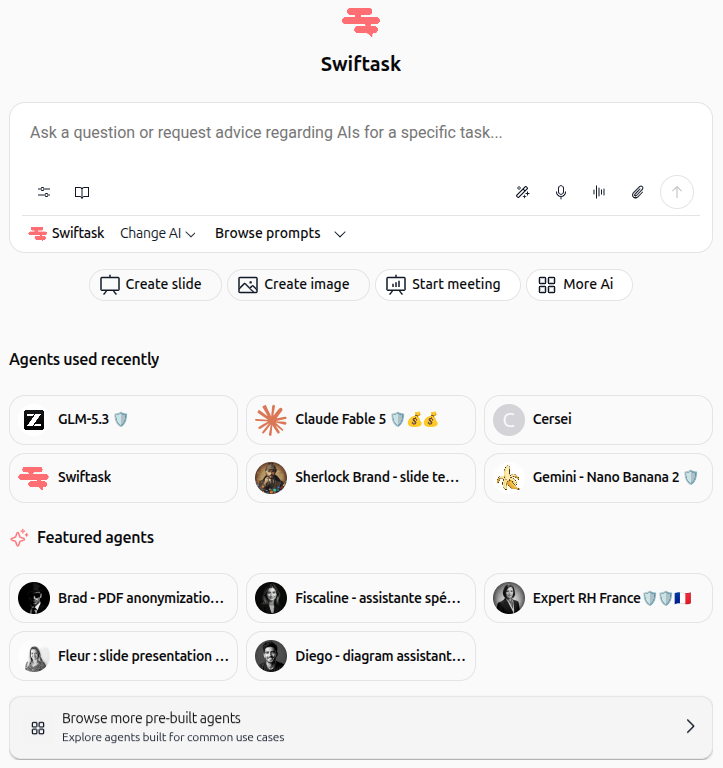
Navigate to Chat in the left navigation menu. Below your input area and the Featured agents row, click Browse more pre-built agents.
2. Explore templates by category or search
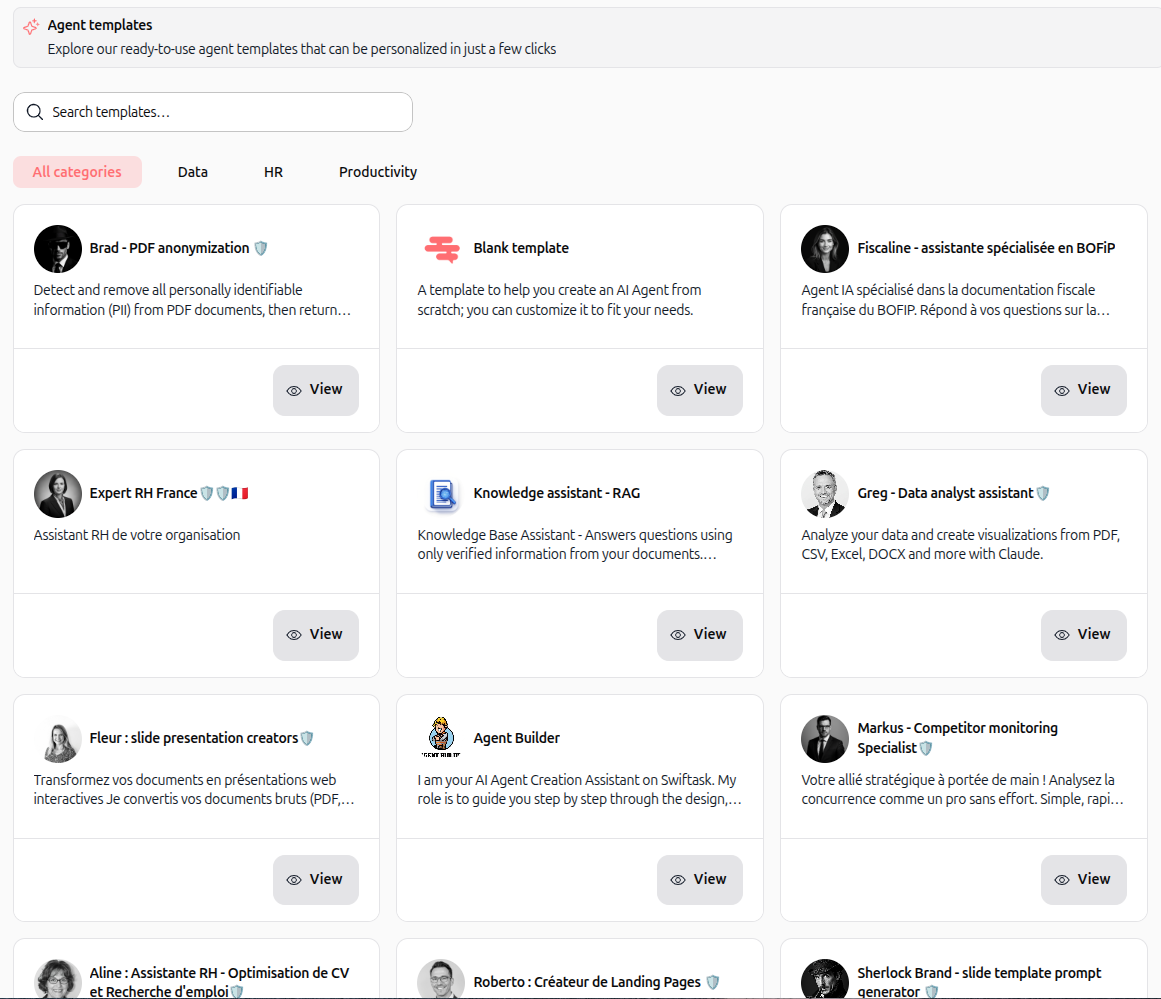
The Agent templates catalog displays all available templates.
Use the search bar at the top to find templates by keyword, or select category filters such as All categories, Data, HR, or Productivity to narrow the list.
3. Preview template details
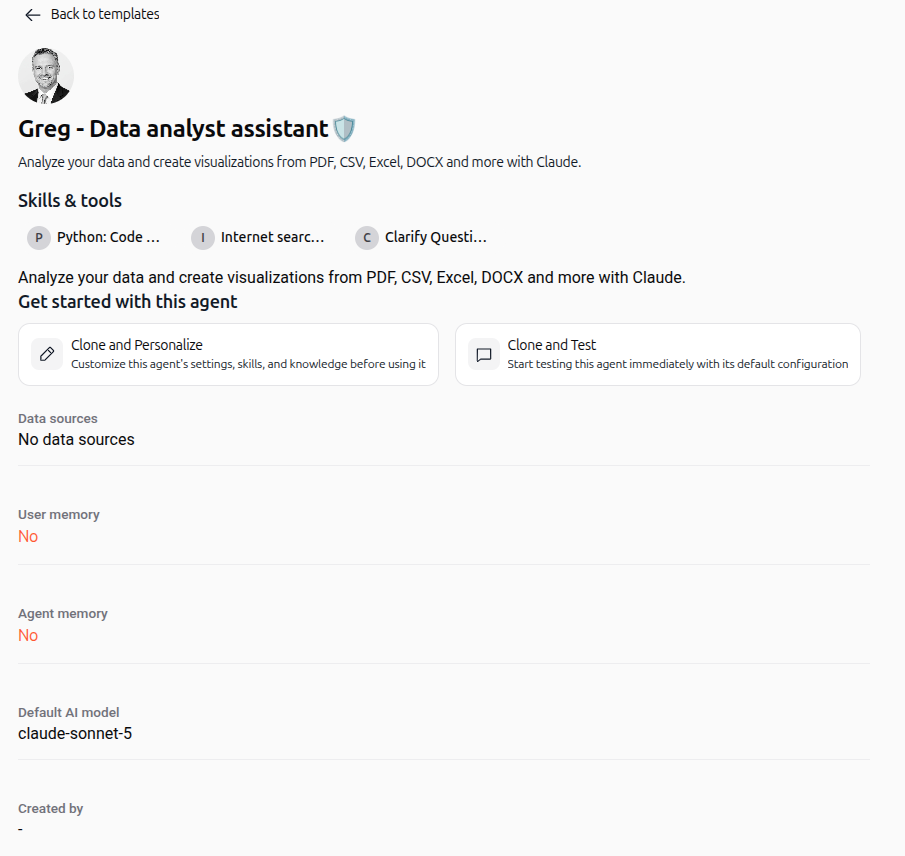
Click View on any agent card to open the template overview page.
Here, you can review the agent's role description, pre-configured skills and tools, connected data sources, memory settings, and default AI model.
4. Select a duplication option and confirm
Under the Get started with this agent section, choose how you want to work with the template:
Clone and Personalize: Customizes settings, system instructions, skills, or data sources before starting a conversation.
Clone and Test: Launches an instant chat session using the agent's default configuration.
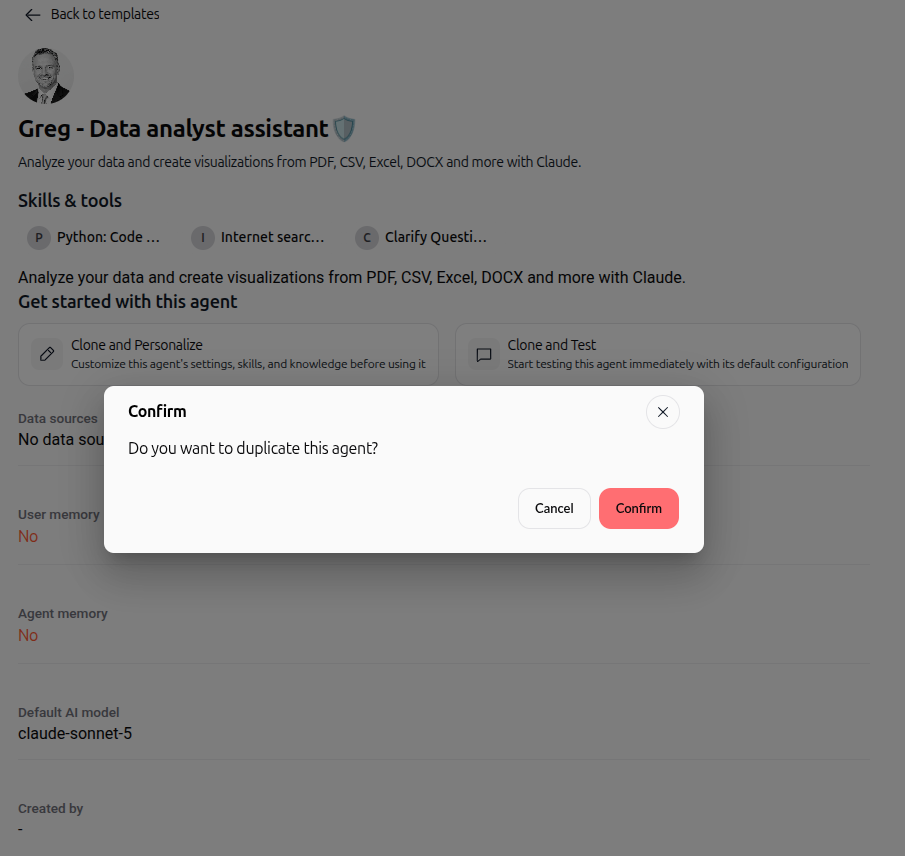
When the Confirm dialog appears with the message "Do you want to duplicate this agent?", click Confirm.
5. Start chatting or customize agent configuration
Both options duplicate the template directly into your workspace agent list in the Agents section.
If you selected Clone and Test, a new chat conversation opens immediately with the cloned agent ready to answer questions.
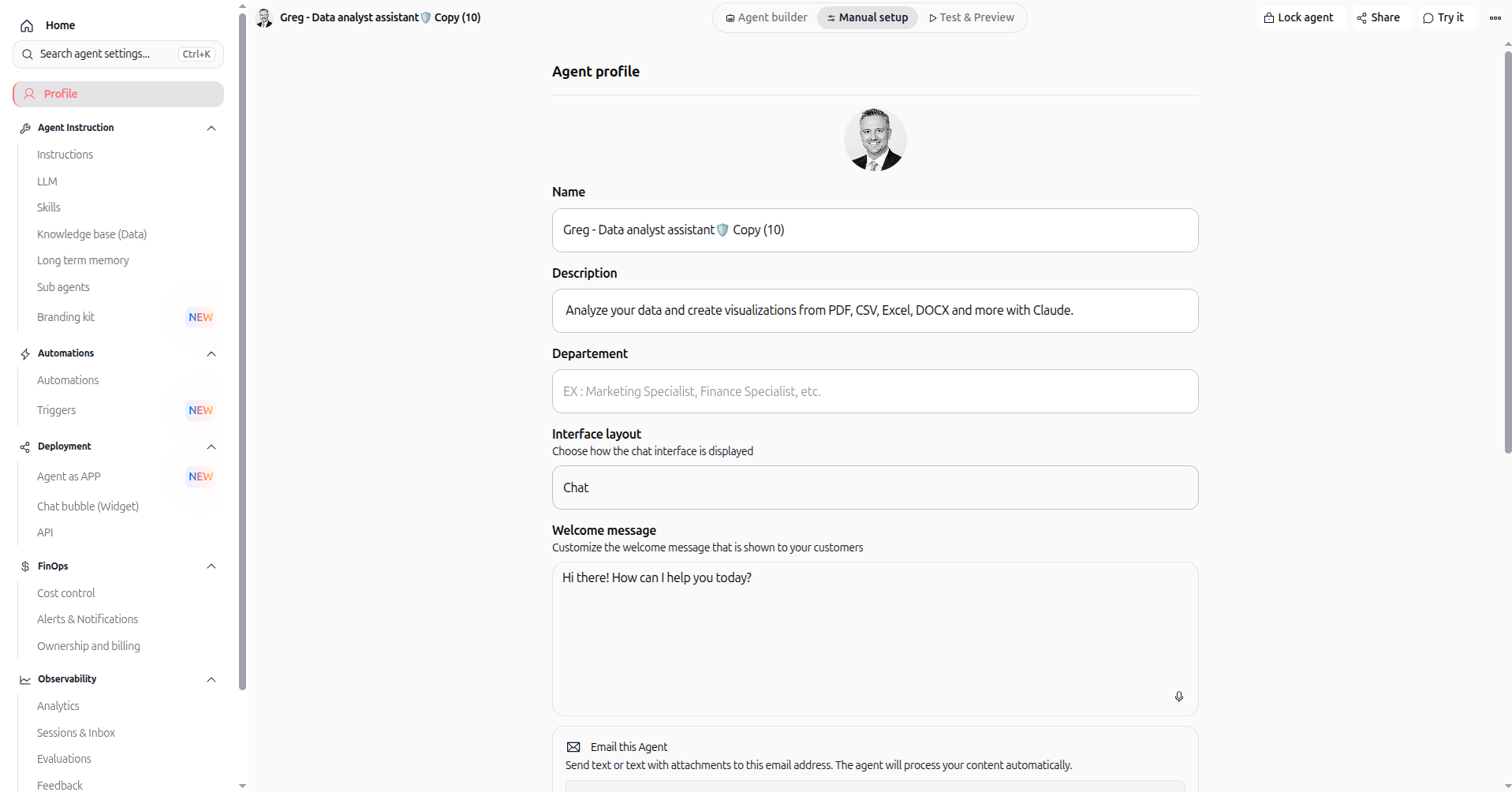
If you selected Clone and Personalize, you are redirected to the agent configuration page where you can rename your agent, edit its system prompt, adjust tools, or attach knowledge sources.
Practical use cases
Instant data analysis in chat
Clone the Greg - Data analyst assistant template using Clone and Test. Upload a spreadsheet or CSV directly into the conversation to generate summaries and charts instantly without manual configuration.
Customized HR policy assistant
Select an HR template such as Expert RH France using Clone and Personalize. Attach your company's internal leave policies and onboarding guidelines in the knowledge base settings before sharing the agent with your team.
Rapid prototyping with the blank template
Open the catalog, select the Blank template, and personalize it with your custom system prompt and specific MCP integrations to build a tailored workflow in minutes.
Tips & best practices
Rename your duplicated agent
Duplicated templates are automatically assigned the name [Template Name] Copy (X). Rename your agent in the profile settings with a clear, descriptive name to differentiate it in your agent library.
Test with default settings first
If you are unsure which configuration settings to adjust, choose Clone and Test to evaluate the template's baseline behavior. You can always edit its configuration later from the Agents section.
Connect dedicated workspace knowledge
Pre-built templates provide structured system instructions and tools out of the box. Add your workspace documentation to the Knowledge base tab to ground responses in your proprietary data.
Troubleshooting
The agent appears duplicated multiple times in my list
Each time you click Clone and Test or Clone and Personalize and confirm, a new copy is created in your Agents section. Delete unused duplicate copies from your personal agent library via the agent options menu.
The template doesn't include my organization's data
Templates contain generic instructions and tool configurations. Navigate to the agent's configuration panel and upload your documents under Knowledge base (Data) to provide organizational context.
Cloned agent does not have access to my third-party accounts
Some templates feature external skills that require authentication. If a skill displays a configuration warning, open the agent's Skills settings and authenticate your credentials.
Additional resources
Using agents from chat
Create agent from template
Introduction to agents
Was this helpful?
Still need help? Ask the team