Overview
Written By Stanislas
Last updated 16 days ago
Overview
AI agents in Swiftask are purpose-built virtual assistants designed to handle specialized business workflows, automate recurring tasks, and integrate with company knowledge and external tools. While standard chat interactions are general-purpose, agents operate with predefined instructions, dedicated knowledge bases, specialized skills, and automated triggers to deliver reliable and consistent results.
Using agents eliminates repetitive prompt setup and standardizes AI execution across teams. You can deploy agents internally for workspace members or share them externally as standalone web apps and embedded chat widgets.
When to use agents
Choose a dedicated agent over standard chat when your tasks require specialization, persistence, and external actions:
Recurring, specialized tasks: Use agents when workflows require a consistent persona, strict output formats, or specific behavioral guidelines that you do not want to re-prompt each time.
Context-heavy operations: Use agents when conversations require continuous access to proprietary documents, knowledge tables, or brand assets without uploading files manually.
Action-oriented workflows: Use agents when your assistant needs to interact with third-party tools, query databases, browse the live web, or send emails.
Team-wide or public deployment: Use agents when standardizing AI workflows across team members, embedding chat assistants on external websites, or offering self-service apps.
Key capabilities
What agents can do
Access private knowledge: Search, retrieve, and synthesize information directly from attached company documents, knowledge bases, and data tables.
Execute tools and integrations: Trigger connected skills, interact with external APIs, browse web pages via the interactive browser, and run automations.
Retain context over time: Remember user details, past project context, and preferences across sessions using long term memory.
Run autonomously from triggers: Respond automatically to inbound emails or webhook events without requiring manual human prompting.
Collaborate hierarchically: Delegate subtasks to specialized sub-agents and aggregate answers back to the user.
Deploy across channels: Operate directly in the Swiftask interface, as standalone public web applications, embeddable website widgets, or developer API endpoints.
What agents cannot do
Act beyond granted permissions: Agents cannot access workspace resources, files, or external tools unless an administrator or owner explicitly attaches and authorizes them.
Guarantee verified facts without sources: Without an attached knowledge base or web browsing capability, an agent relies solely on base LLM training data and may produce hallucinations.
Operate past defined credit limits: Agents cannot process prompts or trigger external paid actions once workspace credit quotas or FinOps spending limits are reached.
Modify their own configuration: Agents execute instructions and skills provided to them; they cannot autonomously rewrite their prompts, change security settings, or alter workspace roles.
Prerequisites
To explore and work with agents in Swiftask, you need:
An active Swiftask account.
Access to a Swiftask workspace.
Permissions to create or manage agents in your workspace (view-only members can still browse and interact with shared agents).
Navigating the agents workspace
You can access the dedicated agents environment by clicking Agents in the main left navigation panel.

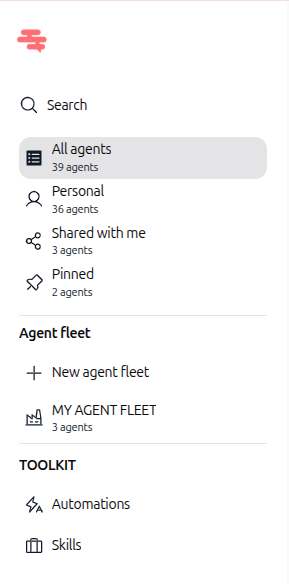
Selecting Agents opens a secondary navigation panel with dedicated views, fleets, and toolkits:
Search: Locate specific agents quickly by name or keyword.
Agent views: Filter the agent list by All agents, Personal (created by you), Shared with me (shared by team members), and Pinned (starred for quick access).
Agent fleet: Group related agents into operational fleets or click + New agent fleet to organize collaborative multi-agent setups.
TOOLKIT: Access workspace-wide resources, including Automations and Skills.
Agent cards
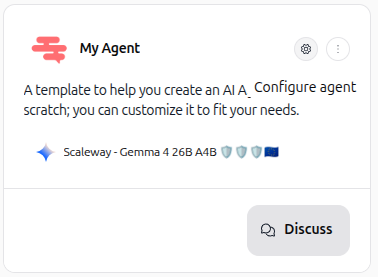
Each agent appears as an individual card displaying its avatar, name, description, assigned AI model, and privacy indicators.
From the card, you can click Discuss to start a conversation immediately, click the gear icon to open the configuration dashboard, or use the three-dot menu for additional actions such as sharing or duplicating.
Agent creation options
Swiftask offers flexible creation and setup modes to accommodate both conversational setup and granular technical configuration:
Agent builder: Generate agent instructions, skills, and model configurations interactively using natural language AI prompts.
Manual setup: Configure instructions, parameters, and connected tools directly from scratch with full granular control.
From Template: Initialize an assistant from pre-configured blueprints designed for specific business roles and use cases.
Test & Preview: Test prompt variations, model reasoning, and skill responses in a live preview environment before saving changes.

Agent settings architecture
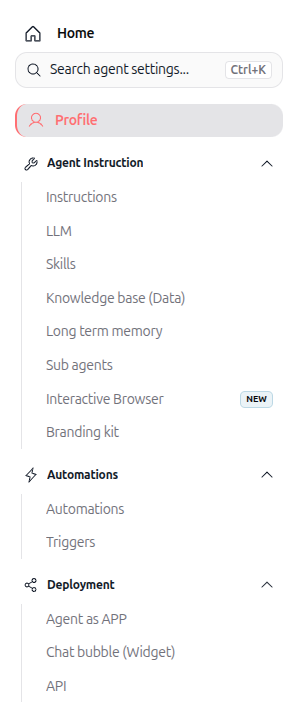
The agent configuration sidebar provides a unified control center for setting up, automating, deploying, and monitoring your agent.
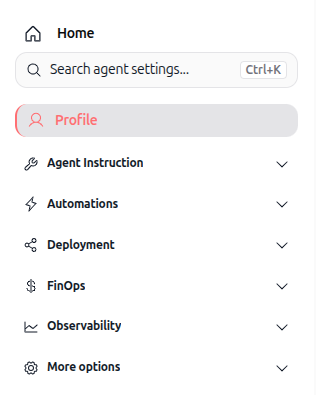
The configuration options are organized into the following key categories:
Profile
Set up the core identity of the agent, including its display name, avatar, role description, and workspace visibility.
Agent Instruction
Control the agent's intelligence, behavioral rules, data access, and styling:
Instructions: Define the system prompt, operational objectives, and behavioral constraints.
LLM: Select primary and fallback language models, adjust reasoning depth, and fine-tune execution parameters such as temperature.
Skills: Connect third-party tools, custom APIs, and workspace actions.
Knowledge base (Data): Attach private documents, files, and structured knowledge tables.
Long term memory: Enable context retention across user conversations and distinct sessions.
Sub agents: Connect specialized child agents to delegate tasks within composite workflows.
Interactive Browser: Enable real-time web browsing and web interaction capabilities.
Branding kit: Apply workspace visual identity, colors, logos, and voice guidelines.
Automations
Transform passive chat assistants into autonomous, event-driven workers:
Automations: Build multi-step workflows executed on schedules or event triggers.
Triggers: Trigger agent actions automatically via inbound Webhooks or dedicated agent email addresses.
Deployment
Publish and distribute agents across multiple channels:
Agent as APP: Generate a standalone, branded public web application accessible via direct URL.
Chat bubble (Widget): Embed a responsive conversational widget directly into external websites.
API: Integrate the agent programmatically into external platforms using developer endpoints.
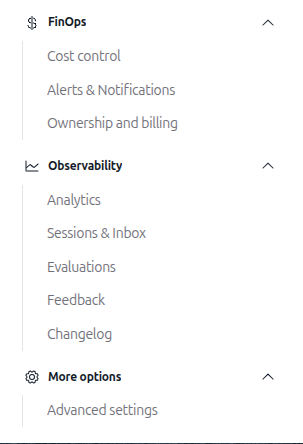
FinOps
Govern AI spending, track credit consumption, and define administrative ownership:
Cost control: Set credit quotas, token limits, and spending boundaries.
Alerts & Notifications: Configure proactive alerts when credit thresholds are approached.
Ownership and billing: Designate the agent owner and specify which user account supplies execution credits.
Observability
Monitor agent health, analyze conversation trends, and assess output quality:
Analytics: Review metrics on total conversations, execution volume, response latency, and error rates.
Sessions & Inbox: Inspect complete conversation logs and review past user dialogues.
Evaluations: Run automated tests to evaluate answer precision and prompt consistency.
Feedback: Collect and analyze user ratings and direct feedback.
Changelog: Review audit trails and modification histories to track configuration updates.
More options
Advanced settings: Access additional operational configurations, permission locks, and technical parameters.
Practical use cases
24/7 customer support agent
Connect an agent to your product documentation, attach a branding kit, and deploy it as a Chat bubble widget on your public website to answer inquiries automatically.
Automated email processing
Assign a unique email trigger to an agent to parse inbound invoices or customer requests, extract relevant data, and forward details to your back-office systems.
Internal team knowledge copilot
Create an internal assistant connected to company policies and handbook data, with long term memory enabled to provide continuous onboarding support for employees.
Tips & best practices
Explore templates first: Use pre-built templates to discover effective combinations of system instructions and connected skills.
Test in preview: Validate prompt adjustments and tool calls using Test & Preview before publishing updates.
Configure FinOps early: Set credit limits and alerts in FinOps to maintain predictable AI expenditures.
Lock production agents: Enable agent locking once an assistant is stable to prevent inadvertent configuration changes.
Additional resources
Create agent from template: Learn how to create an agent using ready-to-use blueprints.
Sub agents: Discover how to break down complex tasks across multiple specialized agents.
Lock agent: Protect sensitive configurations in shared workspace environments.
Agent as app: Deploy standalone public interfaces for external audiences.
Embed and widget: Integrate conversational widgets into external websites.
Was this helpful?
Still need help? Ask the team