Attach / create sub-agent
Written By Stanislas
Last updated 16 days ago
Overview
Sub agents enable you to build a multi-agent architecture by connecting specialized agents to a primary parent agent. Instead of relying on a single agent to handle every prompt, the parent agent delegates distinct tasks to dedicated sub-agents configured for specific roles.
This setup streamlines complex operations by establishing a visual, modular system where agents execute independently or in parallel. Each sub-agent functions as an intelligent tool that the parent agent calls automatically based on defined criteria.
When to use sub-agents
Use sub-agents when tasks require specialized instructions, distinct knowledge bases, or independent toolsets that would overload a single prompt.
Complex multi-step projects: Distribute research, drafting, data analysis, and formatting across dedicated specialists rather than one generalist agent.
Parallel processing: Execute multiple queries or sub-tasks simultaneously to shorten response times during complex workflows.
Modular reusability: Build domain-specific agents (such as web search, image generation, or email triage) once and attach them across multiple parent agents.
Deep domain segregation: Keep distinct operational boundaries and permissions between different internal databases and tools.
Note: Sub-agents cannot be invoked using manual @ mentions in chat. They are triggered automatically by the parent agent when the prompt context matches their configured invocation criteria.
Prerequisites
Access to the Agents section in Swiftask
An existing agent to serve as the orchestrator (parent agent)
Permission to view and use the target agents you wish to attach
Agent configuration permissions within the workspace
Step-by-step guide
Access the Sub agents section
Navigate to Agents in the left panel and click the configuration icon on your parent agent.
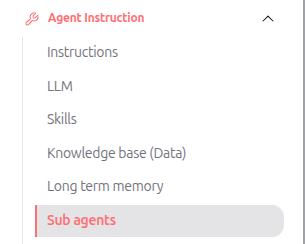
In the configuration menu under Agent Instruction, select Sub agents.
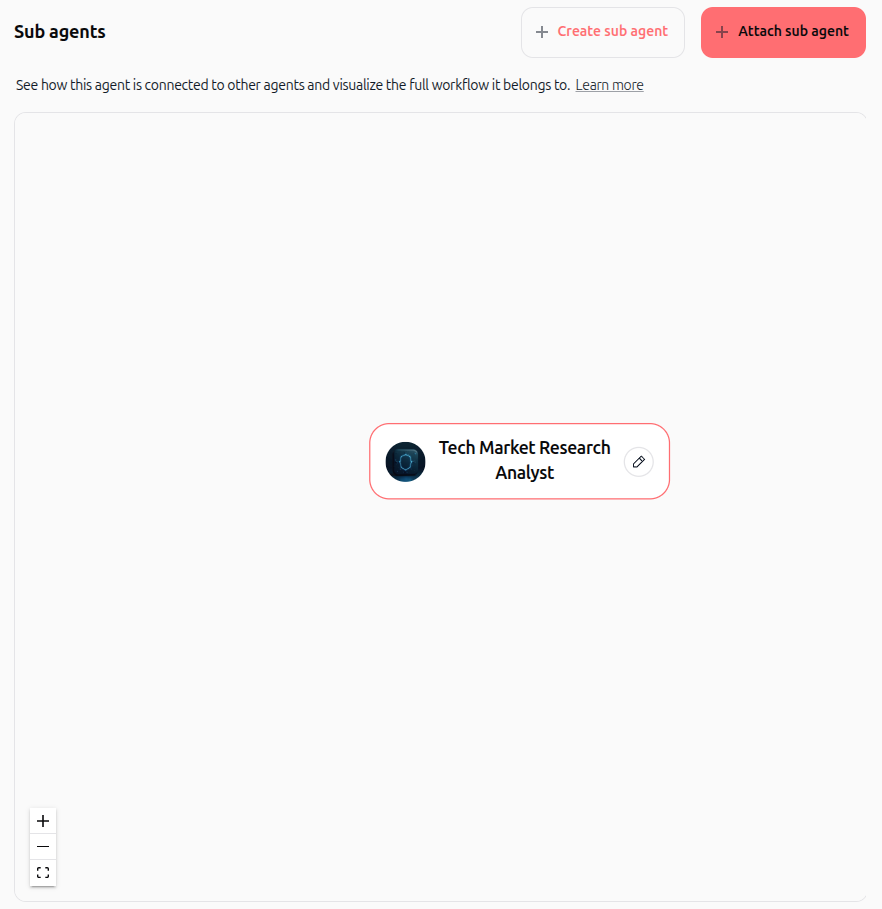
The interactive canvas opens, displaying your root agent and management options in the top header.
Attach an existing agent as a sub-agent
Click the + Attach sub agent button in the top right corner.
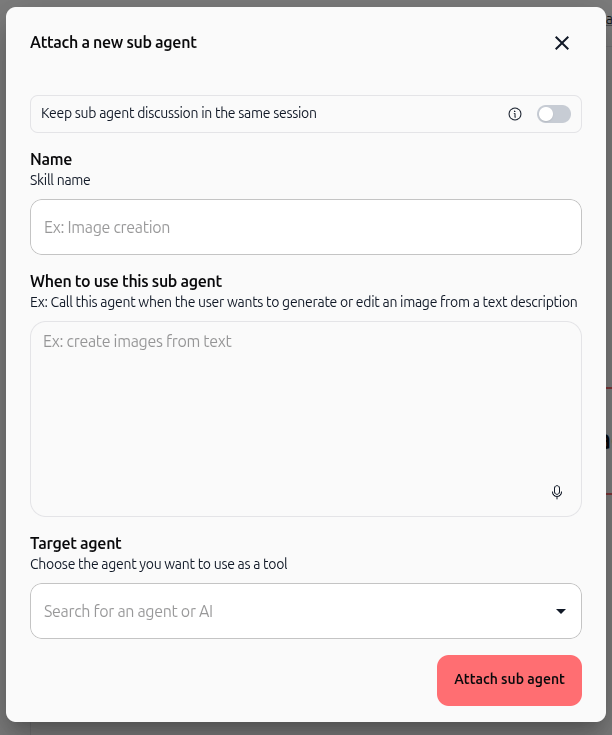
Configure the following fields in the modal:
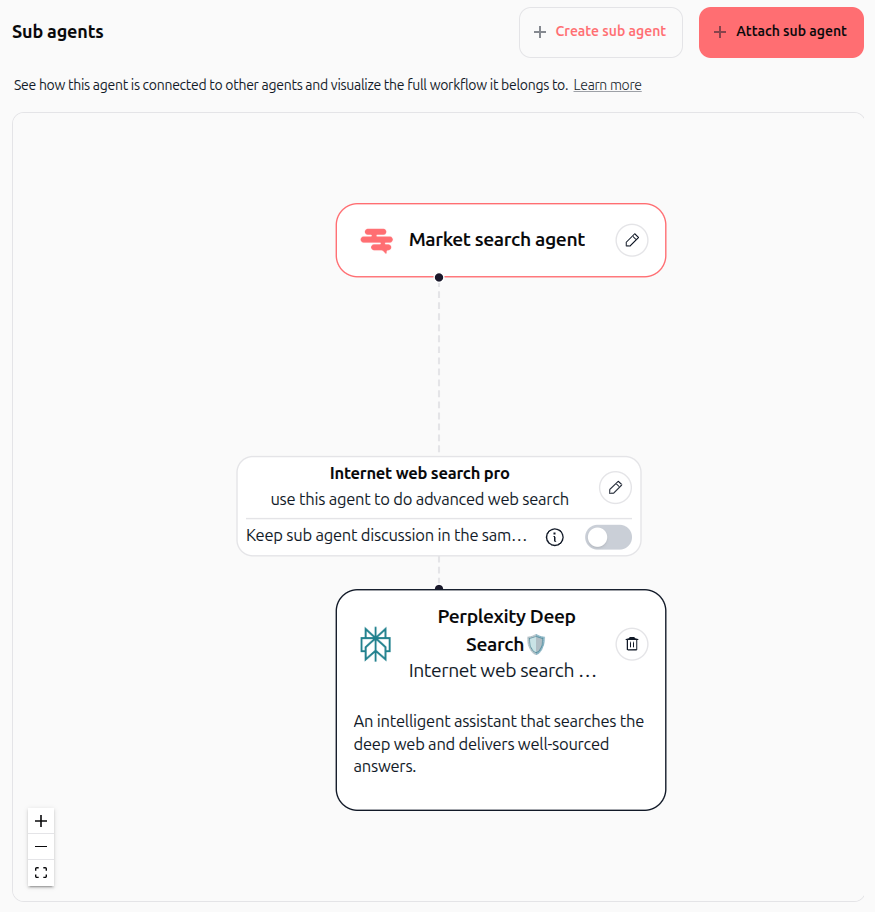
Keep sub agent discussion in the same session:
Activated: The sub-agent remembers the discussion history across requests.
Deactivated: Each request is treated as a new conversation.(Note: This functionality will be discussed in depth in dedicated documentation).
Name: Enter a descriptive skill name for the sub-agent (e.g.,
Internet web search pro).When to use this sub agent: Enter clear invocation criteria explaining exactly when the parent agent should delegate tasks to this agent (e.g.,
use this agent to do advanced web search).
Click the Target agent field to search for and select an existing agent from your workspace or pre-built library.
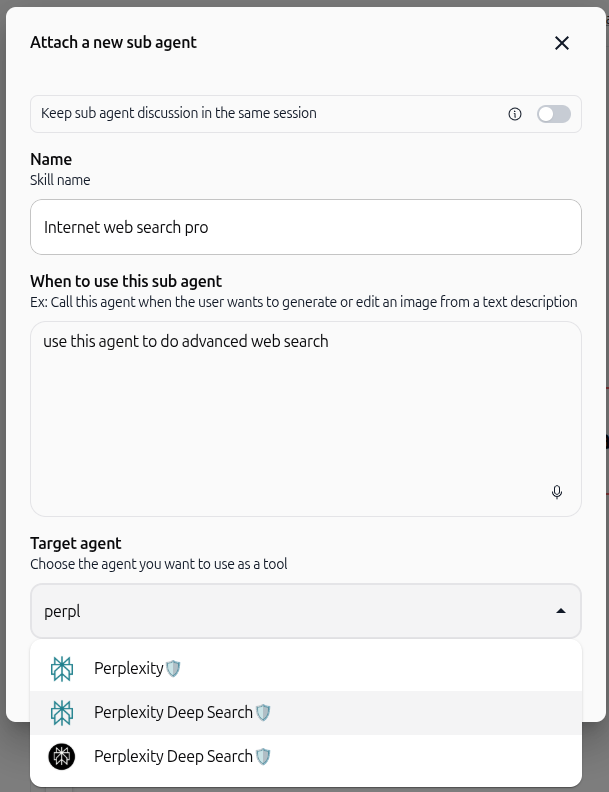
Click Attach sub agent to confirm. The connected sub-agent will appear directly linked to the parent node on the canvas.
Create a new sub-agent
Click the + Create sub agent button in the top header.
Swiftask redirects you in a new window to the standard agent creation and configuration interface.
Configure your new agent's instructions, model, skills, and knowledge base, then save your setup.
Once created, the agent is automatically added to your parent agent's visual hierarchy tree as a sub-agent.
Navigate the visual hierarchy tree and nested sub-agents
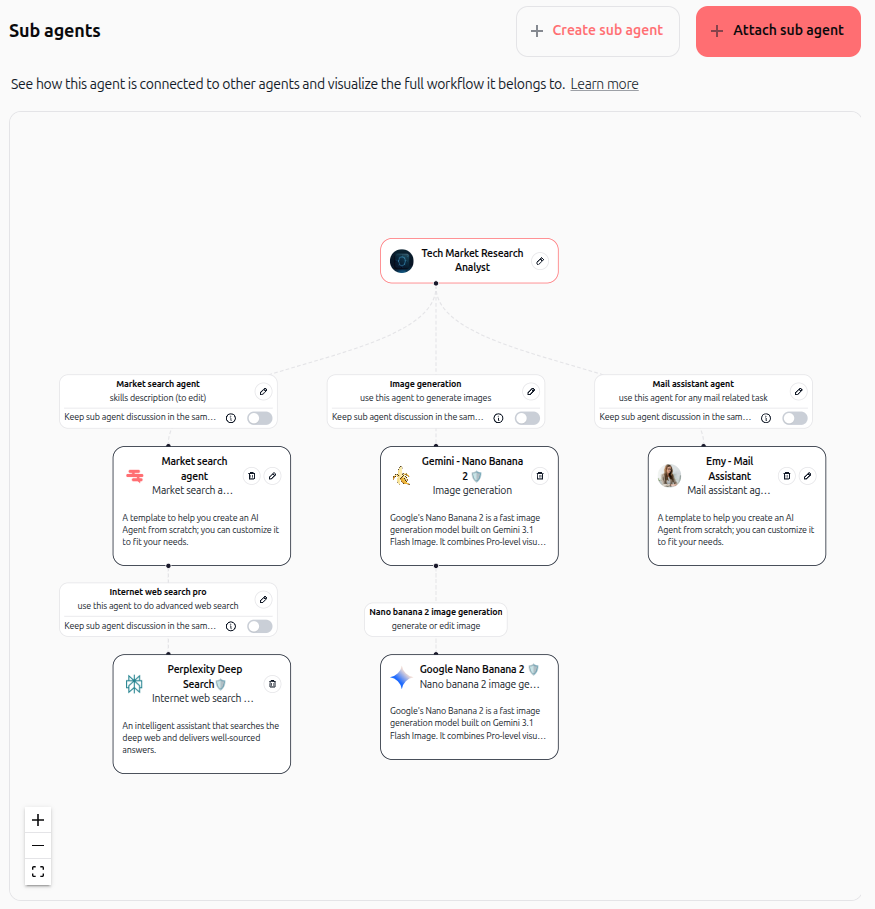
The Sub agents canvas provides a visual top-down graph illustrating parent-child relationships and nested agent chains.
Use the navigation controls in the bottom-left corner (
+,-, and full screen) or click and drag to pan across the canvas.If an attached agent already has its own sub-agents configured, Swiftask displays the nested hierarchy automatically.
You can attach multiple sub-agents to establish parallel functional branches under a single orchestrator.
Manage sub-agents in the Skills tab
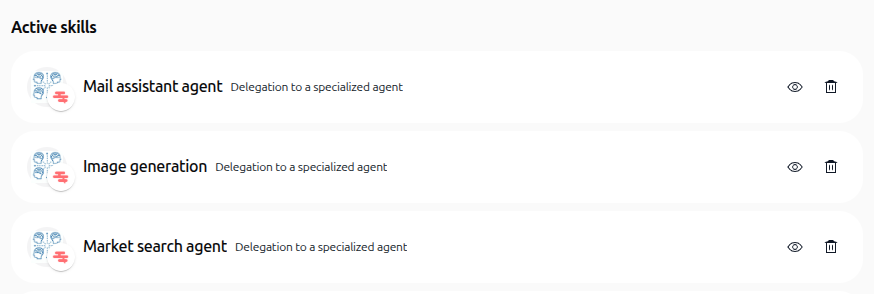
In the agent configuration menu on the left, click Skills.
Attached sub-agents are listed under Active skills with a delegation badge.
Click the eye icon to inspect sub-agent details or the trash icon to detach a sub-agent from the parent.
Monitor parallel execution via the real-time sidebar
Open Chat and submit a request to your parent agent that triggers multiple sub-tasks.
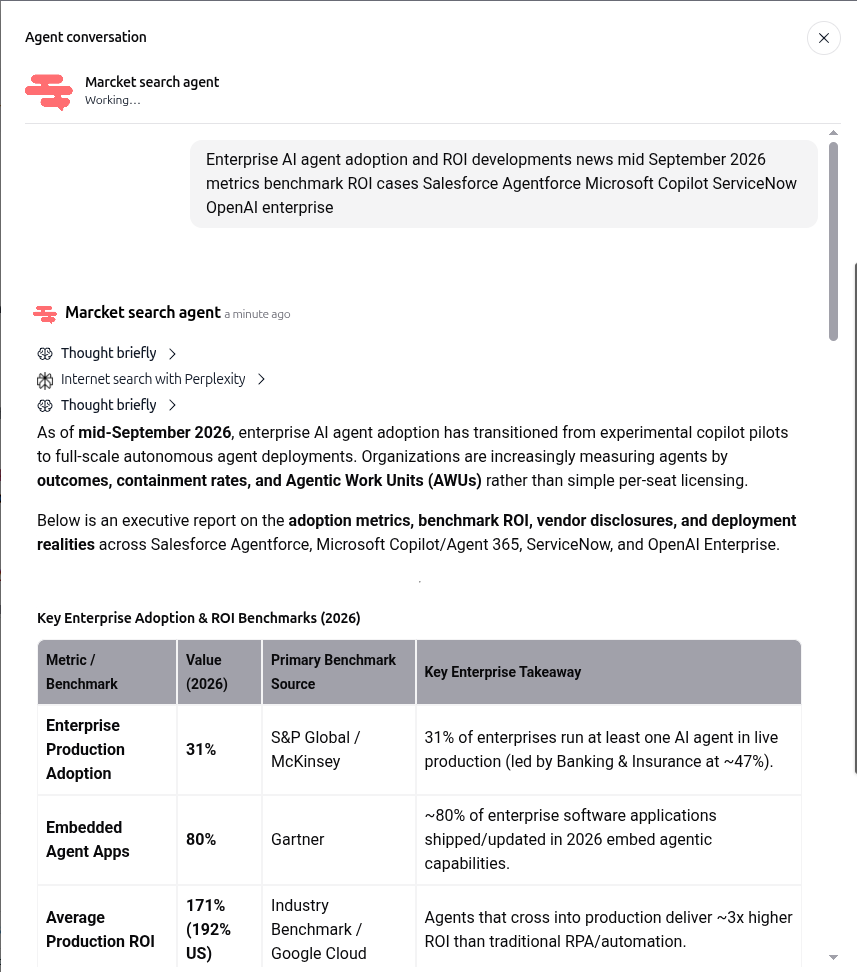
When multiple sub-agents run concurrently, their progress displays under the thought trace with active status indicators.
Hover over an active sub-agent card to reveal the Watch this agent work prompt, then click it.
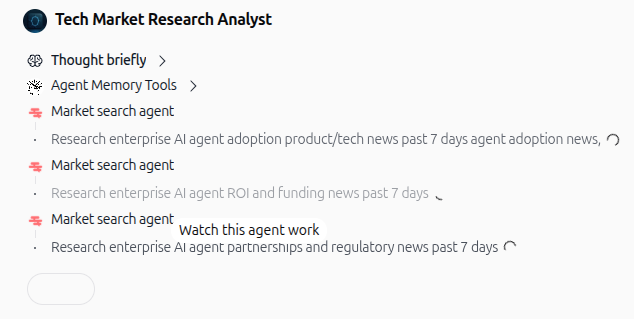
A dedicated right sidebar opens titled Agent conversation, streaming the sub-agent's internal reasoning, tool calls, and output in real time.
Practical use cases
Market research and analysis synthesis: An executive orchestrator agent receives a broad inquiry, delegates 3 separate search streams in parallel to a Perplexity Deep Search sub-agent, and consolidates the real-time findings into a comparative executive summary.
Content production line: A lead blog agent orchestrates drafting by calling a specialized copywriting sub-agent, sends generation prompts to an image sub-agent, and passes the output to a proofreading sub-agent.
Customer operations dispatch: A customer service triage agent assesses ticket intent and routes queries to dedicated sub-agents for billing, technical troubleshooting, or account management.
Tips & best practices
Precise invocation criteria: Write clear, action-oriented instructions in the "When to use this sub agent" field so the parent agent knows exactly when delegation is required.
Single responsibility principle: Keep each sub-agent focused on one specialized domain or task to optimize token usage and accuracy.
Inspect execution traces: Use the real-time conversation sidebar during testing to verify sub-agent prompt handoffs and intermediate results.
Avoid deep cyclical chains: Keep nested hierarchies clear and acyclic to avoid unnecessary latency.
Troubleshooting
Sub-agent is never invoked by the parent agentCause: The criteria in "When to use this sub agent" are too vague or conflict with the parent agent's direct instructions.Fix: Edit the sub-agent skill name and specify precise trigger keywords and intent examples in the invocation criteria field.
Cannot mention a sub-agent with @ in chatCause: Sub-agents are configured as internal delegated skills for the parent agent, not standalone chat participants in the parent session.Fix: Let the parent agent delegate the request naturally based on your prompt, or converse directly with the sub-agent by selecting it from the agent selector.
Attached sub-agent fails to perform required toolsCause: Missing permissions, missing connector credentials, or unindexed knowledge bases on the child agent.Fix: Open the sub-agent configuration directly to verify that all necessary skills and datasources are properly authorized.
Additional resources
Agent configuration guide
Skills overview
Lock agent
Was this helpful?
Still need help? Ask the team