Introduction - AI-assisted meetings
Written By Stanislas
Last updated 16 days ago
Overview
AI-assisted meetings in Swiftask automate the entire meeting lifecycle, from initial audio capture to transcript analysis and cloud organization. The platform records conversations, generates accurate transcripts with speaker diarization, and extracts actionable insights so you can focus entirely on the discussion.
Whether you join calls through a web browser, video conferencing platforms, or in person, meetings are centralized in your workspace and made accessible to AI agents for follow-up workflows.
Prerequisites
To use AI-assisted meetings, you need:
An active Swiftask account.
A functional microphone (built-in, USB, or Bluetooth headset).
Microphone permissions enabled in your browser or operating system.
The Swiftask Chrome extension or desktop application depending on your preferred workflow.
Step-by-step guide
Navigate to Meetings in the left sidebar to access your meeting hub.
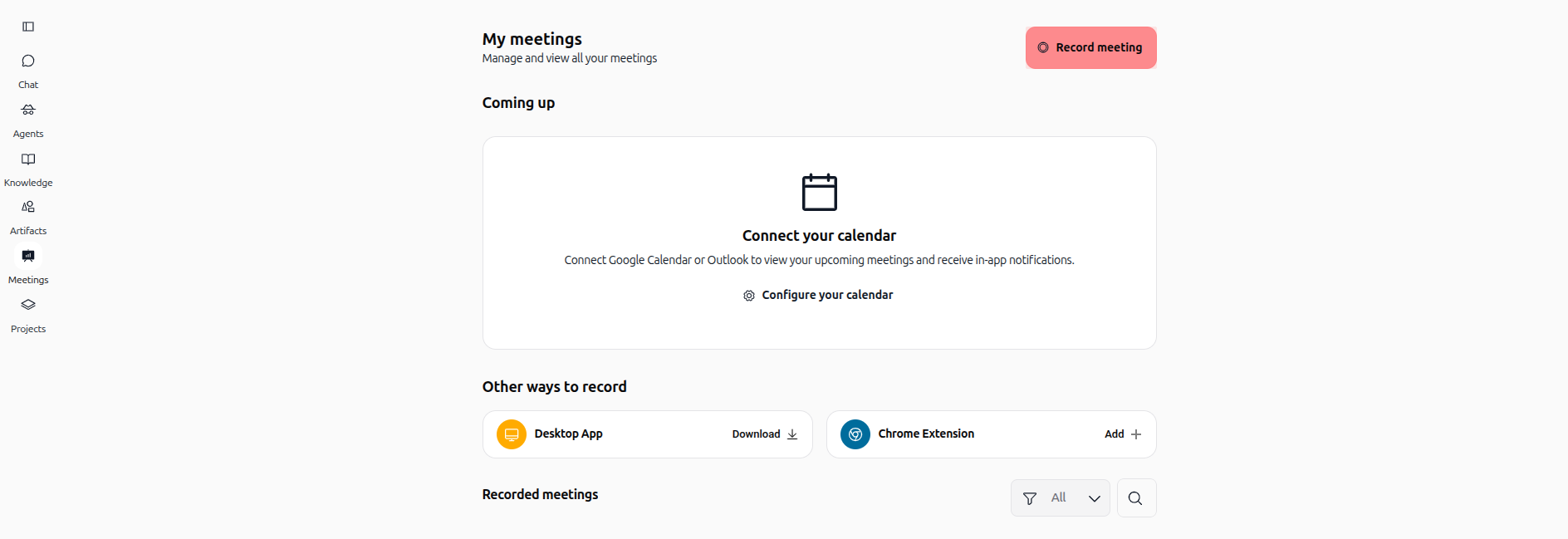
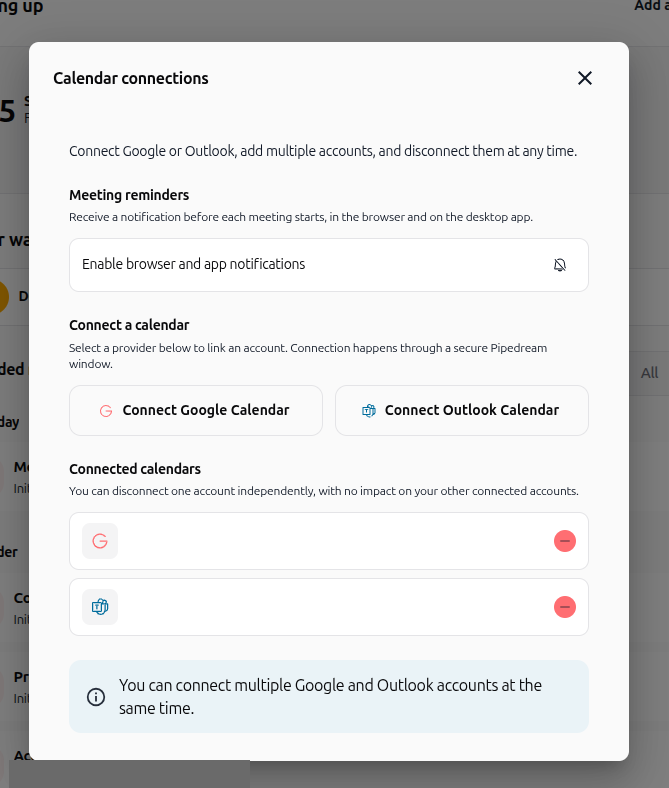
Connect your calendar under Coming up to view upcoming meetings and configure reminders, or choose your preferred recording method.
Allow Swiftask to stream audio, identify distinct speakers, and build your progressive transcript.
Open the finished session to review the synchronized transcript, watch video playback, and run AI analysis.
Categorize records into collections to keep projects organized and synchronized across devices.
Practical use cases
Client discovery calls: Maintain an exact historical record of customer requirements and budget constraints.
Internal team alignment: Keep cross-functional teams synchronized on priorities and key decisions.
Executive governance: Archive board and leadership reviews with searchable transcripts for compliance and reference.
Tips & best practices
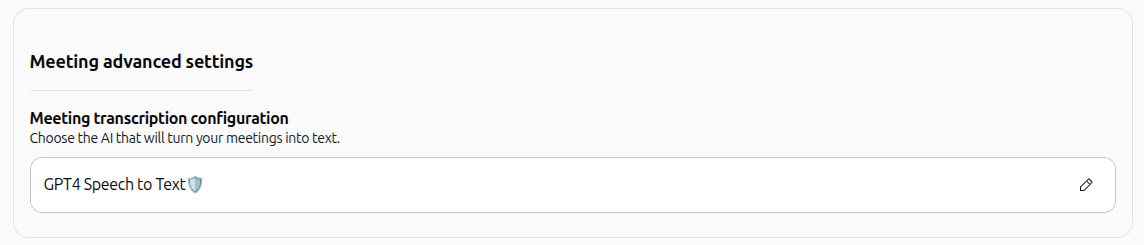
Configure default transcription AI: In Workspace settings → Default Agent & AI → Meeting advanced settings, workspace administrators can choose the default AI engine (e.g., GPT4 Speech to Text) that turns meetings into text.
Select the right capture method: Use the Chrome extension for browser calls and the desktop app for local room recording.
Assign to collections early: Move recordings into project collections right away to avoid library clutter.
Combine with workspace search: Search across all meeting transcripts simultaneously from the global search bar.
Troubleshooting
Microphone not detected: Verify that your computer sound settings designate your microphone as the active input device.
Audio not capturing: Confirm that browser and system microphone permissions are enabled for Swiftask.
Session not visible: Refresh the page to reload the meeting library after completing a session.
Additional resources
Meeting recording – Step-by-step guide to capturing calls via extension, web, calendar, or desktop.
Analyzing meeting transcripts with AI – Learn how to query transcripts, watch video playback, and generate reports.
Cloud synchronization – Access your meetings and transcripts across desktop, web, and mobile.
Organization by collection – Organize your meeting library with custom collections.
Was this helpful?
Still need help? Ask the team