Connect MCP Servers
Written By Stanislas
Last updated 16 days ago
Overview
The Model Context Protocol (MCP) is an open standard that allows you to connect external servers to Swiftask Code.
MCP servers extend the agent’s capabilities by providing access to additional tools beyond those built into Swiftask. For example, an MCP server can allow the agent to read files, run Bash commands, connect to internal APIs, query databases, or interact with third-party services.
Important: MCP servers can expose powerful tools. Only connect servers you trust, and review their permissions before allowing an agent to use tools that can modify data or interact with external systems.
Prerequisites
Before connecting an MCP server, make sure that:
You have access to Swiftask Code and the relevant workspace or project.
You have the server configuration details, such as its command, arguments, URL, or required environment variables.
Any required runtime is installed on your machine for local servers. For example, servers run with
npxrequire Node.js and npm.You have the required credentials or authentication access if the server connects to a protected service.
You understand the permissions and potential impact of the tools exposed by the server.
Step-by-step guide
1. Open MCP settings
Open Settings from the Chat panel.
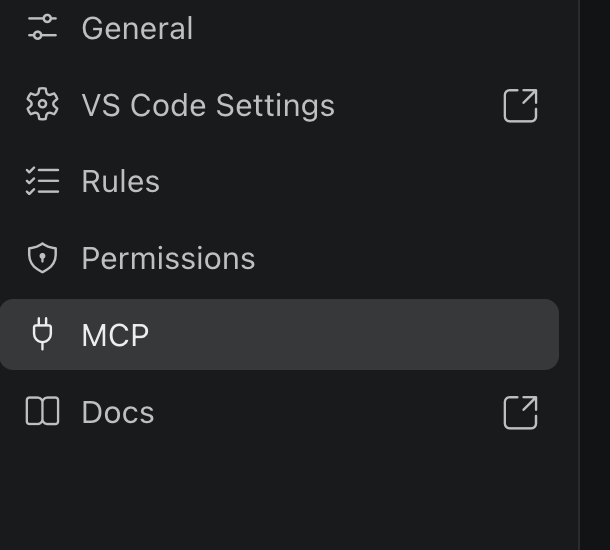
Select MCP in the sidebar.
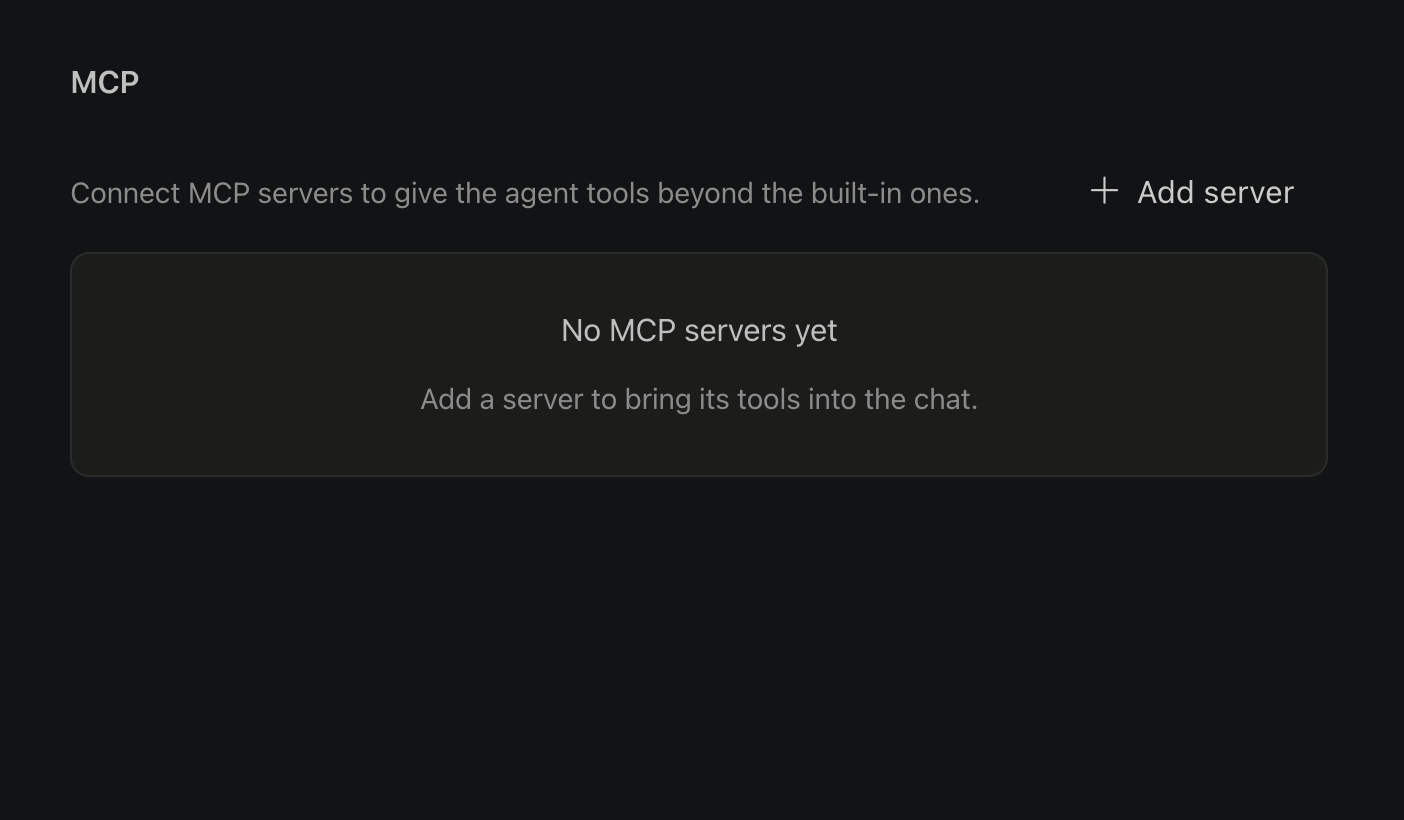
Select Add server.
The MCP page displays the servers available on your machine or in your project configuration.
2. Add an MCP server
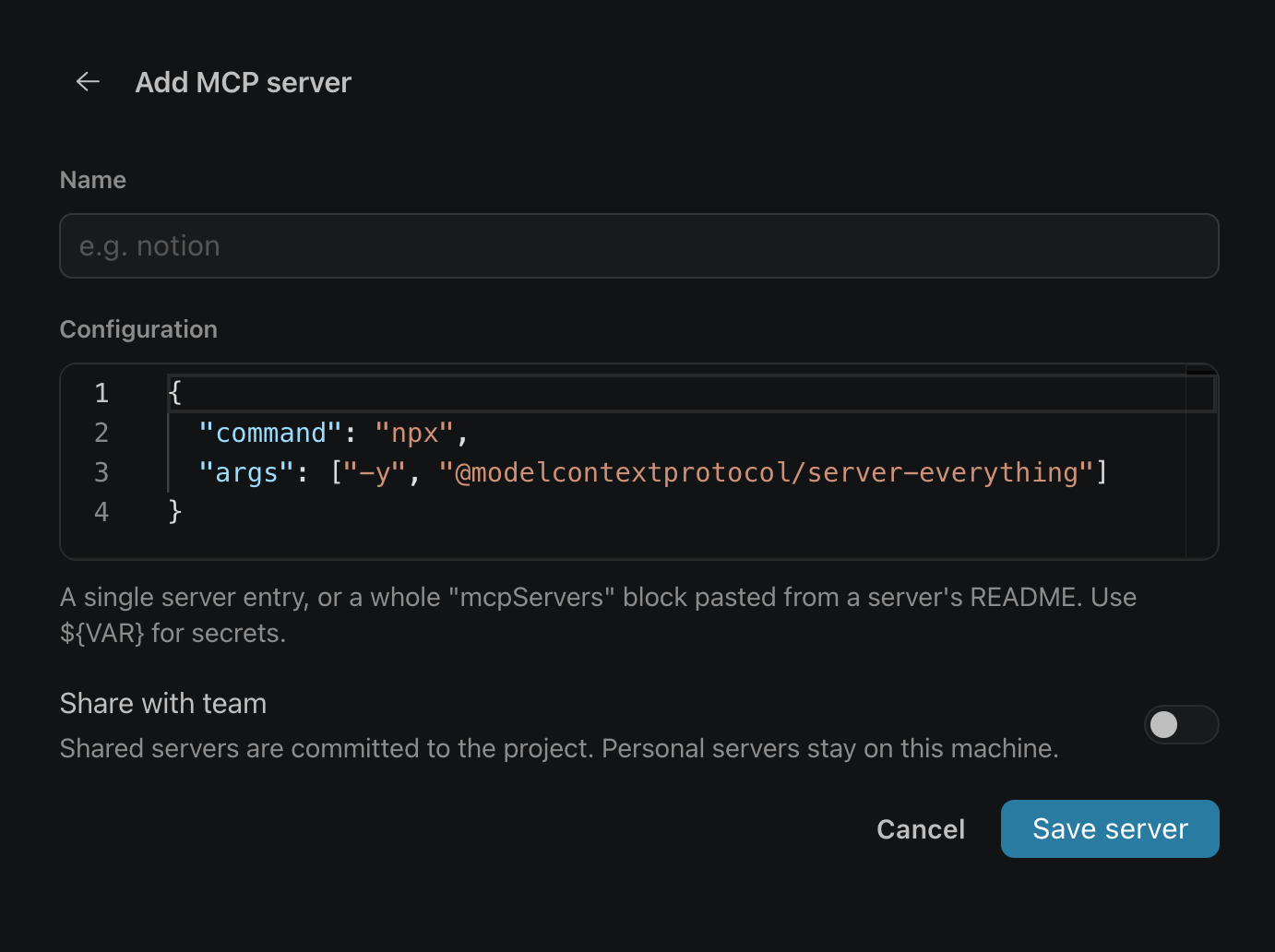
When adding a server, provide the following information:
Name — A clear and recognizable name, such as
notion,github, orinternal-api.Configuration — The server configuration in JSON format.
Share with team — Choose whether the server is personal or shared with the project.
The configuration editor accepts either:
A single server entry.
A complete
mcpServersblock copied from an MCP server README.
Security recommendation: Use environment variables for secrets instead of adding credentials directly to the configuration. For example, use
${NOTION_TOKEN}or${INTERNAL_API_KEY}.
3. Choose between a personal or shared server
Warning: Never add credentials directly to a shared configuration. Store sensitive values in environment variables.
4. Configure a local MCP server
A local MCP server runs on your computer and uses the stdio connection method.
Configure it with:
command— The command used to run the server.args— Arguments passed to the command.env— Optional environment variables.
Example:
json
{ "command": "npx", "args": ["-y", "@modelcontextprotocol/server-everything"] }
Example with environment variables:
json
{ "command": "npx", "args": ["-y", "@example/mcp-server"], "env": { "API_KEY": "${EXAMPLE_API_KEY}", "BASE_URL": "https://api.example.com" } }
Note: Ensure the required runtime is installed before starting a local server. For example, an
npxserver requires Node.js and npm.
5. Configure a remote MCP server
A remote MCP server is hosted externally and configured using its URL.
Example:
json
{ "url": "https://mcp.example.com/mcp" }
Swiftask connects to remote MCP servers using the Streamable HTTP standard. For compatibility with older MCP servers, it can automatically fall back to Server-Sent Events (SSE).
6. Authenticate with a remote MCP server
Some remote MCP servers require authentication.
To authenticate a server:
Open Settings → MCP.
Select the server that requires authentication.
Select Sign in.
Complete the authentication flow provided by the service.
Return to Swiftask Code and verify that the server is connected.
To remove the connection, select Sign out.
7. Use MCP tools in Swiftask Code
Once a server is connected, the tools it exposes become available to the agent.
Swiftask identifies MCP tools using the following format:
text
mcp<server><tool>
For example:
text
mcp<notion><search_pages>
MCP tools follow the same permission and approval policy as other sensitive Swiftask tools. The agent may ask for your approval before running actions that can modify data or affect external systems.
Practical use cases
Connect a knowledge base
Connect an MCP server for a tool such as Notion or an internal documentation platform. The agent can then search relevant pages and use the information to answer questions or prepare content.
Query an internal API
Configure an MCP server connected to your internal API. This allows the agent to retrieve approved information from your company systems without manually exporting data.
Work with databases
Use an MCP server to connect the agent to a database for tasks such as retrieving records, generating reports, or checking information required for an analysis.
Important: Only grant the minimum permissions needed. Avoid giving write or delete access unless it is necessary for the intended workflow.
Automate development tasks
Connect a local development MCP server to help the agent inspect project files, run approved commands, or assist with development workflows.
Share team configurations
Create a shared MCP server configuration for tools used by the entire project. This helps ensure that team members use a consistent configuration while keeping credentials stored securely in environment variables.
Was this helpful?
Still need help? Ask the team