Account settings
Written By Stanislas
Last updated 16 days ago
Overview
Account settings in the mobile app let you manage your user profile details, customize notification preferences, and switch between workspaces on the go.
Use these settings to keep your contact information updated, monitor critical credit alerts, and transition between different team workspaces directly from your phone.
Prerequisites
To access account settings in the mobile app, you need:
An active Swiftask account
The Swiftask mobile application installed on your device
An active, signed-in session
Step-by-step guide
1. Open the sidebar navigation
Tap the menu icon in the upper corner of the screen to open the left navigation panel.
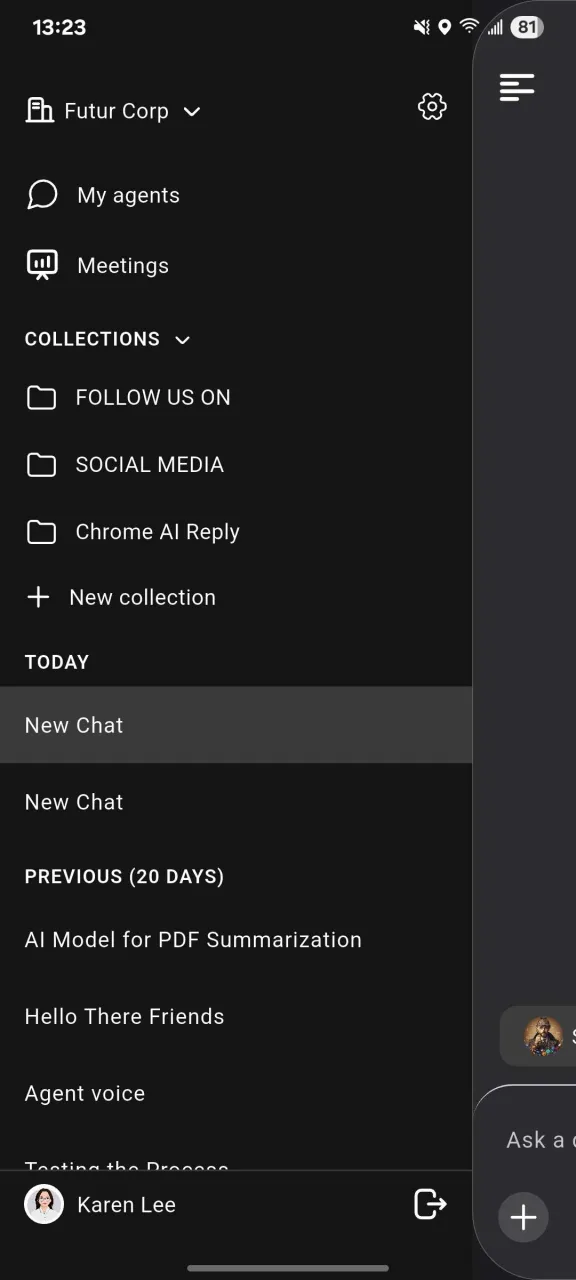
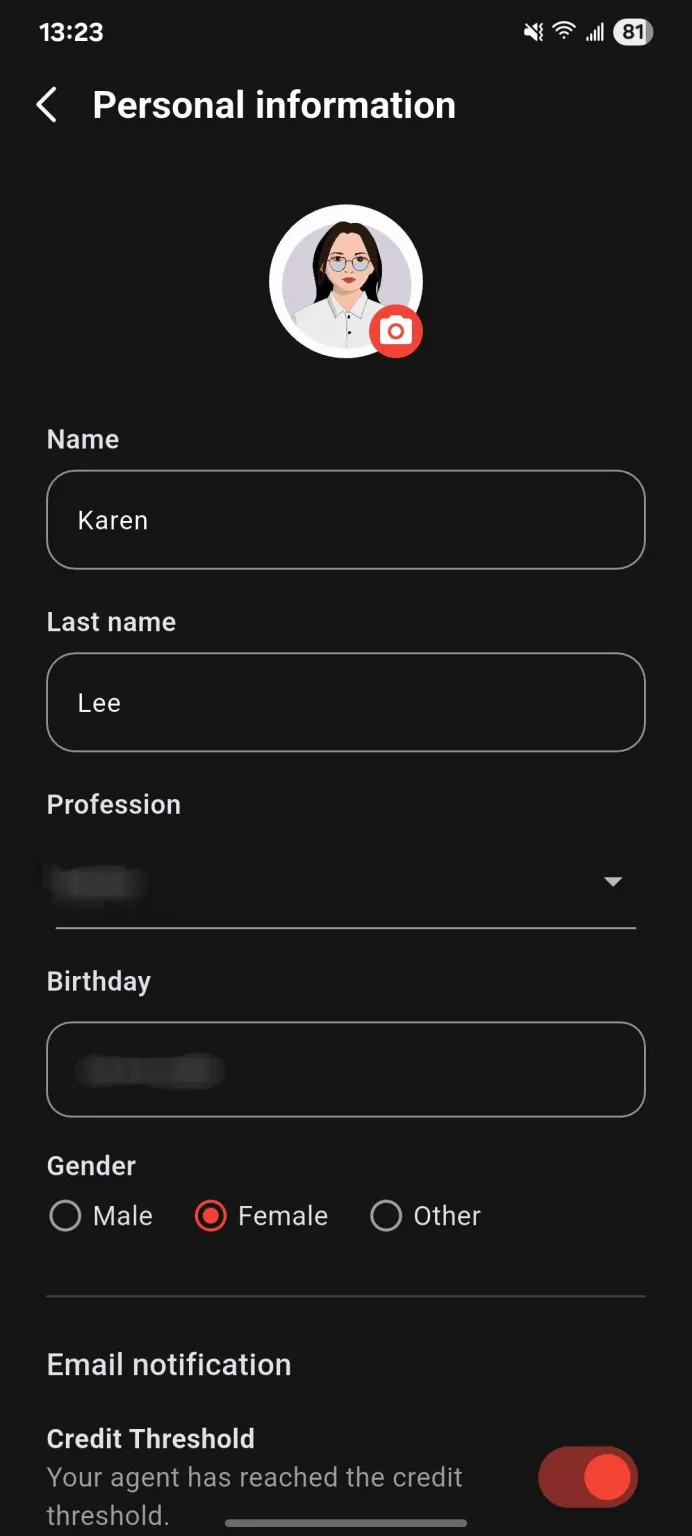
2. Update personal information and notifications
Tap your profile avatar or name at the bottom of the sidebar to access the Personal information page.
You can modify your avatar, name, last name, profession, birthday, and gender. You can also toggle the Credit Threshold switch under Email notification to receive alerts when your agents reach credit limits.
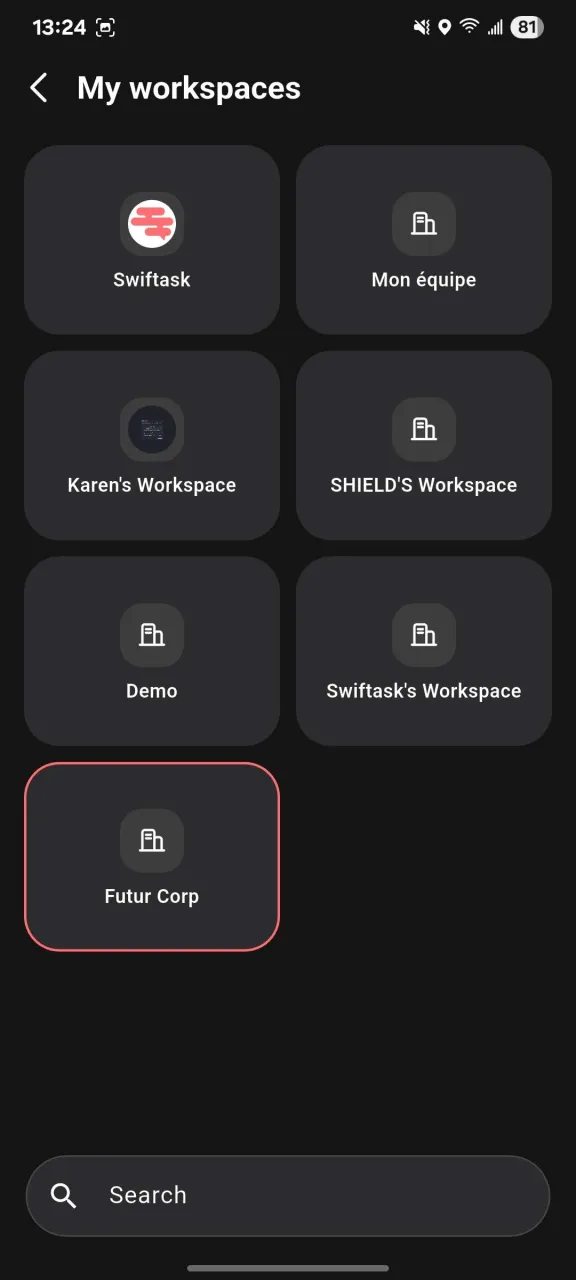
3. Switch workspaces
Tap the current workspace name at the top of the sidebar to open the My workspaces screen.
Select any workspace card from the grid to switch into it. You can also use the Search input at the bottom to find a specific workspace by name.
4. Access full workspace administration
Tap the gear icon next to your workspace name at the top of the sidebar.
This action redirects you to the web application at https://app.swiftask.ai to configure advanced workspace settings, member permissions, and billing.
5. Sign out securely
Tap the logout icon located next to your name in the bottom bar.
Your mobile session terminates immediately and returns you to the login screen.
Practical use cases
Profile and notification management: Update your professional role and turn on credit threshold alerts to prevent automated workflows from stalling.
Cross-organization workflows: Switch between company workspaces, client environments, and personal test spaces within seconds.
Admin redirection on mobile: Tap the workspace settings gear icon to quickly access full workspace management tools in your mobile browser.
Tips & best practices
Enable the Credit Threshold notification so you receive timely warnings before credit depletion stops active agents.
Use the workspace search field if your account belongs to numerous team spaces.
Troubleshooting
Workspace not appearing in the list
Cause: Your invitation is still pending, or your account was removed by a workspace administrator.
Fix: Check your email for the invitation link or ask an administrator to confirm your membership.
Settings gear opens an external browser
Cause: Full workspace administration tools are managed exclusively via the Swiftask web app.
Fix: Complete your sign-in on
https://app.swiftask.aiwithin your mobile browser to edit workspace settings.
Additional resources
Getting started and mobile app access — Sign in and configure your mobile environment.
Conversations — Chat with agents and record meetings on mobile.
Was this helpful?
Still need help? Ask the team