Sync task notes
Written By Stanislas
Last updated 16 days ago
Overview
Sync task notes with the knowledge base automatically turns project task descriptions into searchable knowledge documents. Every time you write or modify a task description in a project, Swiftask creates or updates a plain-text document in your workspace knowledge base.
This feature eliminates the need to manually copy task details into separate reference files. AI agents and team members can immediately access up-to-date task specifications to assist with project execution, answer questions, and draft deliverables.
Use this feature whenever you want your AI agents to have full visibility into ongoing project requirements, sprint backlogs, or individual task guidelines.
Prerequisites
To use automatic task note synchronization, you need:
A Swiftask account (available on all subscription plans: Free, Pro, Team Starter, Team Growth, and Custom).
Access to an active project where you can create or edit tasks.
Membership in the project to view the synchronized folder in Knowledge (workspace administrators have automatic access).
Step-by-step guide
1. Open your task in a project
Navigate to Projects in the left sidebar and select your project. Click any task to open its task details panel.
Alternatively, you can click Task notes in the left navigation sidebar under Chat to navigate directly to task editing.
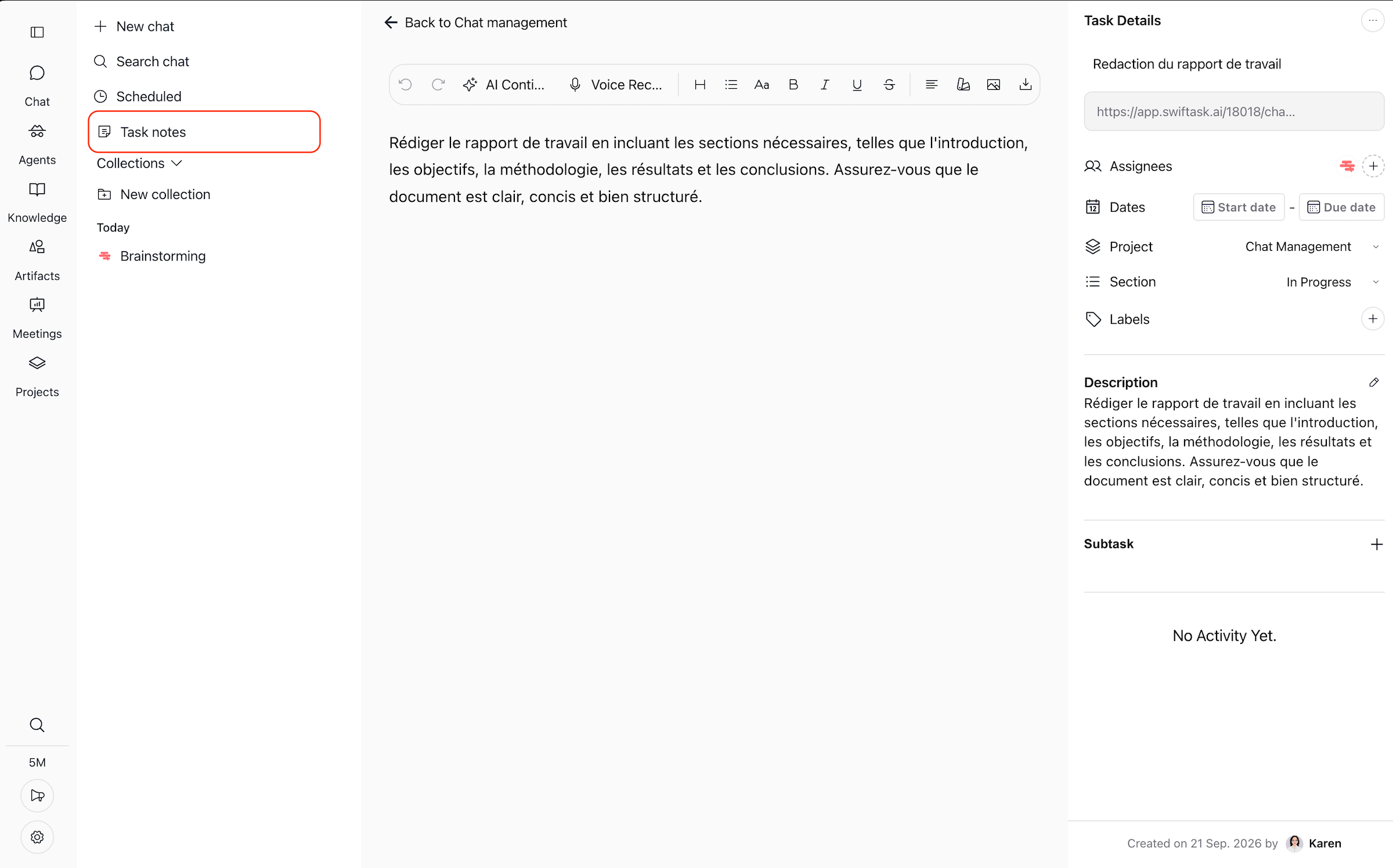
2. Enter notes in the task description
In the task details panel, click the Description field and enter your notes, briefs, or task specifications.
Swiftask automatically cleans and saves the content as a plain-text document named after your task title. No manual activation toggle is required.
3. Open the project knowledge folder
Click Knowledge in the left navigation sidebar.
Swiftask automatically organizes your synced task notes in a dedicated folder named [Project Name]'s project knowledge.
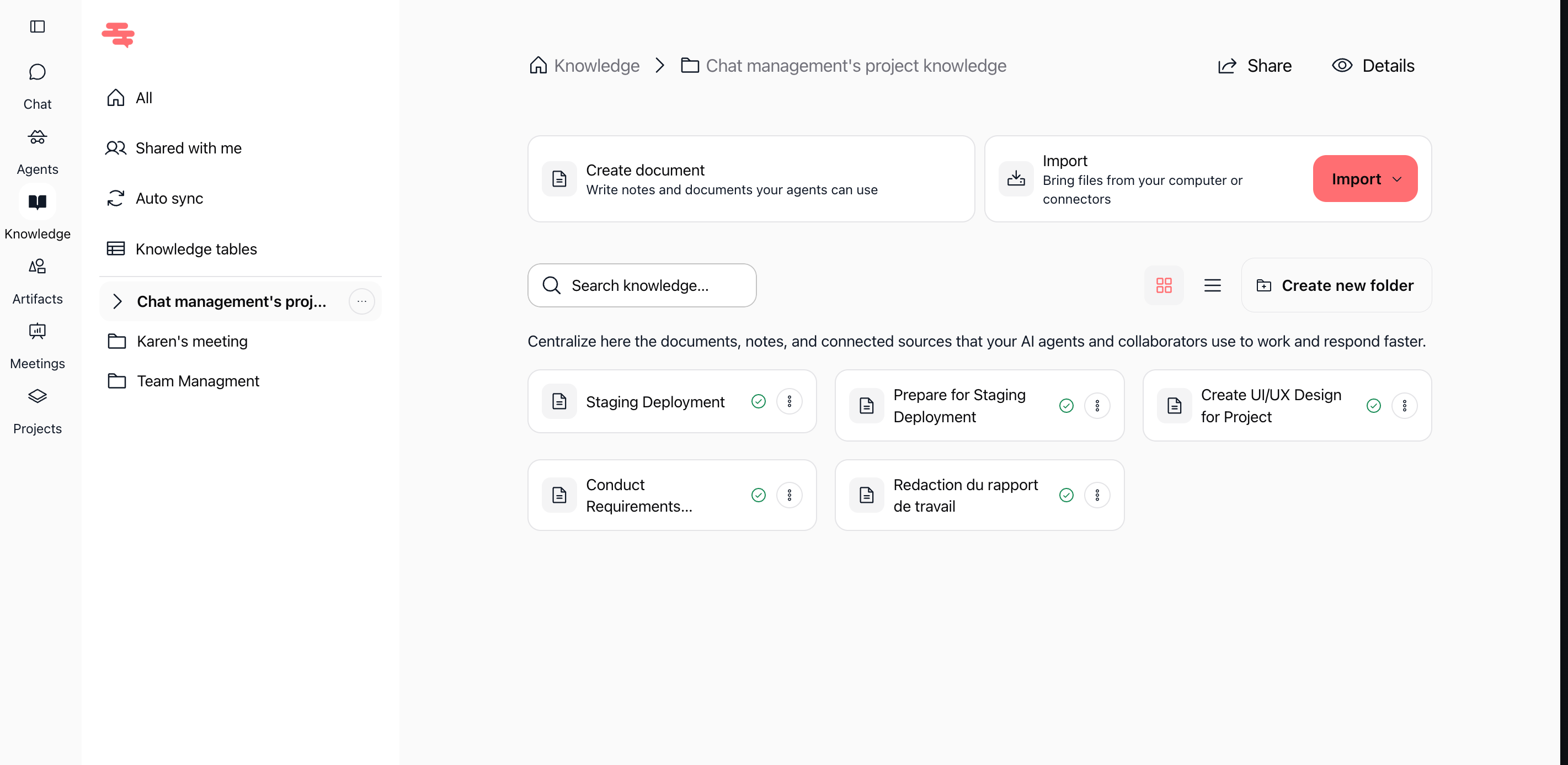
4. Review and manage the synchronized document
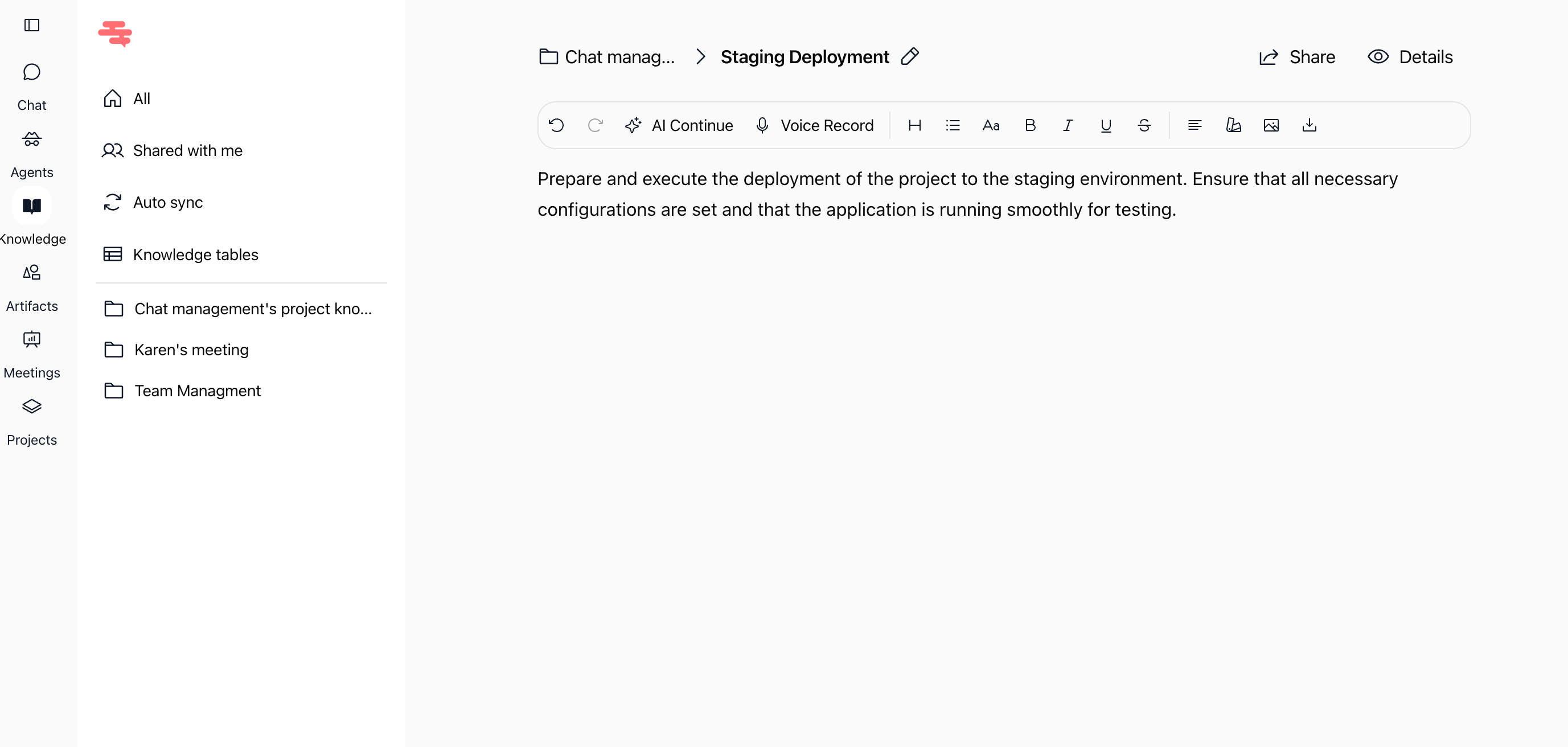
Click the project knowledge folder to view all synced task documents. Click on any document title to inspect its content in the document editor.
Any subsequent edit to the task description in your project will update this document and re-index it for AI retrieval.
Practical use cases
AI-assisted code reviews and test generation
A developer details acceptance criteria and architecture notes in a task description. Connected AI agents read the generated knowledge document and create comprehensive test suites tailored to the specifications.
Seamless team onboarding
A newly assigned collaborator joins an existing project. By opening the project's knowledge folder, they can review all task descriptions and contextual documentation in one central place.
Automated task reporting and status checks
A project manager asks an AI agent for a status synthesis in chat. The agent queries the latest task notes across the project folder to summarize progress and highlight potential blockers.
Tips & best practices
Use clear, specific task titles
Because documents are named after task titles, using clear titles like "Prepare Staging Deployment" rather than "Deployment" helps AI agents and teammates identify information quickly.
Structure your task descriptions
Use clear headings, bullet points, and numbered lists inside the task description. Well-structured text improves vector search accuracy and AI response quality.
Troubleshooting
My task note does not appear in Knowledge
Cause: The task does not belong to a project, or the task description is blank.
Fix: Verify that the task is assigned to a project and contains text in the Description field.
A team member cannot find the project knowledge folder
Cause: Folder access permissions are synchronized with project membership.
Fix: Invite the team member to the project. Only project members and workspace administrators have permission to view the folder and its documents.
The document remains after deleting a task
Cause: Deleting a task does not automatically remove the corresponding document from Knowledge to prevent accidental loss of important documentation.
Fix: Navigate to Knowledge, open the project folder, click the three-dot menu on the document, and select delete.
Additional resources
Introduction to Knowledge base – Learn how knowledge sources are organized and indexed in Swiftask.
Creating a project – Discover how to manage project boards, tasks, and workflows.
Group chat & collaboration – Collaborate with teammates and AI agents in project discussions.
Was this helpful?
Still need help? Ask the team