Meeting recorder
Written By Stanislas
Last updated 16 days ago
Overview
The Meeting recorder on mobile captures audio from in-person meetings, client discussions, and field conversations directly through your smartphone.
It eliminates manual note-taking by automatically transforming spoken audio into searchable text transcripts, concise meeting summaries, and prioritized action items.
Use the meeting recorder during customer visits, spontaneous brainstorming sessions, and on-site walkthroughs where carrying a laptop is inconvenient.
Prerequisites
Before using the meeting recorder on mobile, ensure you have:
A smartphone running iOS or Android with the Swiftask mobile app installed
An active Swiftask account signed in to your workspace
Workspace access with available AI credits for transcription and analysis
Microphone permissions granted to the Swiftask app in your device system settings
Step-by-step guide
1. Launch the meeting recorder
Open the Swiftask app on your smartphone to display the main chat view.
Tap the Record meeting button positioned prominently in the center of the screen above the model selector.
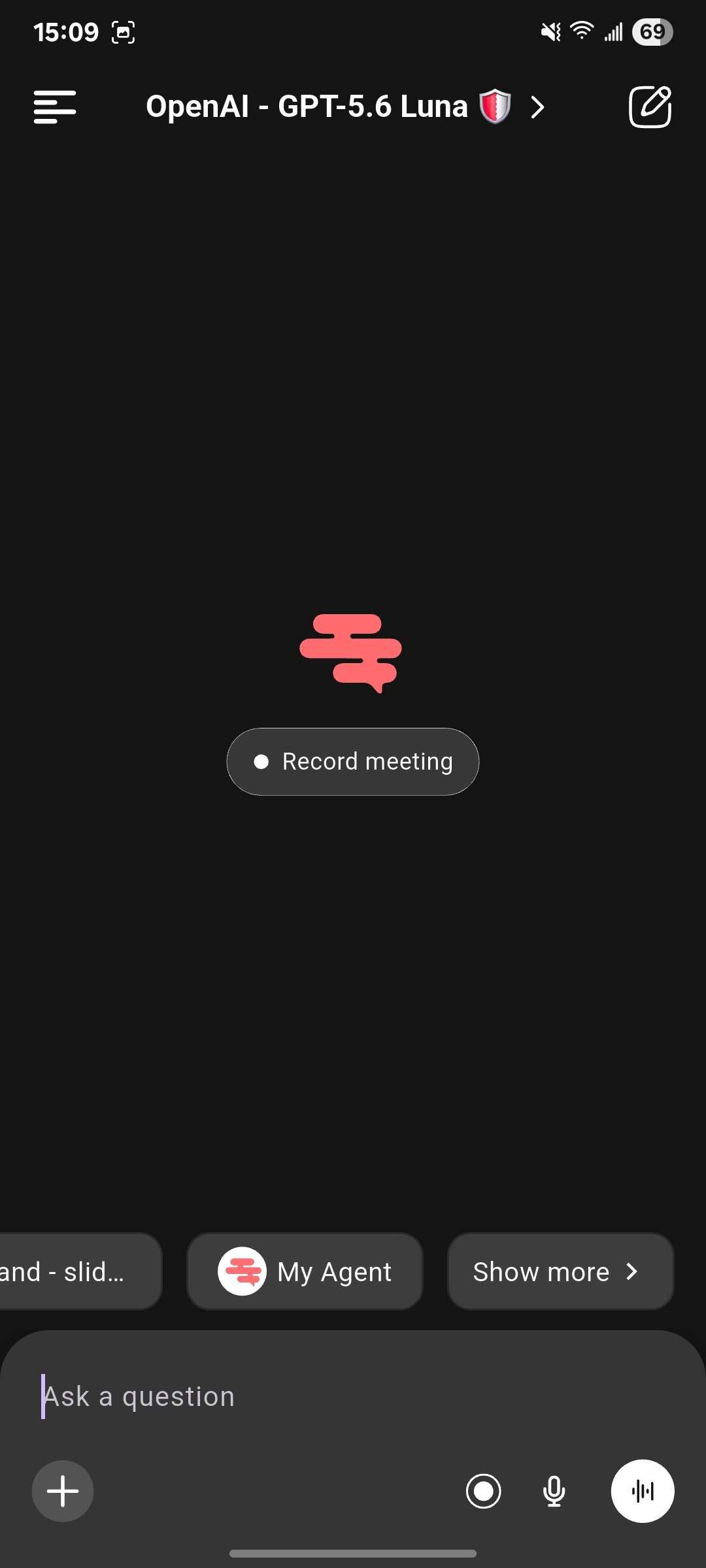
Expected result: The mobile recording view opens and activates your device microphone.
2. Record your meeting audio
Place your phone in a central location near meeting participants and speak naturally.
The screen displays an active timer and real-time audio waveform confirming audio capture.
Expected result: Audio is recorded continuously in the background while you focus on the discussion.
3. Stop and upload the recording
When the conversation concludes, tap the red stop button to complete the session.
The app finalizes the audio file and automatically uploads it to your Swiftask workspace.
Expected result: A processing status appears, confirming audio upload and transcription progress.
4. Review transcripts, summaries, and action items
Once processing finishes, open the recorded meeting from your meeting list.
Review the complete word-by-word transcript, the key discussion summary, and extracted action items assigned to participants.
Expected result: You receive a structured meeting recap that you can copy, organize into workspace collections, or share with colleagues.
You can preview the entire mobile recording workflow in the demo video below:
Mobile app vs. web app comparison
The mobile app and web app provide complementary ways to record and manage meetings depending on your environment.
Practical use cases
In-person client consultation
A sales consultant visits a prospective client. Placing the smartphone on the table captures requirements and budget discussions, delivering action items right after the meeting.
Field inspections and construction walk-throughs
Project managers walk through physical job sites, dictating observations and vendor feedback hands-free into their phone for immediate documentation.
Spontaneous internal huddles
Two teammates start an impromptu planning session away from their desks. They record the discussion on mobile so neither needs to stop and type notes.
Conferences and industry workshops
Attendees record keynote talks or breakout sessions on mobile to preserve a searchable transcript and key takeaway summary for later reference.
Tips & best practices
Position your phone centrally: Place the phone face-up with the bottom microphone unblocked and oriented toward the main speakers.
Review action items promptly: Check generated action items immediately after the meeting to assign responsibilities while decisions are top of mind.
Enable background permissions: Ensure system battery optimizations do not terminate background processes during long recording sessions.
Connect to Wi-Fi for lengthy recordings: For meetings exceeding 30 minutes, connect to Wi-Fi to accelerate audio upload and save mobile data.
Troubleshooting
Microphone access error
Cause: The smartphone operating system has blocked microphone access for Swiftask.
Fix: Open device Settings, locate Swiftask in the applications list, and enable Microphone permissions.
Inaccurate or incomplete transcription
Cause: Heavy ambient noise, loud air conditioning, or placing the phone too far from speakers.
Fix: Move the phone closer to active speakers and avoid placing it next to rustling papers or laptops.
Upload interrupted or taking too long
Cause: Weak or unstable mobile cellular data reception.
Fix: Switch to a stable Wi-Fi network and reopen the app to allow the upload to resume.
Additional resources
Getting started and mobile app access – Install the mobile application and authenticate
Conversations – Chat, dictate, and interact with AI models on mobile
Account settings – Manage user profile preferences and credits on mobile
Meeting transcription features – In-depth guide to transcripts and meeting intelligence
Was this helpful?
Still need help? Ask the team