Knowledge base folders
Written By Stanislas
Last updated 16 days ago
Overview
Folders provide the organizational backbone for your Swiftask knowledge base. They allow you to group related documents, files, and data sources into structured directories rather than maintaining a single flat list.
You can create multi-level subfolders to reflect your team, client, or project hierarchies. Folders also support access management with permission inheritance, group-level assignments, and historical audit logs.
Use folders to keep documents organized across projects, control team access to sensitive materials, and track changes to your shared resources.
Prerequisites
Before managing knowledge base folders, make sure you have:
An active Swiftask account (sign up at swiftask.ai)
Access to the Knowledge section from the sidebar
Workspace permissions to create, edit, or share knowledge base resources (configured by an Owner or Admin)
Step-by-step guide
1. Navigate to Knowledge base
Click Knowledge in the left navigation menu. You will see the main knowledge repository displaying existing folders and documents.
2. Create a folder
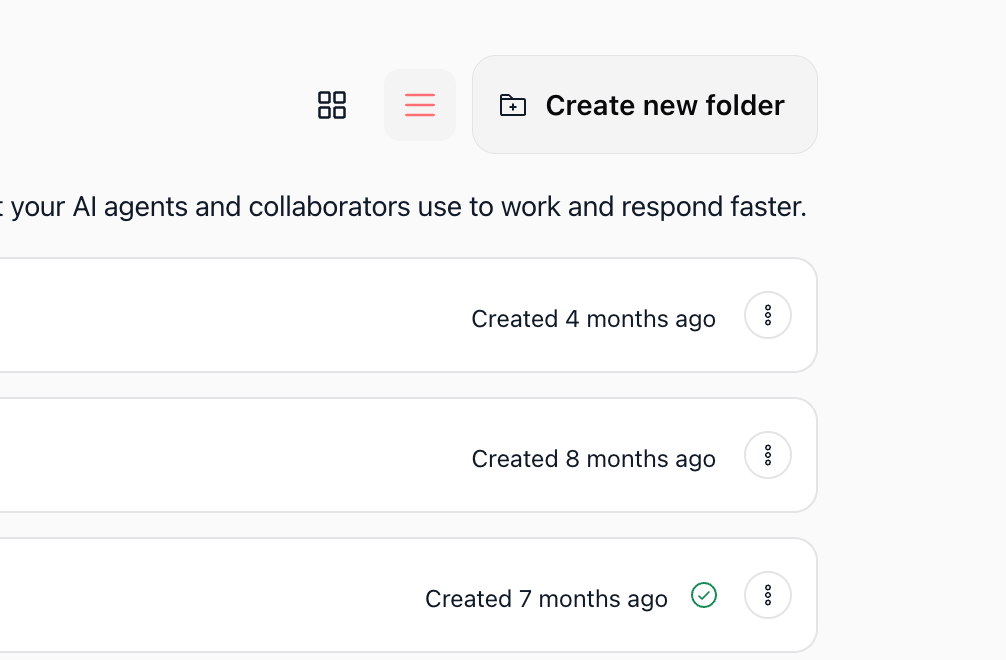
In the Knowledge base overview, click the Create new folder button in the top-right toolbar.
In the modal that opens, enter your desired folder name in the Folder name field.
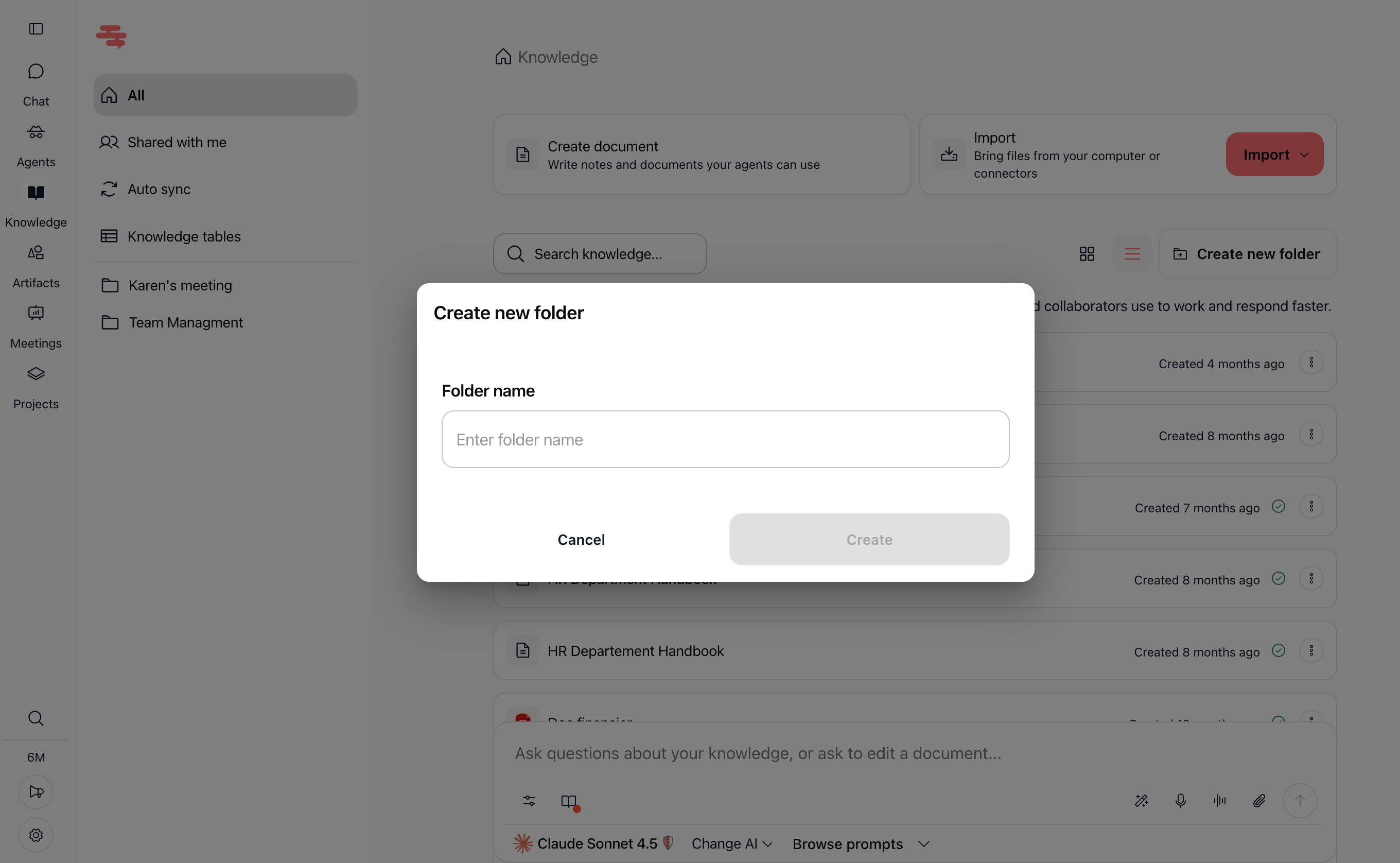
Click Create to confirm. Your new folder appears in the knowledge base list.
3. Create a subfolder
Click on any existing folder to open it.
Click Create new folder inside the open directory.
Type the subfolder name and click Create. The subfolder is nested inside the parent directory.
4. Move documents or folders
You can reorganize items by moving them across locations in your knowledge base:
Click the three-dot menu (⋯) next to the document or folder you want to move.
Select Move to a Folder.
Choose the destination folder from the list by selecting its radio button.
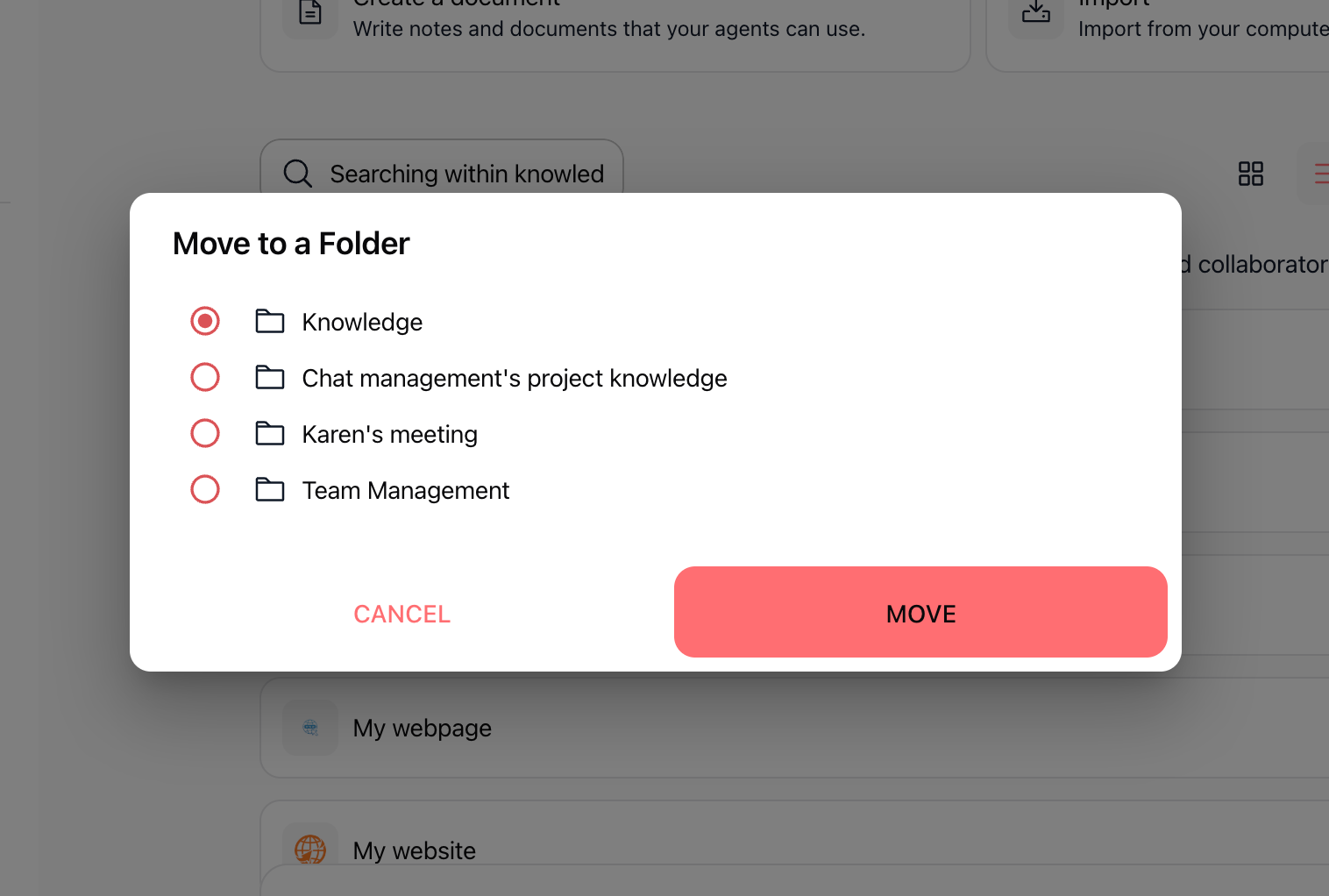
Click MOVE to transfer the item to the chosen destination. Alternatively, drag and drop the item directly onto a folder card.
5. Rename a folder
Click the three-dot menu (⋯) on the folder you want to rename.
Select Rename folder.
Enter the new folder name in the input field.
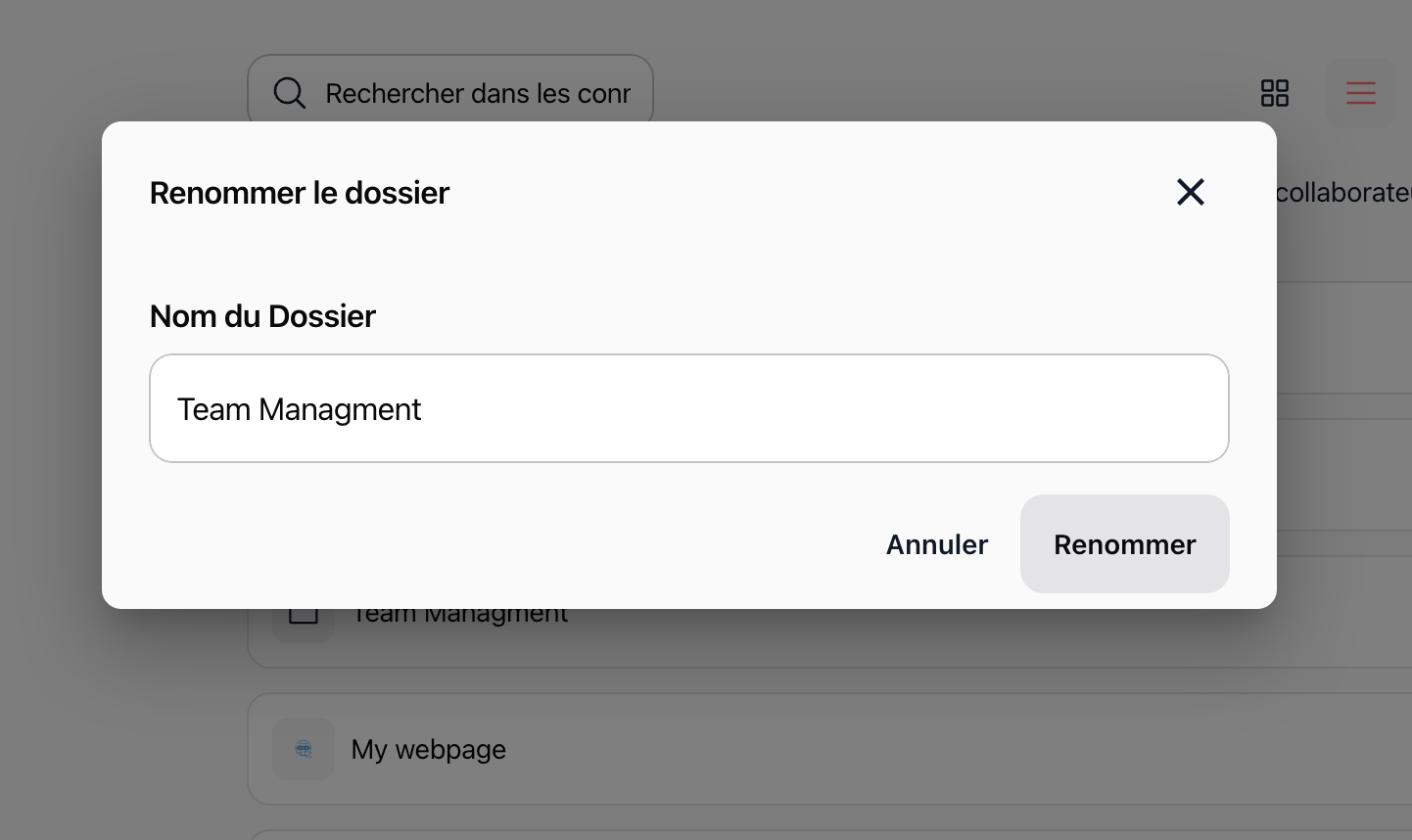
Click Renommer (or Rename) to apply the change immediately.
6. Share a folder and manage permissions
Sharing a folder allows you to grant access to multiple teammates or entire teams at once. All child items inside the folder (subfolders and documents) automatically inherit the permissions assigned to the parent folder unless individually modified. Modifying a child item's permissions applies only to that specific item and does not alter the parent folder access.
To share a folder:
Click the three-dot menu (⋯) next to the folder and select Share folder.
Manage access using the three available tabs:
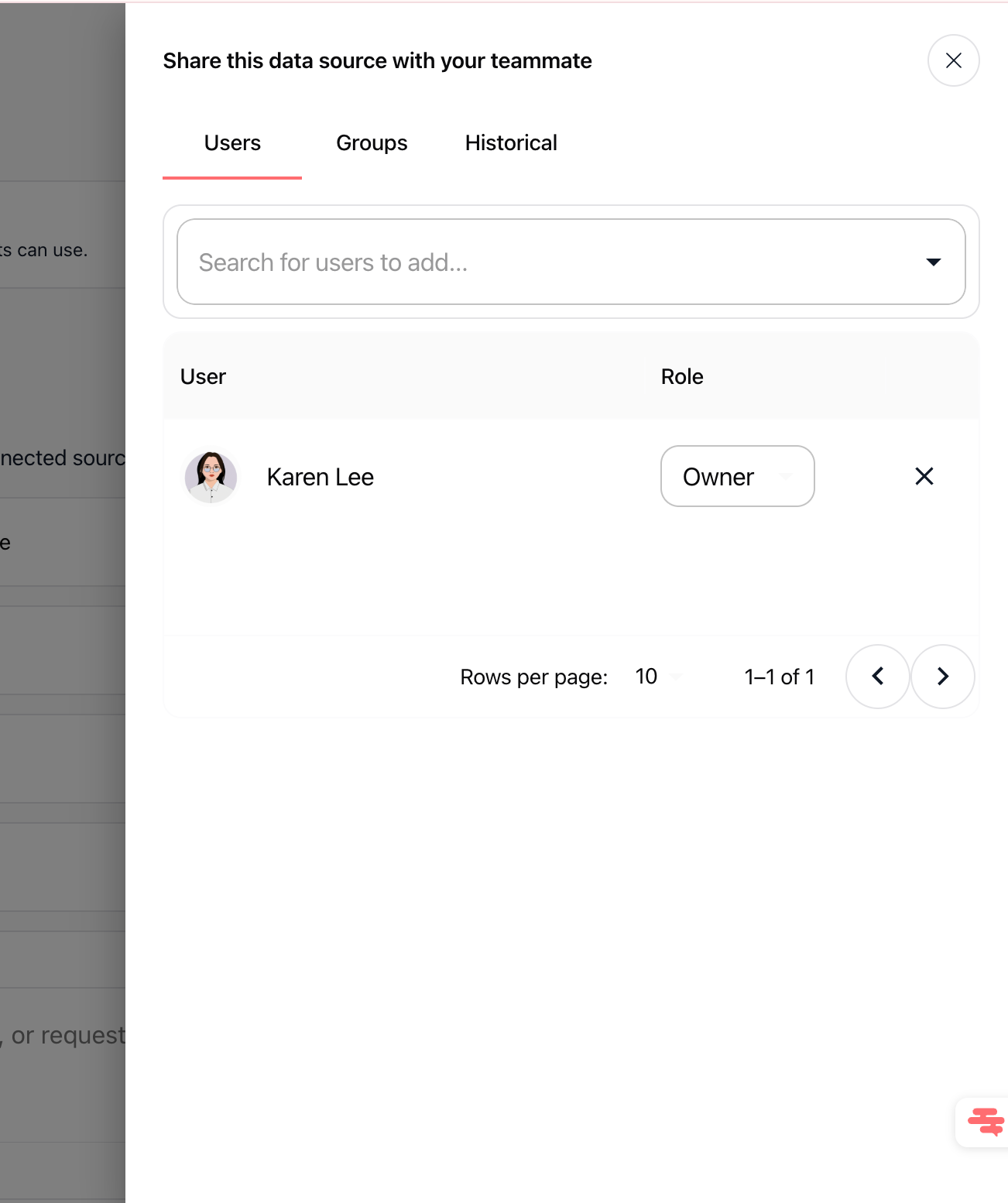
Users tab
Use this tab to assign individual workspace members specific roles:
Search for members in the Search for users to add... field.
Assign a role: User (view and read access), Admin (can view, edit, and organize contents), or Owner (full control, including deletion and permission management).
Click the X button next to a user to revoke their access.
Groups tab
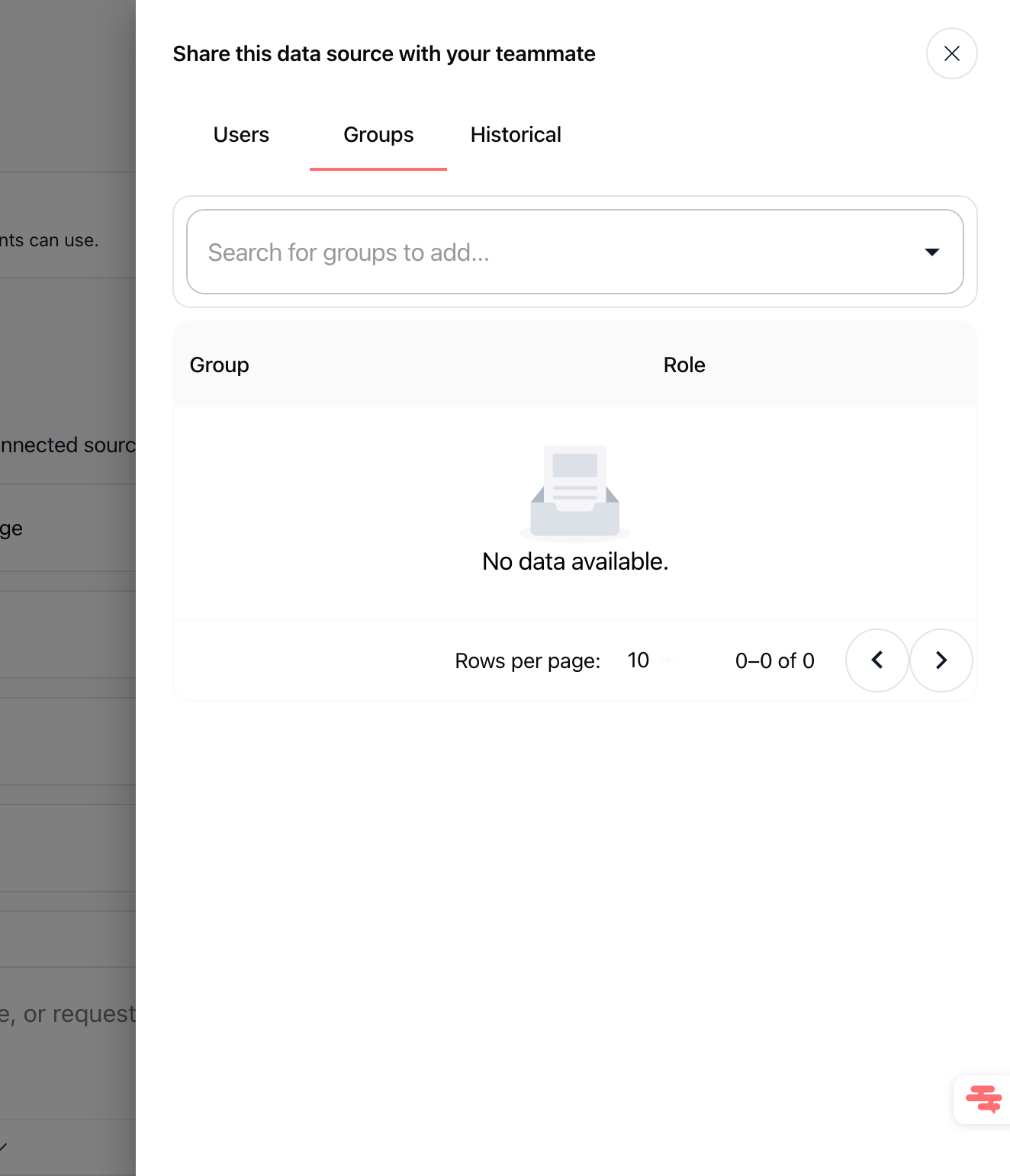
Use this tab to share the folder with predefined user groups:
Search for and select a team group in the Search for groups to add... field.
Assign the group a collective access role. Any member added to the group automatically gains access.
Historical tab
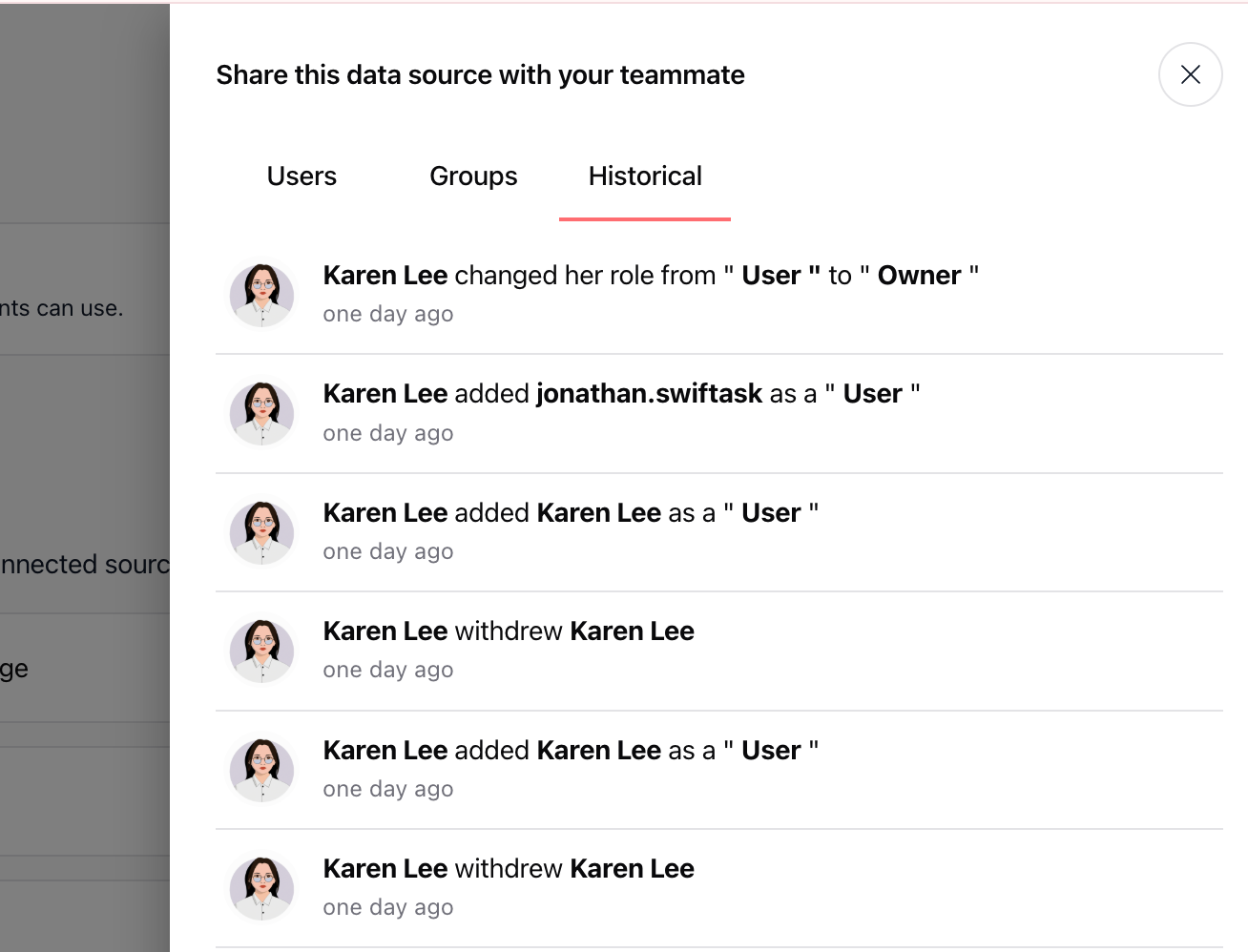
Use this tab to review an audit trail of folder and document modifications:
View chronological logs of who added or removed members, changed roles, and updated folder contents.
Keep track of administrative actions to maintain workspace transparency and compliance.
7. Delete a folder
Click the three-dot menu (⋯) next to the folder and select Delete folder.
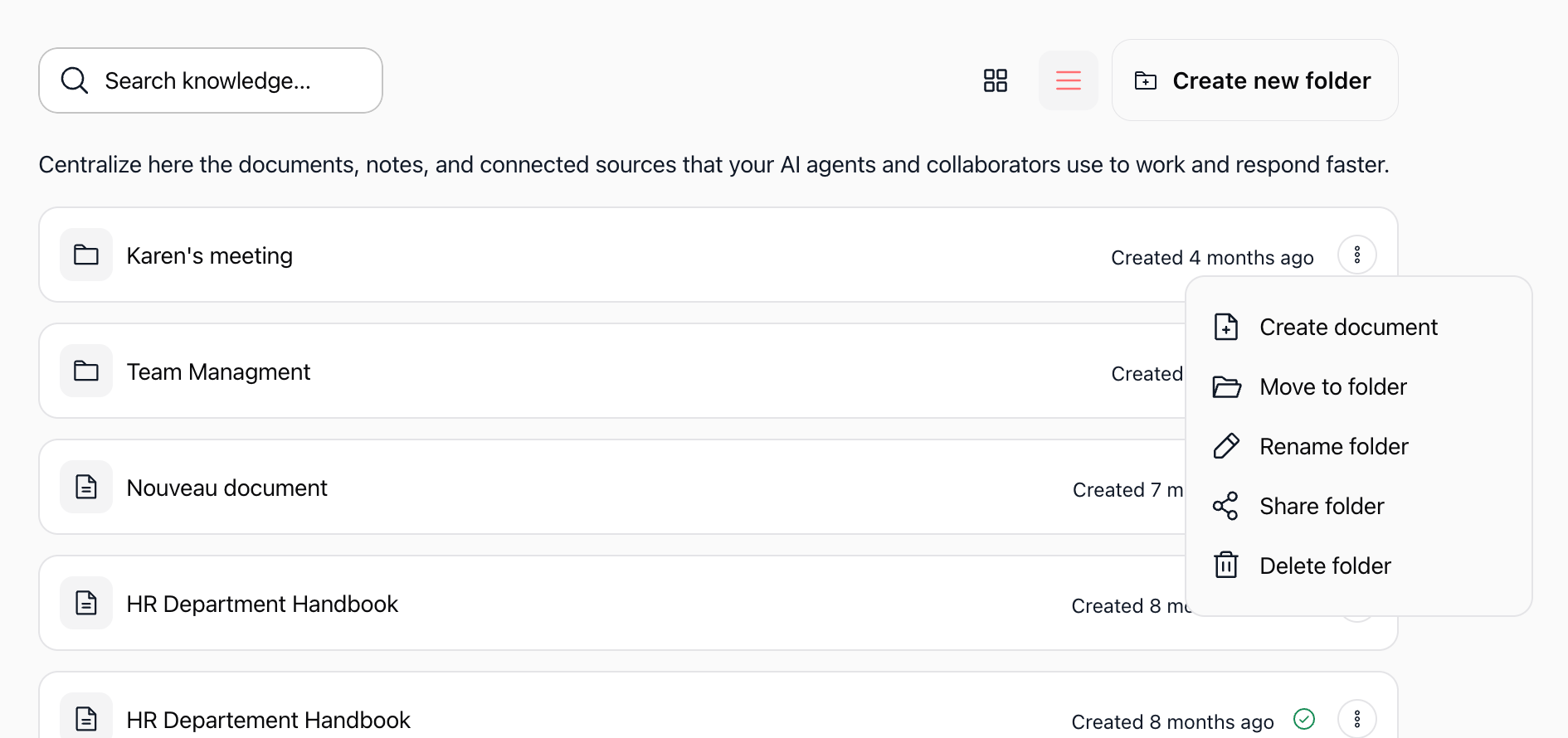
A confirmation prompt warns that deleting a folder permanently removes all nested subfolders and documents.
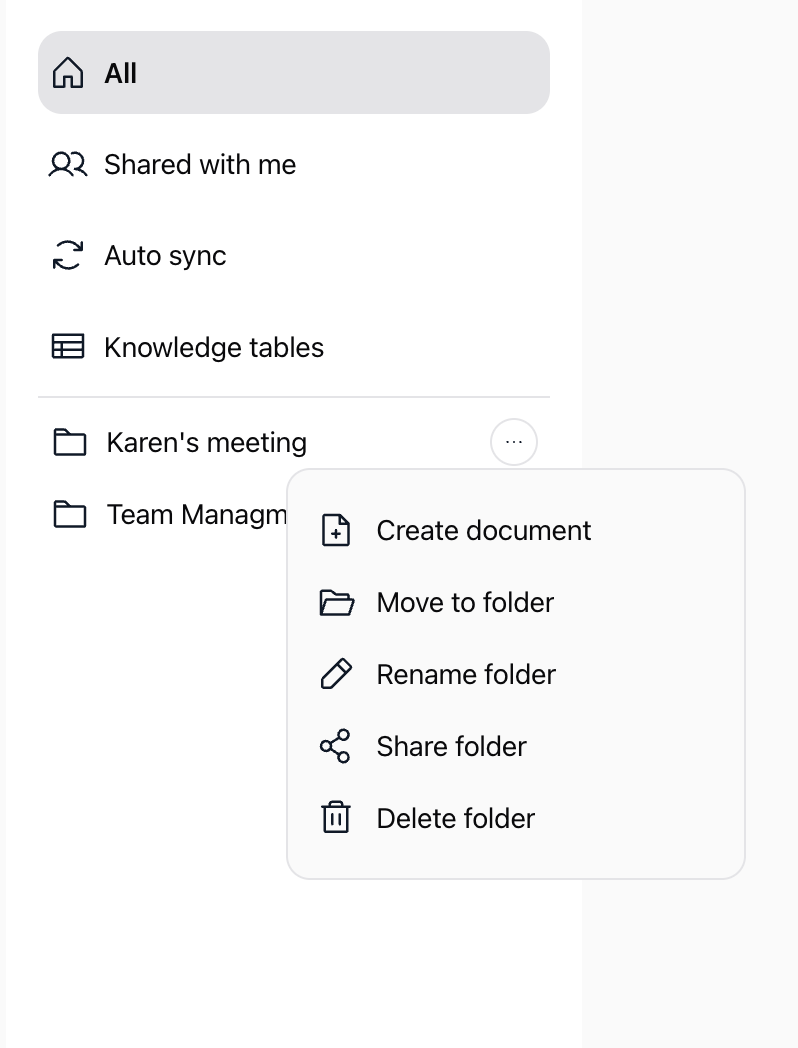
Click Delete to confirm permanent removal.
Practical use cases
Departmental structure with inherited accessCreate top-level directories such as "Marketing" or "Finance" and assign the corresponding group role. Every subfolder or document created inside automatically inherits group access, streamlining team onboarding.
Confidential project repositoryCreate a dedicated project folder and share it only with designated stakeholders using the Users tab. Adjust permissions on specific sensitive contracts within the folder without impacting top-level folder sharing.
Audit compliance trackingUse the Historical tab on client-facing folders to monitor who shared documents or modified role assignments prior to security reviews.
Tips & best practices
Leverage folder inheritance: Share folders rather than individual files to reduce repetitive permission management.
Review audit logs regularly: Inspect the Historical tab periodically to monitor access updates and role modifications.
Verify folder contents before deleting: Deleting a folder permanently erases all contained subfolders and documents with no undo option.
Maintain clear folder names: Use precise titles to prevent confusion, as identical folder names are permitted within the same directory.
Troubleshooting
A user cannot see documents inside a folderCause: The user lacks inherited or explicit permissions on that folder.Fix: Open the folder's share settings, select the Users or Groups tab, and verify that the user or their group is listed with at least the User role.
Custom document permissions were lostCause: The document was moved to a new parent folder with different inherited permissions.Fix: Check the document's individual share settings and reapply custom permissions if necessary.
Audit changes are missing from the Historical tabCause: Historical logs track membership, role assignments, and key structural edits on the resource.Fix: Confirm that the intended action was completed and refresh the sharing modal to load the latest records.
Additional resources
Introduction to Knowloadge base – Understand how knowledge base resources connect to agents and chat
Import documents / files – Upload local files directly into your folders
Create Document – Create and format rich notes directly inside a folder
Managing Groups – Create and administer workspace user groups for folder sharing
Was this helpful?
Still need help? Ask the team