Swiftask Chrome extension
Written By Stanislas
Last updated 16 days ago
Overview
The Swiftask Chrome extension brings your AI workspace directly into your web browser. It embeds your custom agents, leading AI models, and email tools directly into your daily workflow.
Instead of switching tabs between Swiftask and your active tasks, you can open a dedicated side panel on any webpage, generate contextual email replies in Gmail and Outlook, and extract web data instantly.
Prerequisites
Before installing the extension, make sure you have:
A Google Chrome browser installed on your computer.
An active Swiftask account.
Access to any Swiftask plan (available on Pro, Team Starter, Team Growth, and Custom).
Step-by-step guide
1. Install the extension from the Chrome Web Store
Open Google Chrome and visit the Swiftask Chrome Web Store page.
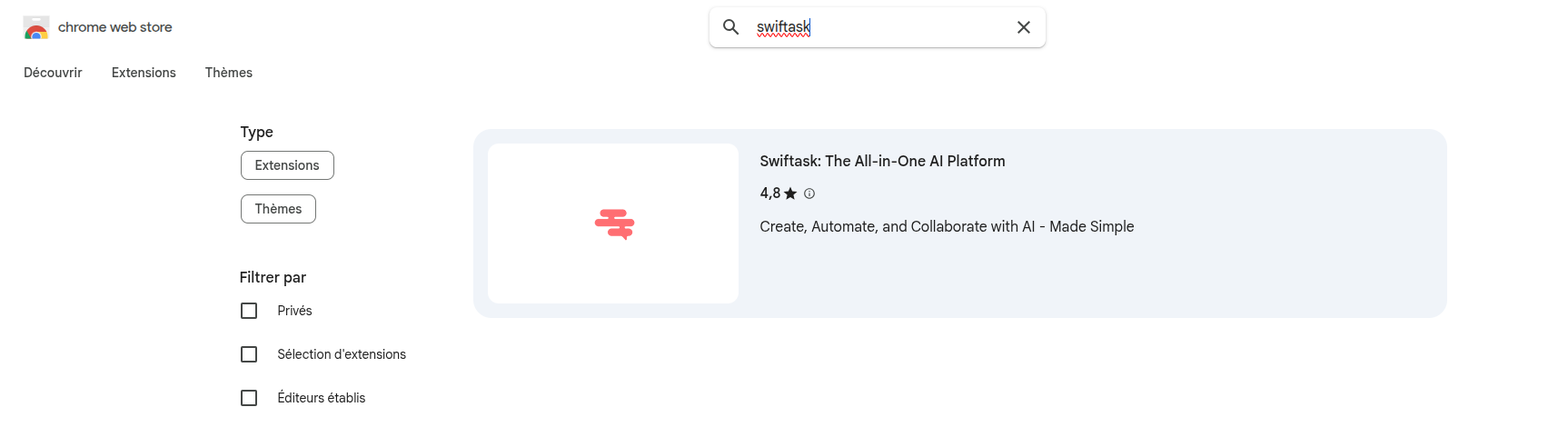
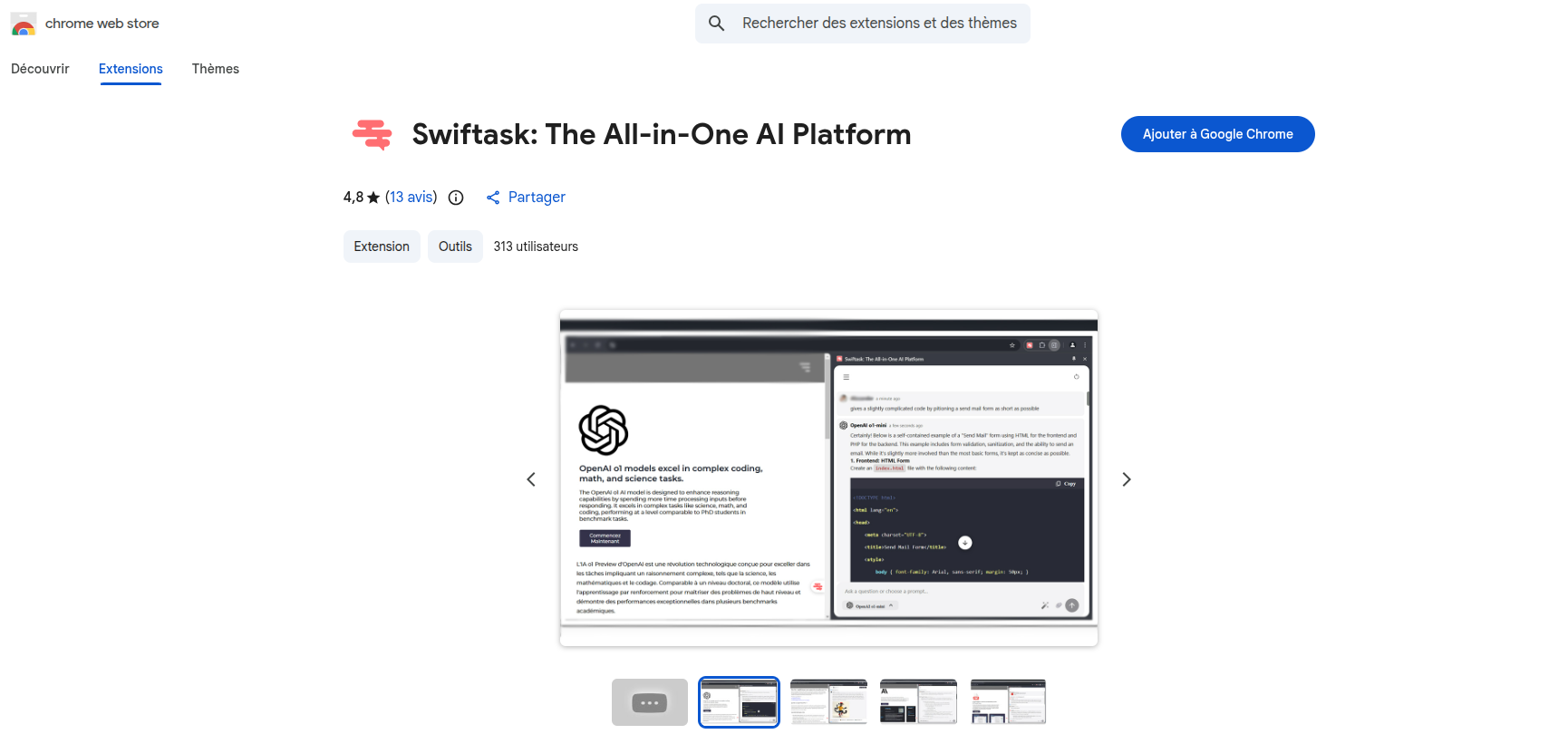
Click Add to Chrome.
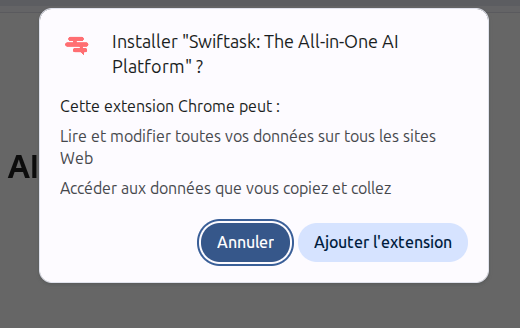
In the browser permissions pop-up, click Add extension.
2. Pin the extension to your browser toolbar
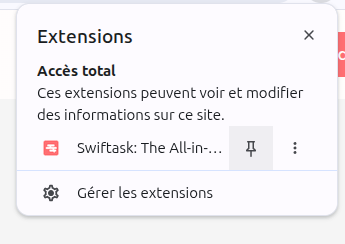
Click the Extensions puzzle icon in the top-right corner of Chrome.
Locate Swiftask: The All-in-One AI Platform in the list.
Click the Pin icon next to Swiftask to keep it visible in your toolbar.
3. Open the side panel and sign in
Click the pinned Swiftask icon in your Chrome toolbar.

The Swiftask side panel opens on the right side of your browser.
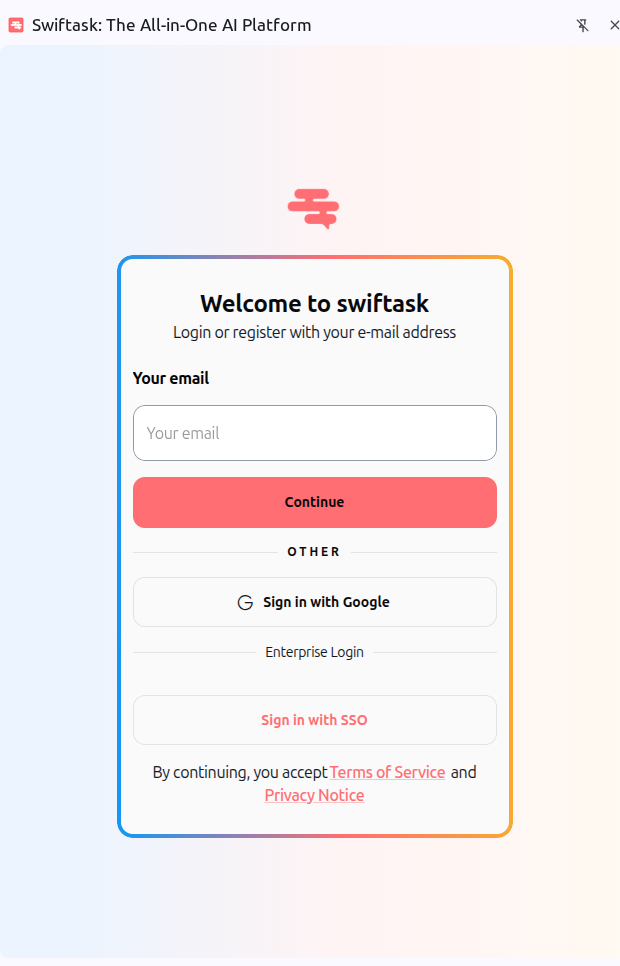
Sign in to your Swiftask account using your preferred method:
Email: Enter your email address and click Continue.
Sign in with Google: Authenticate directly using your Google account.
Sign in with SSO: Connect using your organization's enterprise single sign-on.
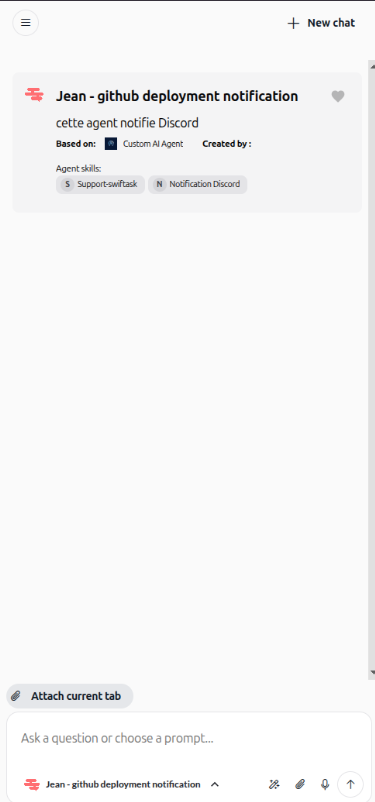
Click the New Chat button at the top-right to start an instant conversation.
Click the close button (X) at the top of the sidebar when you want to collapse the panel.
4. Explore core features across your workflow
The extension integrates several key features into your browsing:
Universal AI side panel: Interact with your custom agents or switch between AI models without leaving your active tab.
Smart email assistant: Work directly in Gmail and Outlook to access quick actions like Improve writing, Fix spelling & grammar, and AI reply.
Intelligent web data extraction: Capture information from any webpage and pass it directly to your agents for analysis.
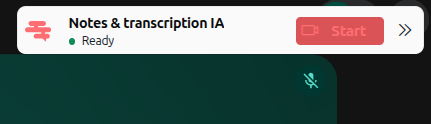
Meeting detection: Automatically detects Google Meet, Microsoft Teams, and Zoom meetings in Chrome to assist with recording and real-time transcription.
Practical use cases
Side-by-side web research: Keep the side panel open while reading articles or documentation to summarize text and extract key points without tab switching.
Contextual email drafting: Generate relevant replies in Gmail or Outlook based on full conversation threads and incoming messages.
Quick model switching: Compare responses between different AI models directly from the side panel to find the best output for your task.
Tips & best practices
Pin the extension icon so you can open the side panel with a single click on any page.
Click the X button to close the sidebar whenever you need full-screen space.
Use right-click or inline action buttons inside your email compose field to quickly trigger AI actions.
Troubleshooting
The side panel does not open: Open
chrome://extensions/, verify that the Swiftask extension is enabled, and refresh your current tab.Email quick actions do not display: Ensure you are logged into your Swiftask account and reload your Gmail or Outlook tab.
Permission errors: Check Chrome extension settings to ensure Swiftask has permission to access web pages.
Additional resources
Was this helpful?
Still need help? Ask the team