Project automations
Written By Stanislas
Last updated 16 days ago
Overview
Project automations act as background assistants for your team. When specific events happen in your project—such as creating a task, moving it to another section, or changing an assignee—an AI agent triggers automatically to handle the response.
Automations follow an if-then model: if a task moves to "Done", then notify the channel; if a new task is created, then assign labels and summarize requirements. This eliminates repetitive project tracking and ensures consistent execution across your workflows.
Prerequisites
Before configuring project automations, ensure you have:
An Owner or Admin role in the project.
An existing project with tasks or sections configured.
At least one active AI agent in your workspace with the necessary instructions and tools.
Step-by-step guide
1. Access project automations
You can access automations from two locations in your project:
Option A: From the project header
In the top-right header of your project board, click the lightning automation icon (⚡A) located next to the search input.
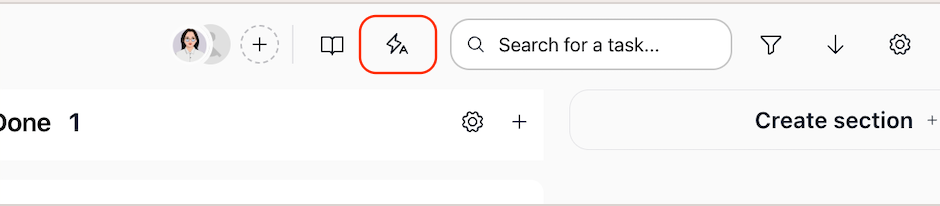
This opens the Project automations modal directly over your current project view without leaving your board.
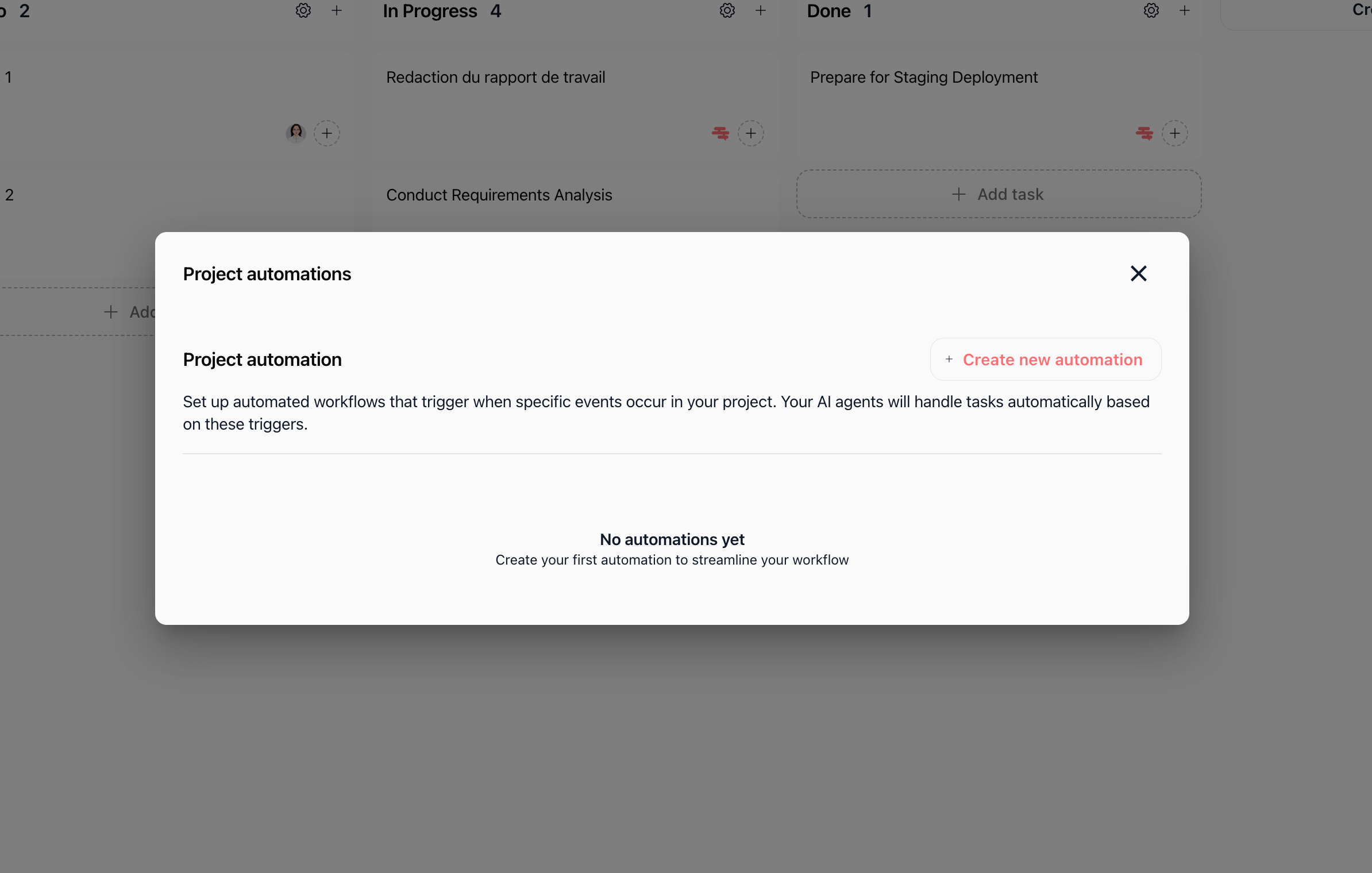
The modal displays your existing automations or an empty state if none are configured yet, along with the + Create new automation button.
Option B: From project settings
Open Project settings and click Automation in the left sidebar menu.
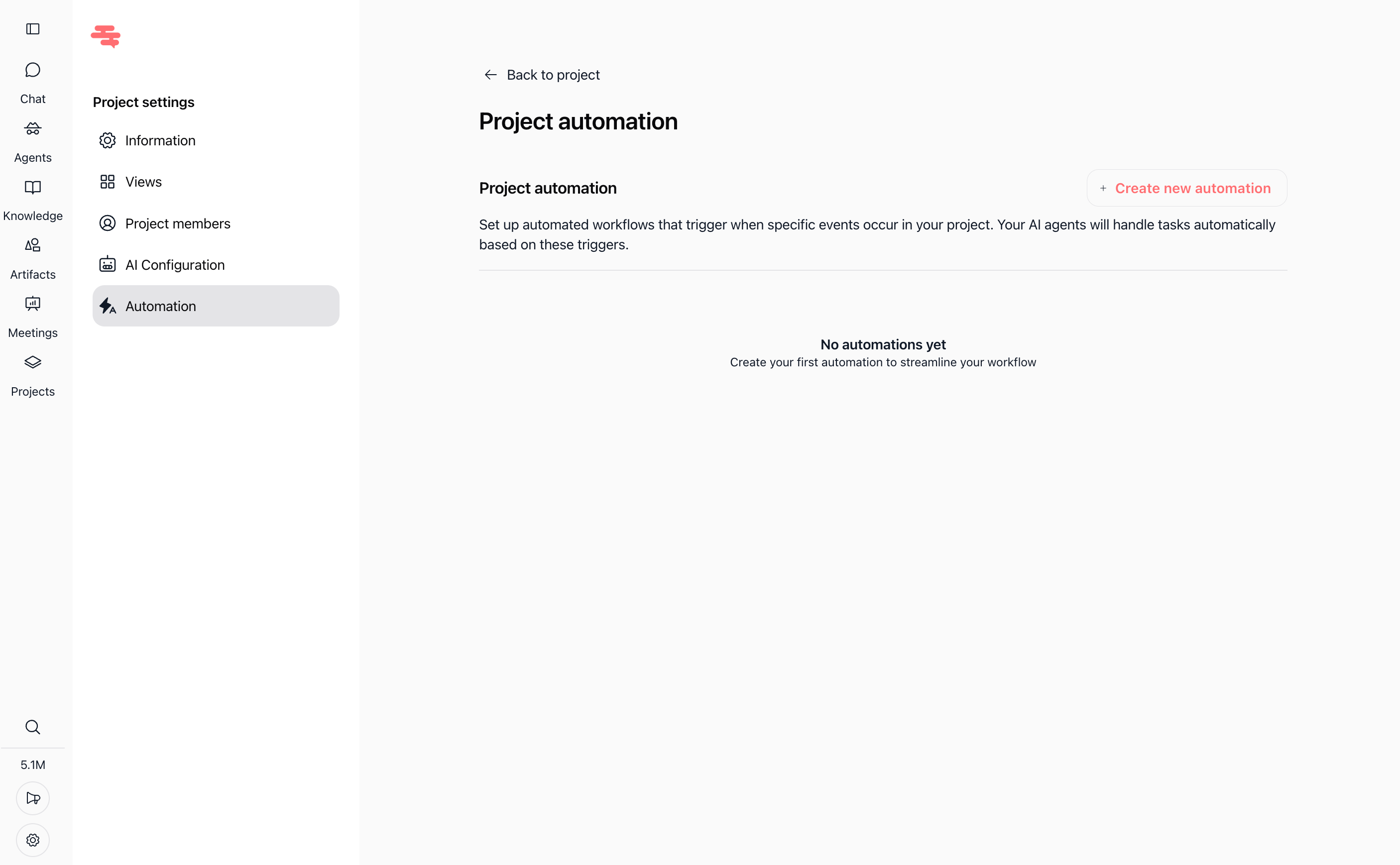
This dedicated settings page provides a full-page view to manage all project automations, review status, and create new triggers.
2. Open the trigger creation form
Click the + Create new automation button from either the modal popup or the project settings page.
If you are using the modal view, the form opens inside the dialog:
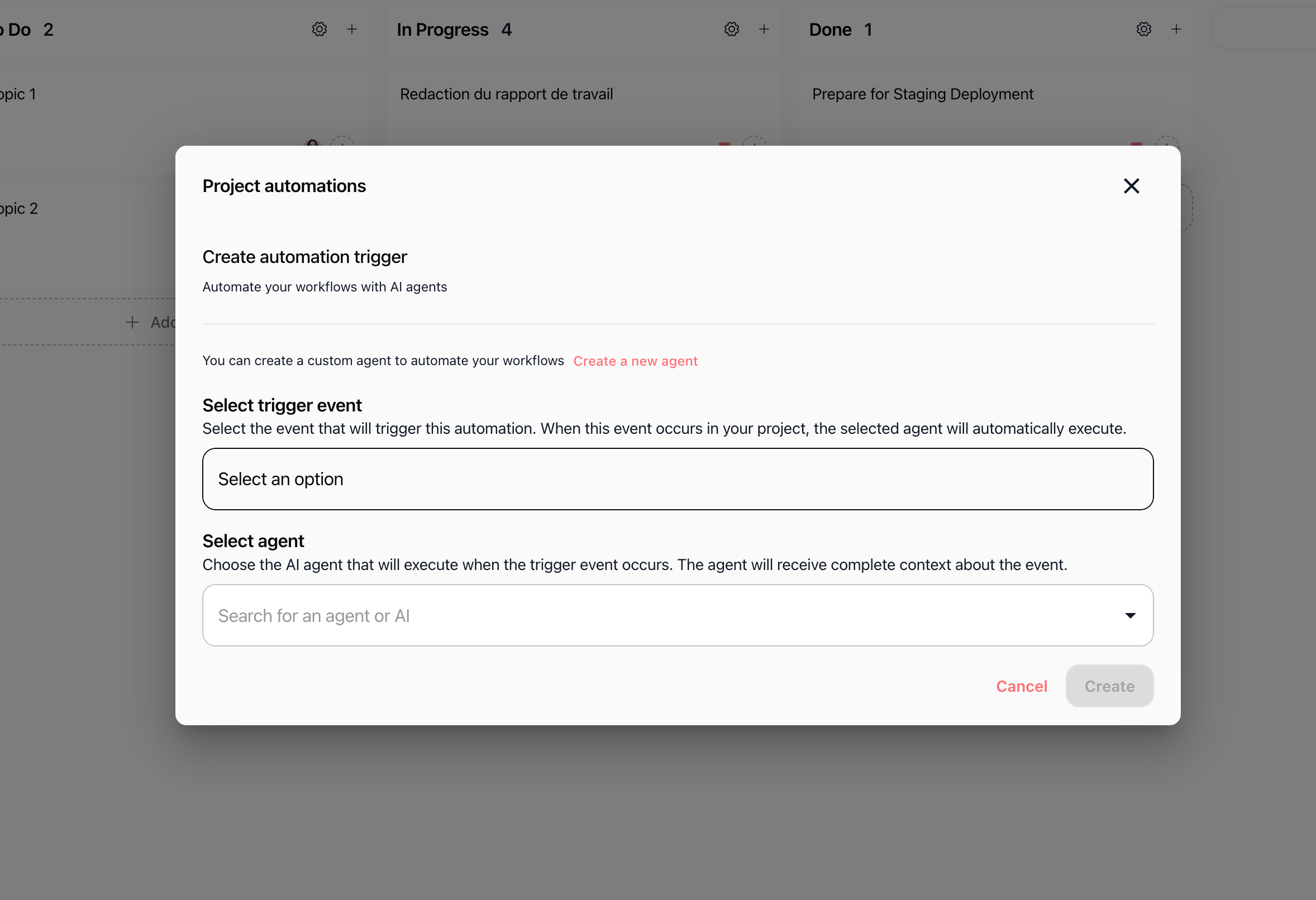
If you are in Project settings → Automation, the form displays directly on the settings page:
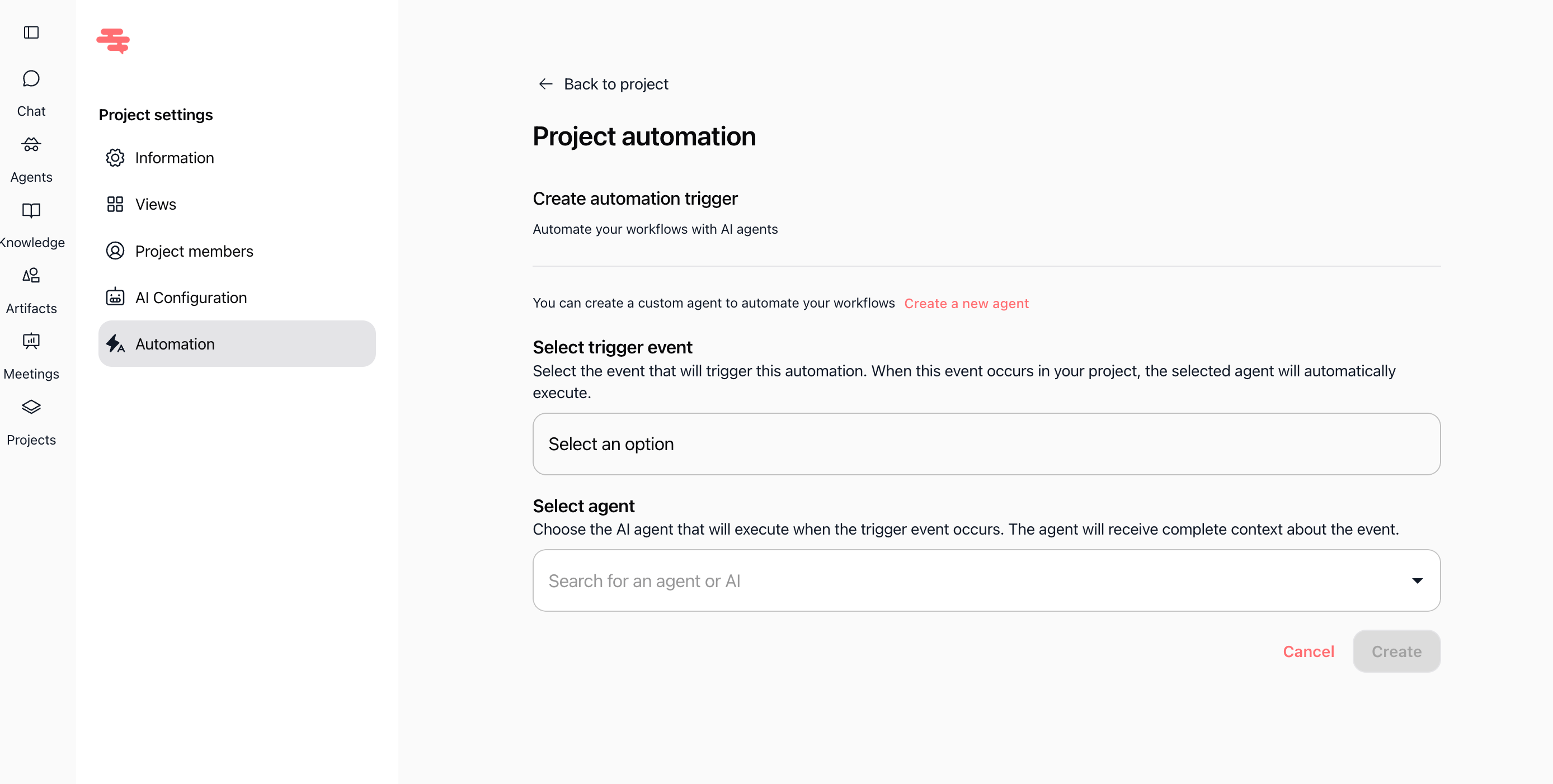
Both views contain identical configuration fields: Select trigger event and Select agent.
3. Select the trigger event
Click the Select trigger event dropdown and choose the project event that initiates the automation:
Task Created: triggers when a new task is added to the project.
Task Updated: triggers when task details like title or description change.
Task Section Changed: triggers when a task moves between columns (for example, from "In Progress" to "Done").
Task Assignee Changed: triggers when an assignee is added, modified, or removed.
Task Label Changed: triggers when task labels are applied or deleted.
4. Select the AI agent
Under Select agent, click the search field and select the AI agent that will execute when the event occurs.
The selected AI agent receives complete event context, including task title, description, assigned members, and status changes.
If you need a new agent for this workflow, click the Create a new agent shortcut link above the selector to configure one.
5. Create and activate the automation
Click Create at the bottom of the form.
Expected result: The automation trigger is created and listed in your project automations list. The AI agent will now execute automatically in the background whenever the trigger event occurs.
Practical use cases
Use case 1: Task completion notifications
Trigger: Task Section Changed (to "Done")AI agent: Team reporter agentAction: When a task moves to the "Done" section, the AI agent posts a completion summary in the task chat and notifies relevant team members.
Use case 2: Auto-triaging incoming tasks
Trigger: Task CreatedAI agent: Task triaging agentAction: As soon as a teammate adds a task, the AI agent reviews the description, suggests appropriate labels, and assigns the task to the right person.
Use case 3: Handoff logging on assignee changes
Trigger: Task Assignee ChangedAI agent: Project coordinator agentAction: When a task is reassigned, the agent logs an audit note and messages the new assignee with background context and priorities.
Use case 4: External sync and CRM logging
Trigger: Task UpdatedAI agent: Integration agentAction: When key fields are updated, the agent syncs the new task details to connected tools such as Slack, email, or a CRM.
Tips & best practices
Start with one trigger: Create a single automation first, test it with a test task, and confirm agent behavior before setting up multi-step triggers.
Provide clear agent instructions: Make sure your AI agent has explicit system prompts explaining what action to take when receiving project event context.
Avoid duplicate triggers: If two automations listen to the same trigger event, both will execute independently. Ensure actions do not duplicate notifications or conflicting updates.
Pause or delete unused automations: Review your automations regularly to keep your project workflows clean and easy to maintain.
Troubleshooting
I cannot see the automation button or project settings
Cause: Your account has Member or Viewer permissions in this project.
Fix: Contact a project Owner or Admin to grant you Admin access to manage automations.
The agent dropdown does not show the agent I need
Cause: The agent is not yet created in your workspace or lacks permissions.
Fix: Click Create a new agent in the form or navigate to the workspace Agents section to create or publish the agent.
The automation does not trigger when an event happens
Cause: The event performed does not match the configured trigger event, or the agent instructions failed.
Fix: Check that the task action matches the configured trigger (e.g., section movement vs. task edit), and verify the agent execution logs in the agent profile.
Error creating automation trigger
Cause: One of the required fields is unselected, or connection timed out.
Fix: Ensure both Select trigger event and Select agent are filled, refresh your browser, and click Create again.
Additional resources
Managing project members & permissions – Configure project roles and access.
Creating a project – Set up boards, lists, and project structures.
Introduction to automating with agents – Learn core automation concepts across Swiftask.
Was this helpful?
Still need help? Ask the team