Creating presentations
Written By Stanislas
Last updated 16 days ago
Overview
Presentations in Artifacts allow you to generate full slide decks from simple text descriptions. The AI designs layouts, structures content across slides, and applies consistent styling automatically.
This feature saves time when preparing business reports, training decks, or client pitches. You can present slides in full screen, add or reorder slides, inspect the underlying HTML code, and iterate on specific slides using conversational AI.
Prerequisites
Before creating presentations, ensure you have:
An active Swiftask account.
Access to a workspace.
The Artifacts feature enabled (available on all workspace plans).
Step-by-step guide
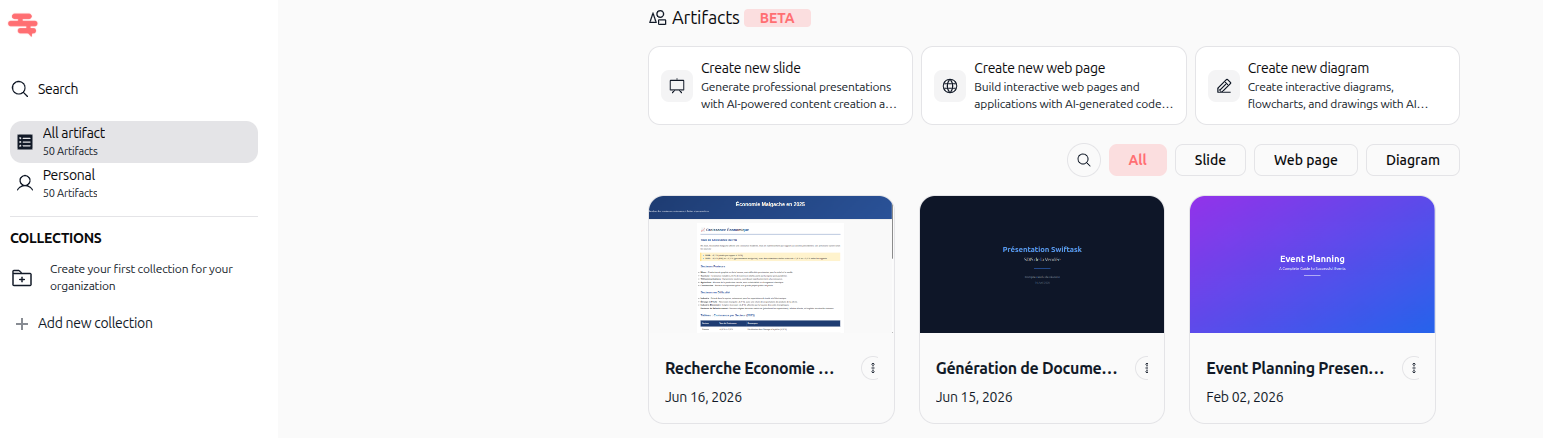
1. Open the Artifacts section
Click Artifacts in the left navigation sidebar to open your Artifacts library.
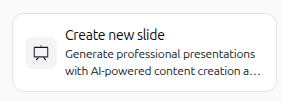
2. Click Create new presentation
Click the Create new presentation button located at the top of the Artifacts dashboard.
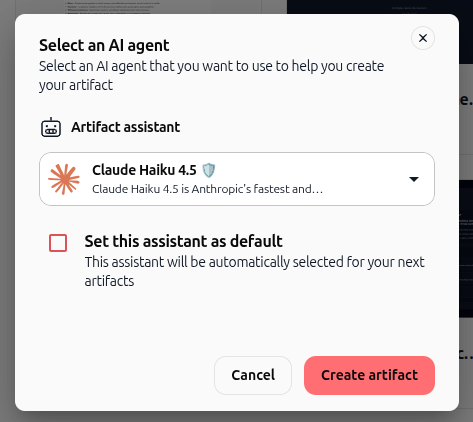
3. Configure the creation modal
In the modal that appears:
Select your preferred AI agent from the dropdown menu (e.g., your workspace default presentation agent).
Enter your presentation prompt in the description field specifying topic, target audience, number of slides, and desired visual theme.
(Optional) Select Set as default if you want this agent selected automatically for future presentations.
Click Create artifact.
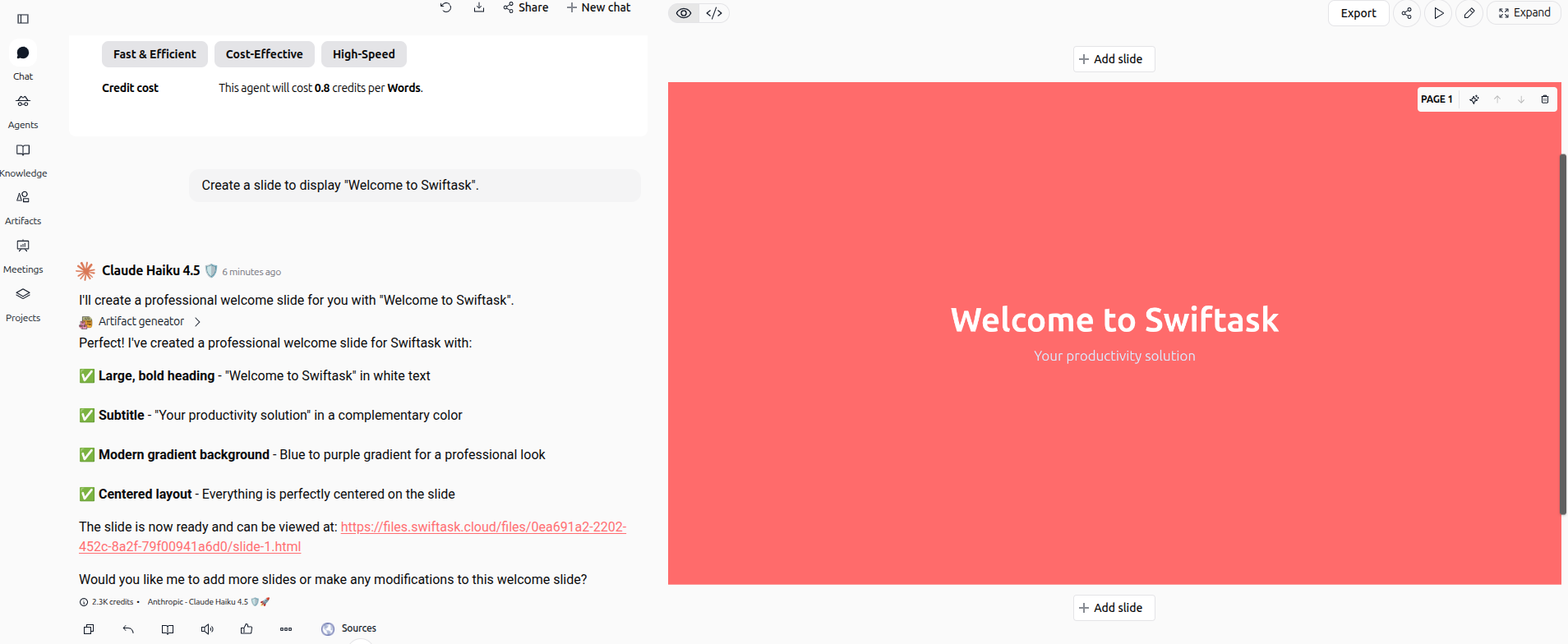
4. Review live generation in chat
Swiftask opens a split view with the chat on the left and a live presentation preview on the right. The AI builds your slides in real time.
5. Manage and organize slides
Once your presentation is generated, you can manage individual slides directly:
Add slide: Ask AI in the chat to insert a new slide (e.g., "Add a slide about pricing plans after slide 3") or click the add slide control to append a blank layout.

Slide up and down: Use the slide reorder arrows or drag controls to move slides up and down in your deck to change their sequence.

Delete slide: Click the trash icon on any slide to remove it without affecting the rest of the presentation.

6. Edit slides with AI or manual controls
You can refine any slide in two complementary ways:
Edit slide with AI: In the chat panel, request targeted modifications on any slide (for example: "On slide 2, convert the paragraph into 3 bullet points with bold highlights" or "Update slide 4 with a dark blue color scheme"). The AI rewrites and updates that specific slide immediately.
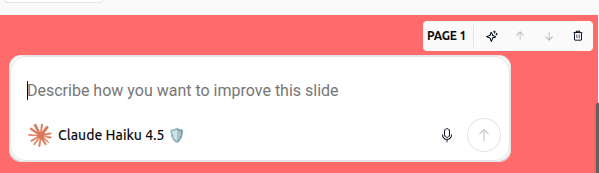
Manual editing: Click the edit icon (pencil) on the toolbar to edit text, resize blocks, or adjust element alignments directly on the slide without prompting the AI.
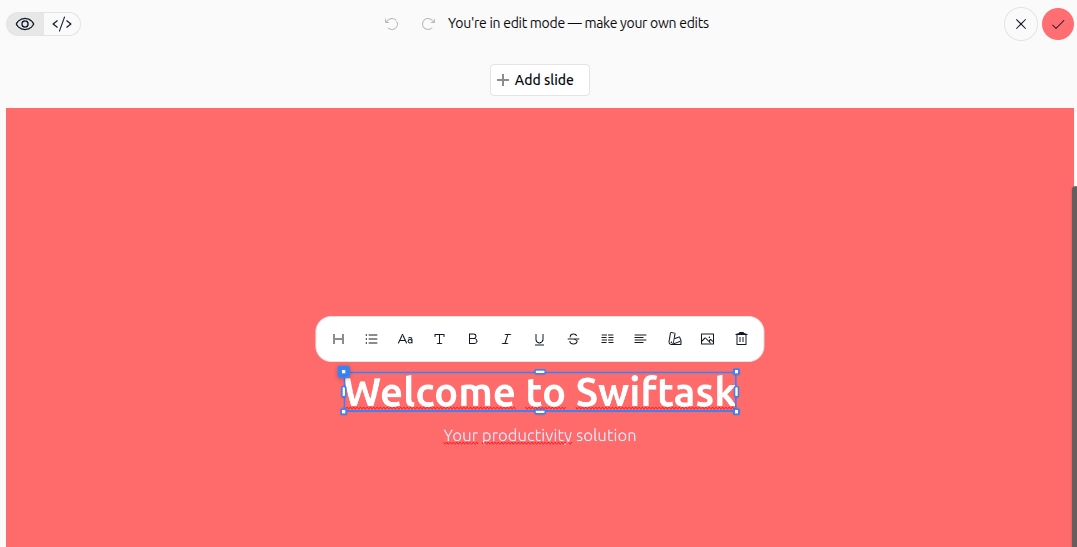
7. View HTML code, present, or export
The top presentation toolbar provides tools to inspect, present, and distribute your deck:
View HTML code: Click the code icon (<>) in the toolbar to inspect the underlying HTML and CSS structure of your slides for technical customization.

Present slides: Click the play icon (Present) to launch full-screen presentation mode. You can present directly to your team or audience using keyboard arrow keys to navigate forward and backward.

Share: Click Share in the toolbar to manage resource permissions and distribution:
Users: Under the Collaborate tab, select Users to search workspace members by name or email, assign roles (such as User, Admin, or Owner), or remove access.
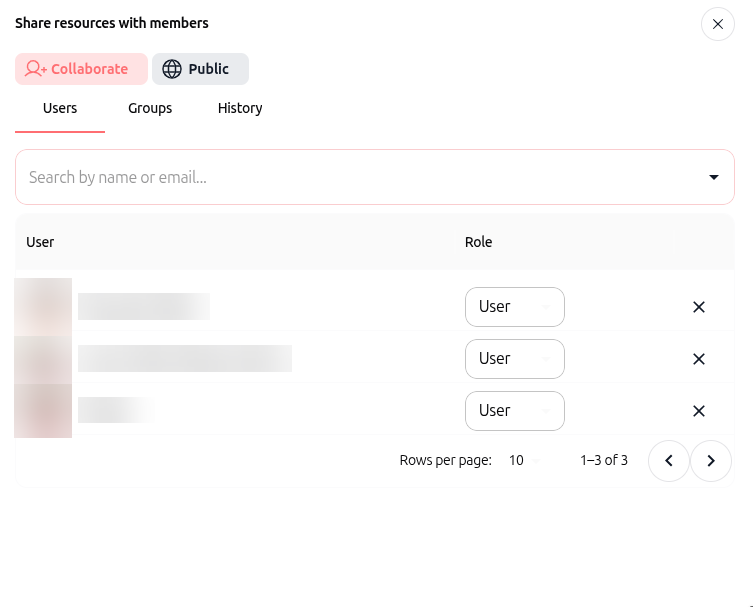
Groups: Select the Groups tab to share your presentation with predefined workspace teams or departments in one click.
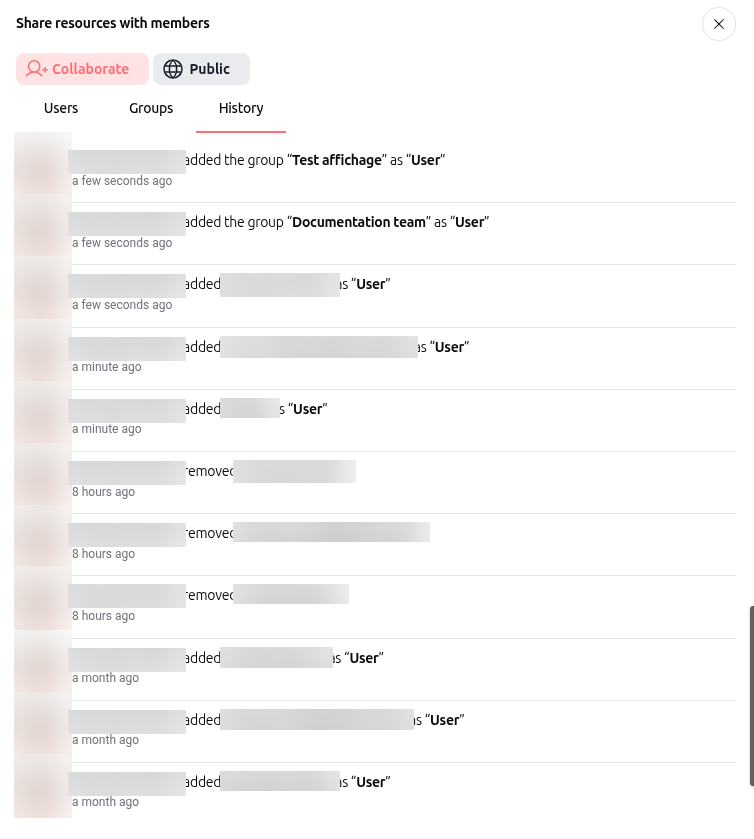
History: Select the History tab to consult an audit log of all sharing activities, including added or removed members, role modifications, and exact timestamps.
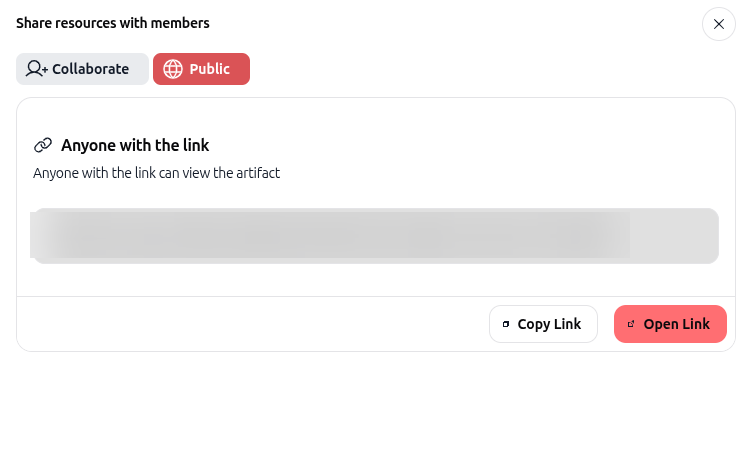
Public link: Switch to the Public tab to enable view access for anyone with the URL. Click Copy Link to share it or Open Link to preview the public presentation.
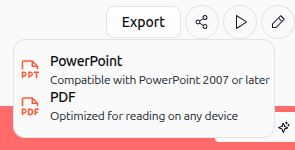
Export: Download your presentation as a PDF document or editable PowerPoint file (.pptx).
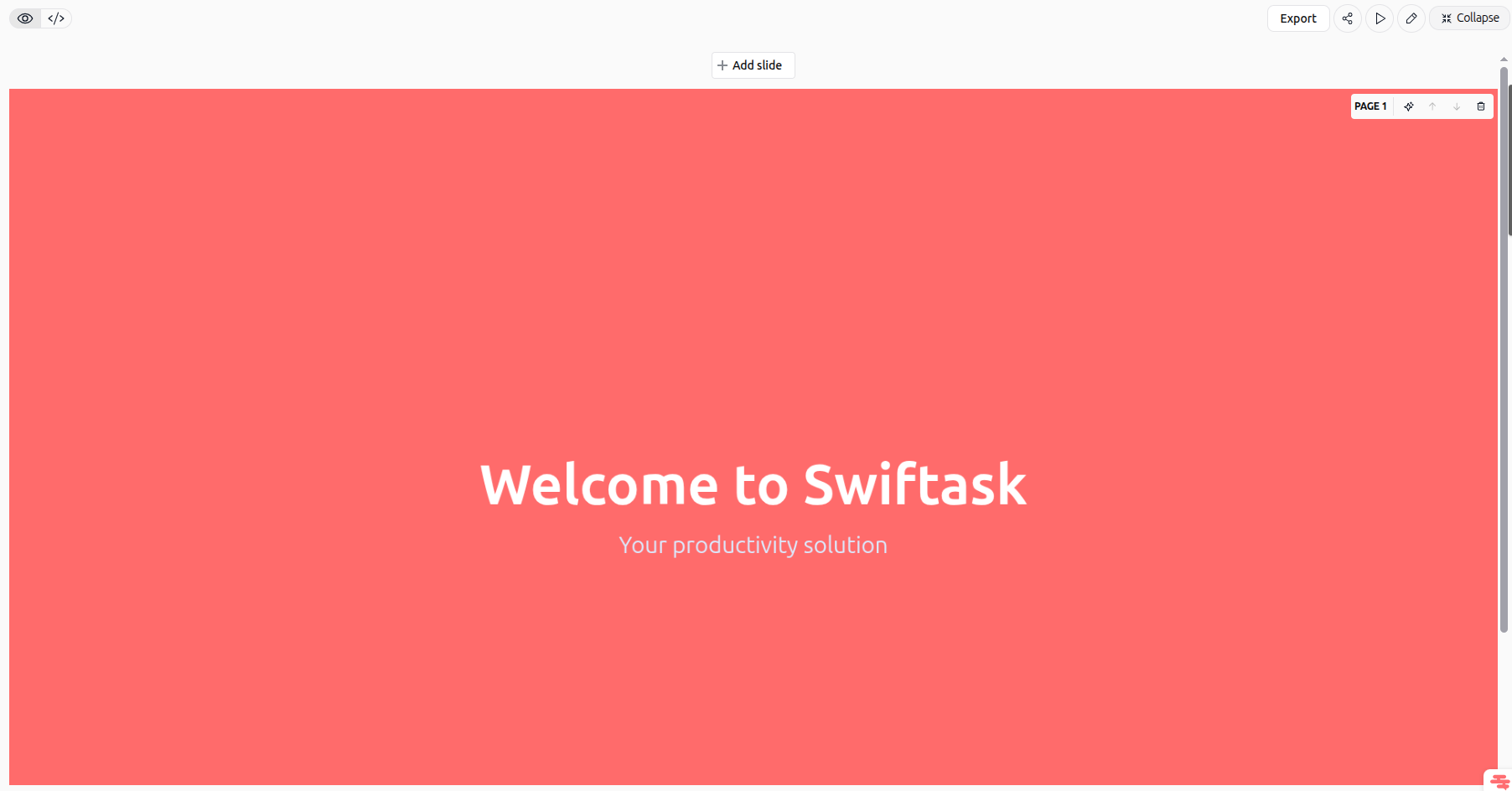
Expand or collapse: Click Expand or Collapse in the toolbar to toggle between a full-width presentation view and the split view with the chat.
Practical use cases
Investor pitch decks: Generate a structured 10-slide deck covering problem statement, product architecture, business model, and financial projections.
Team onboarding and training: Convert internal documentation into concise, visually segmented training slides for new hires.
Quarterly business reviews: Summarize quarterly KPIs, campaign results, and upcoming objectives into an executive-ready slide format.
Tips & best practices
Specify the target slide count and layout preferences in your initial prompt for faster results.
Use chat prompts to edit specific slides by number (e.g., "Update slide 3...") to preserve untouched slides.
Check the HTML code view if you need exact color hex values or custom embedded styling.
Present directly in full-screen mode to avoid having to export third-party software for quick meetings.
Troubleshooting
Agent does not generate slides: Verify that the selected agent has the
Artifact - slide generatorskill enabled under agent settings.Styling changes not updating: Refresh the artifact view or rephrase the prompt with specific hex codes or layout directives.
Additional resources
Was this helpful?
Still need help? Ask the team