Change AI agent / LLM & Attach skill
Written By Stanislas
Last updated 16 days ago
Overview
Swiftask lets you tailor each chat to the task by selecting the right agent or model, adjusting its effort level, and attaching relevant skills.
Agents and models determine the type of AI support used in your conversation.
Effort levels control how deeply supported agents reason before responding.
Skills add focused capabilities or instructions for a particular workflow, project, or data source.
These settings apply to future messages in the current conversation, helping you balance speed, quality, and relevance.
1. Change the agent or model
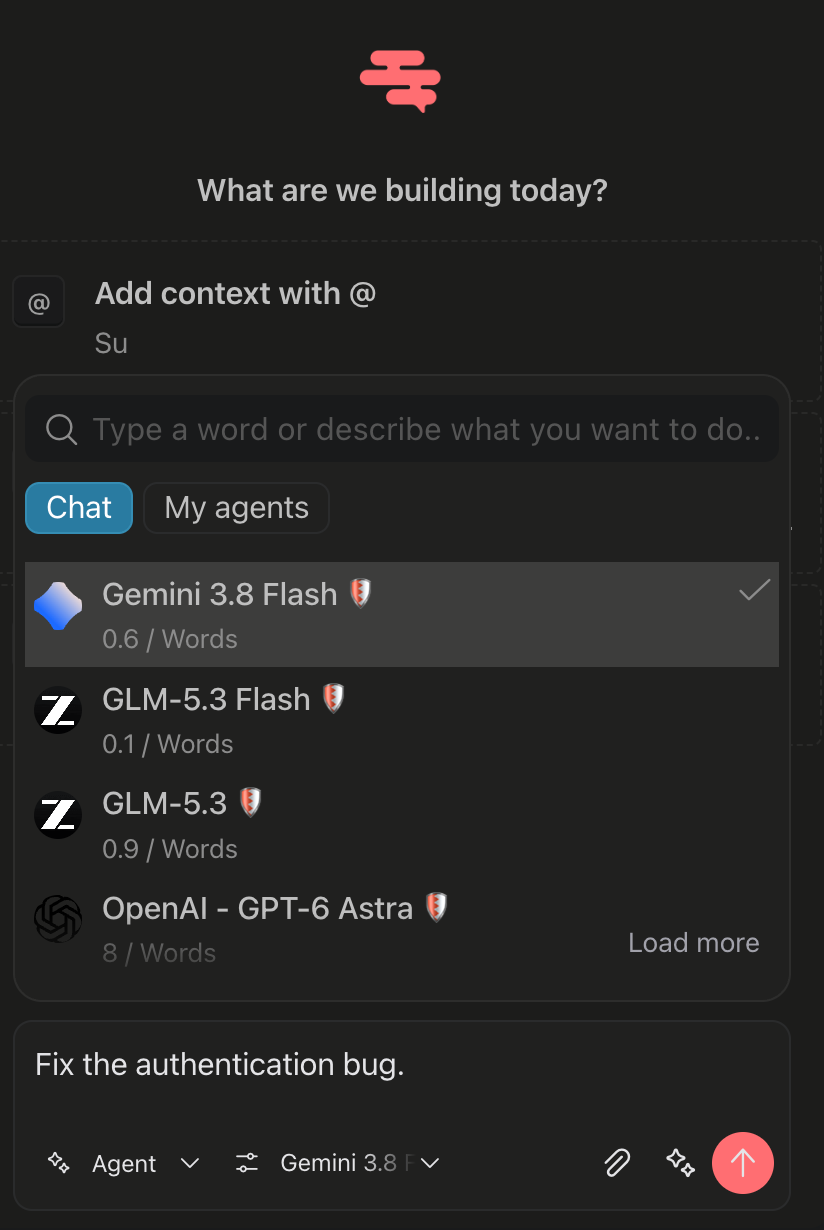
Select the current agent or model name in the chat composer to open the picker.
The available options depend on your workspace:
Chat models available in your workspace
My agents configured for specific workflows
Model usage information, where available
Choose an option based on the task:
Use a fast model for short questions or straightforward changes.
Use a more capable model for complex reasoning or larger tasks.
Use a specialized agent when your team has configured one for a specific workflow.
Note: The selected agent or model is used for future messages in the current chat.
2. Set the effort level
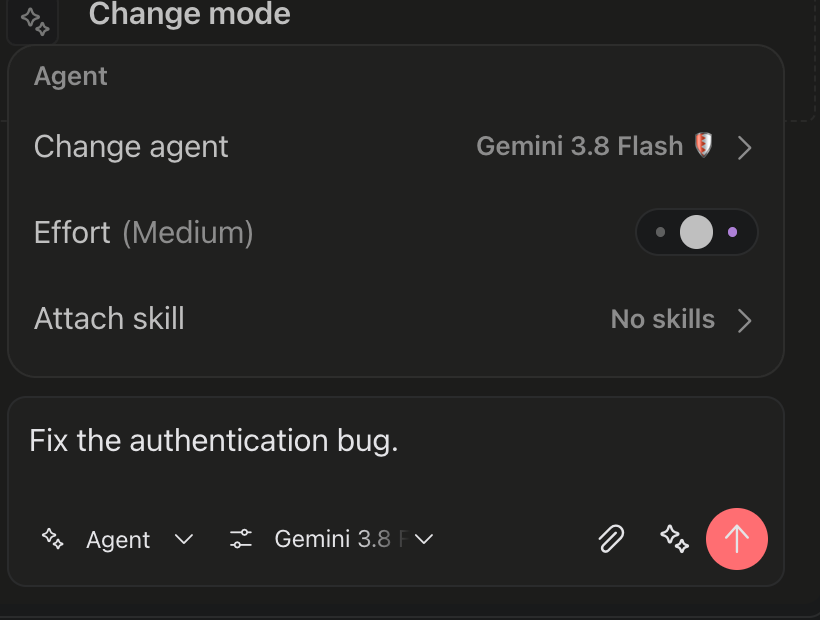
Some agents support an Effort setting. Open the agent controls and choose the level that fits your task.
A higher effort level gives the agent more time to reason through the request. It can improve results for complex tasks, but may take longer and use more credits.
3. Attach skills
Skills provide additional instructions or capabilities for a specific task.
To attach a skill:
Open the agent controls in the chat composer.
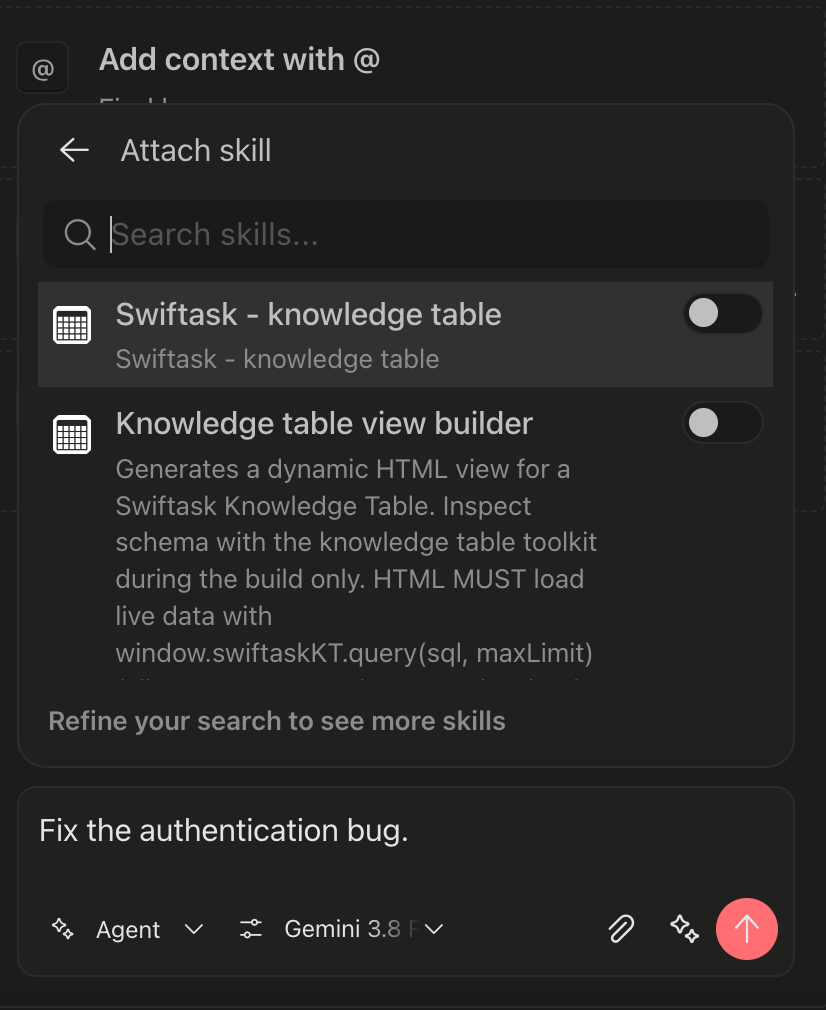
Select Attach skill.
Search for the skill you need.
Enable the toggle next to one or more skills.
Send your request.
Attached skills apply to the current conversation.
Skills can be used to:
Query or build on a Swiftask Knowledge Table.
Apply a team-specific workflow.
Use specialized instructions for a domain or project.
Tip: Attach only the skills relevant to the current task. This helps keep the agent focused.
Tips & Best Practices
Choose the right agent or model
Use a fast model for quick questions, summaries, simple edits, and straightforward requests.
Choose a more capable model for multi-step reasoning, detailed analysis, complex writing, or larger tasks.
Select a specialized agent when your team has configured one for a known workflow or domain.
Switch models or agents when the scope of the work changes—for example, from quick brainstorming to an in-depth investigation.
Match effort to task complexity
Use Low effort for quick checks, short questions, and minor revisions.
Use Medium effort as the default for most daily work.
Use High effort when accuracy, careful reasoning, or a thorough investigation matters more than response speed.
Avoid high effort for simple requests to keep interactions faster and use credits efficiently.
Attach skills selectively
Attach only the skills that are directly relevant to the current task.
Use skills when you need access to a Knowledge Table, a team workflow, or project-specific instructions.
Review active skills when changing topics; remove or avoid unrelated skills to keep responses focused.
Combine skills only when their purposes clearly complement each other.
Work effectively within a conversation
Confirm the selected agent, model, effort level, and skills before sending complex requests.
Start a new chat when beginning an unrelated task, so previous context and attached skills do not affect the new work.
State your expected outcome clearly—for example: “Create a concise executive summary,” “Investigate the root cause,” or “Use the attached Knowledge Table.”
For high-stakes work, provide relevant context, constraints, examples, and the desired output format.
Was this helpful?
Still need help? Ask the team